
An SMS message is a mobile message sent to the phone numbers of selected audience contacts. SMS messages can include basic personalization from contact profile fields, personalization fields, and emoticons. Create an SMS message when you want to define reusable SMS content that can be used in a journey, including transactional or event-driven journeys when the required event data is configured.
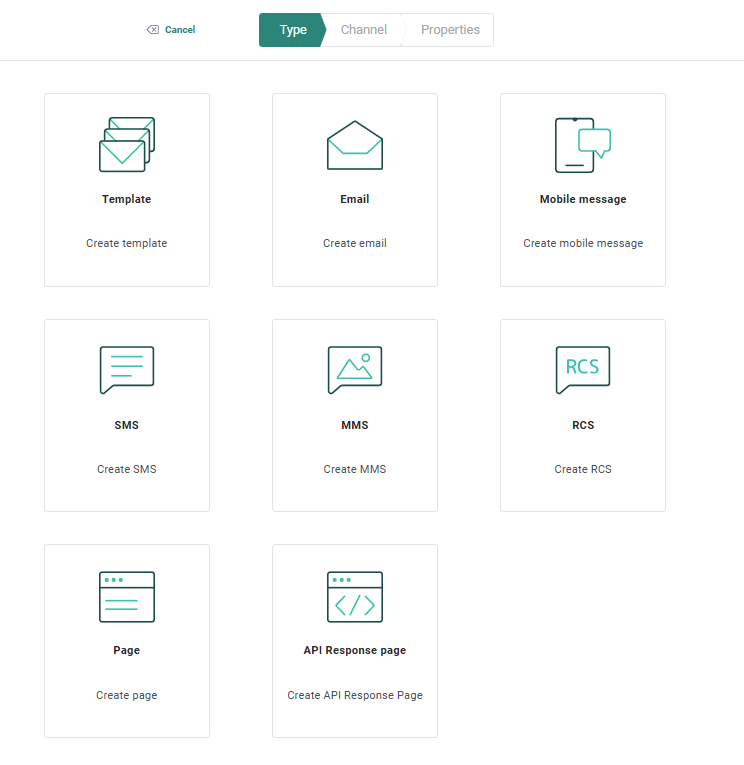
1. To create SMS text content, go to Content , select New in the toolbar and then select SMS from the wizard .
The properties dialog opens:
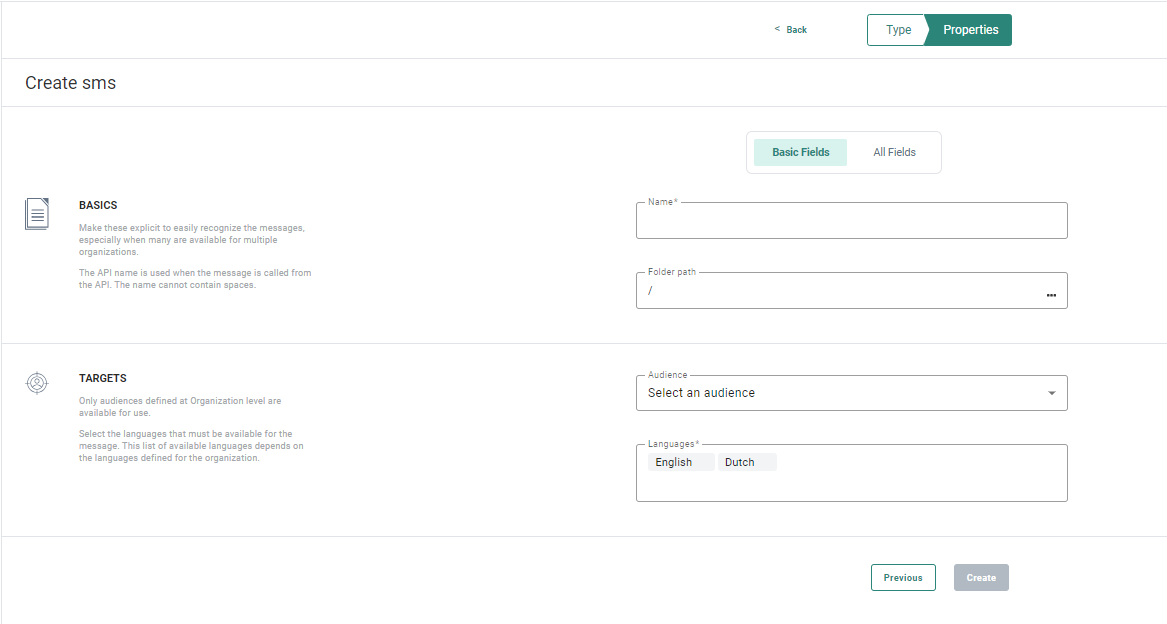
2. The properties are grouped by information type. By default, only the Basic fields tab is displayed. Select the All fields tab to display all other fields. On-screen help is available on the left side of the properties dialog to help you enter accurate and complete information.
Basic fields tab
Basics
- Folder Path — This is the folder where the asset is created. By default, the asset is created in the folder that is selected on the Start page when you create the asset. To use a different folder, select the folder field and select another folder in the dialog.
- Name — Enter a name you can easily recognize when using the SMS in a journey.
Targets
- Audience — Select an Audience list from the drop-down menu. You can use fields from the audience data source to personalize the SMS message.
- Languages — Select one or more language versions for the SMS message. The available languages are defined in the properties of the Business unit where the SMS message is created. The Language field is pre-filled with the default languages defined at Business unit level.
All fields tab
Basics
- API name — The name used when the content is used in an API call.
- Asset label — The label(s) assigned to this asset. Select one or more labels from the drop-down. These labels are configured in the Admin configuration. Users with the proper Access permissions can also create new labels here by typing the new label value in the field.
- Description — Enter a clear description of what this content is used for
Data selection
- Event data: here you can choose between
- No event data — The message behaves as a normal message.
- Transactional data — Select this option to make the message available for Transactional Journeys. When you select this option, the message is marked as a transactional, transactional data can be defined and used, and the message will only be available for use in a Transactional Journey.
- Custom event — Select this option when Custom Events are defined for the selected audience. You can use data from the Custom Event to personalize the message for use in a Custom Journey triggered by Custom Events. Messages that use Custom Events data can be used only in event-driven journeys.
Note: ustom Events data used to personalize the message is not visible in the preview of the message.
SMS channel endpoint
- SMS Channel Endpoint — Select the SMS endpoint to use for this SMS message. If multiple SMS endpoints are defined for an Business unit, select an endpoint from the drop-down menu. The selected endpoint defines which operator is used to send out the SMS message.
Example: If a company operates in multiple countries with different operators, the company may need different SMS providers and endpoints to send SMS messages. Multiple endpoints make it possible to send SMS messages using different providers.
3. Select Create SMS . The SMS content design canvas opens, where you can define the message content.