
Publishing an MMS message makes the message available for use in journeys. Publishing also resets the cache so recipients can access the latest version. MMS messages can be used in Single Batch, Transactional, or Custom Journeys.
Note: Only MMS messages with all language versions configured can be used in a Custom Journey. A language must also be configured for contacts without a language or with a different language specified.
View publication history
After publication, a History overview is available. Select the History button in the toolbar to open the history overview.
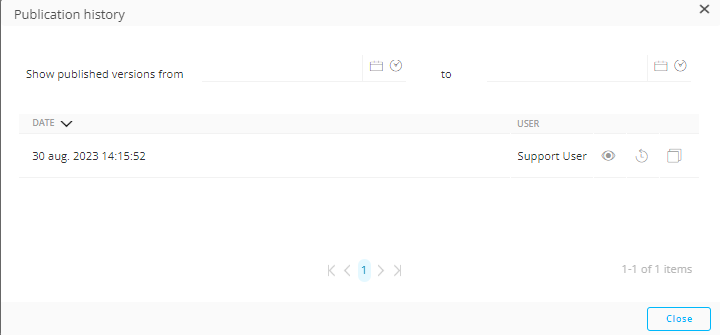
The history overview lists each publish date and the person who published the MMS message. To preview a version, select the eye icon for that version.
Restore an older version
If several versions of the MMS message are listed, you can select an older version and restore it by selecting the Restore icon for that version.

Select Save to make the restored version the version used in Journeys.
Copy a version from history
You can also copy a version from the History overview. When you copy a version, a new MMS message opens automatically. The name of the new MMS message combines the original name with the person who published the version and the publication date and time.
Example:
If you restore the Welcome message, the restored message has the following name
Welcome - Published by Admin on Jul. 18,2018 5:11:38
Filter publication history
Use the Filter buttons to display only publications from a selected time frame.