
Loyalty - Setup in Selligent
With the Loyalty program you can reward your loyal customers and encourage them to make future purchases and further interact with your brand, leading to better sales, brand awareness and trust.
Note: When you're interested in getting started with Loyalty, please get in touch with your Zeta contact.
The first steps that need to be taken, is setting up lists, assets and journeys in Selligent.
See below for more details.
Prerequisites
- A Loyalty environment is required. Get in touch with your Zeta contact for more info.
- A permission needs to be enabled in the Admin Configuration section of Selligent to access the Loyalty module. (executed by SelligentAdmin)
- Your Selligent user needs to have the proper rights to set up lists, content and journeys. (executed by : SelligentAdmin)
Configuration of an Audience List with a relation to an Extended Profile
1. In the Lists chapter of Selligent, make sure that an Audience List exists.
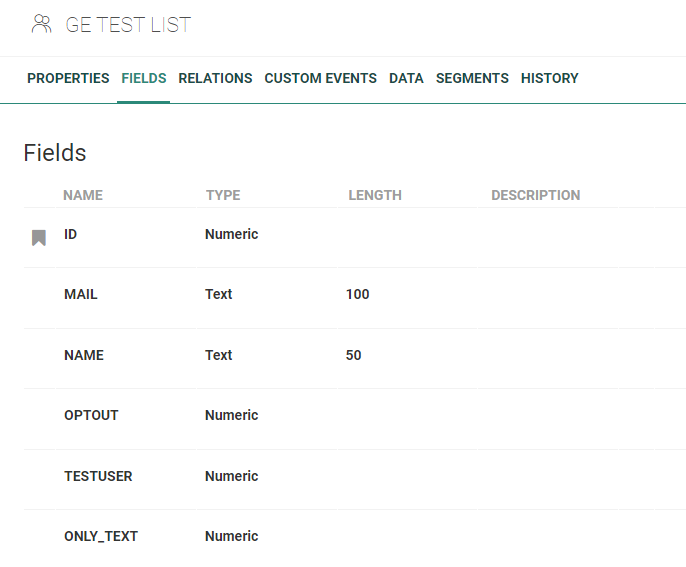
2. Another list (preferably a Data List) needs to be available in Selligent that will be used as an extended profile, with fields such as userid (required), loyaltypoints, tier, and other fields tailored to your needs.
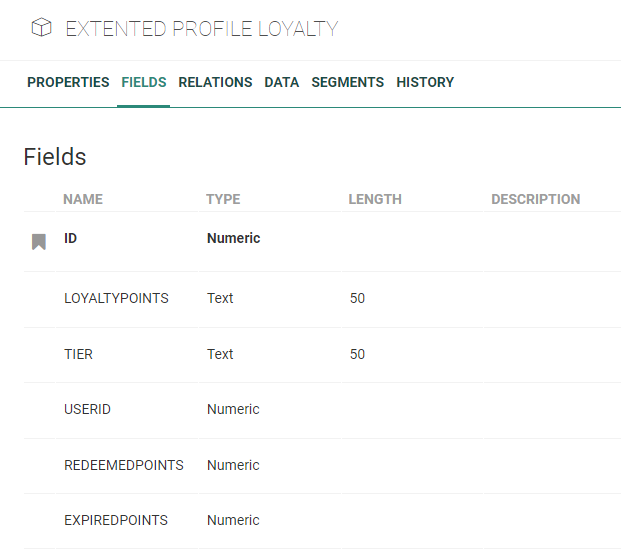
3. Add a 1:1 extended profile relation between both lists, and name the scope ENGAGE_LOYALTY.
Warning: The ENGAGE_LOYALTY scope is mandatory for the integration to work as expected.
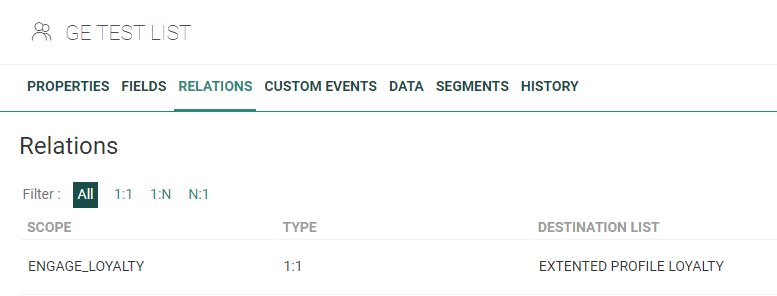
Note: The Audience List and Loyalty Profile Extension are used in the Personalization Details setup of triggered actions in Loyalty.
Creation of a Transactional Message
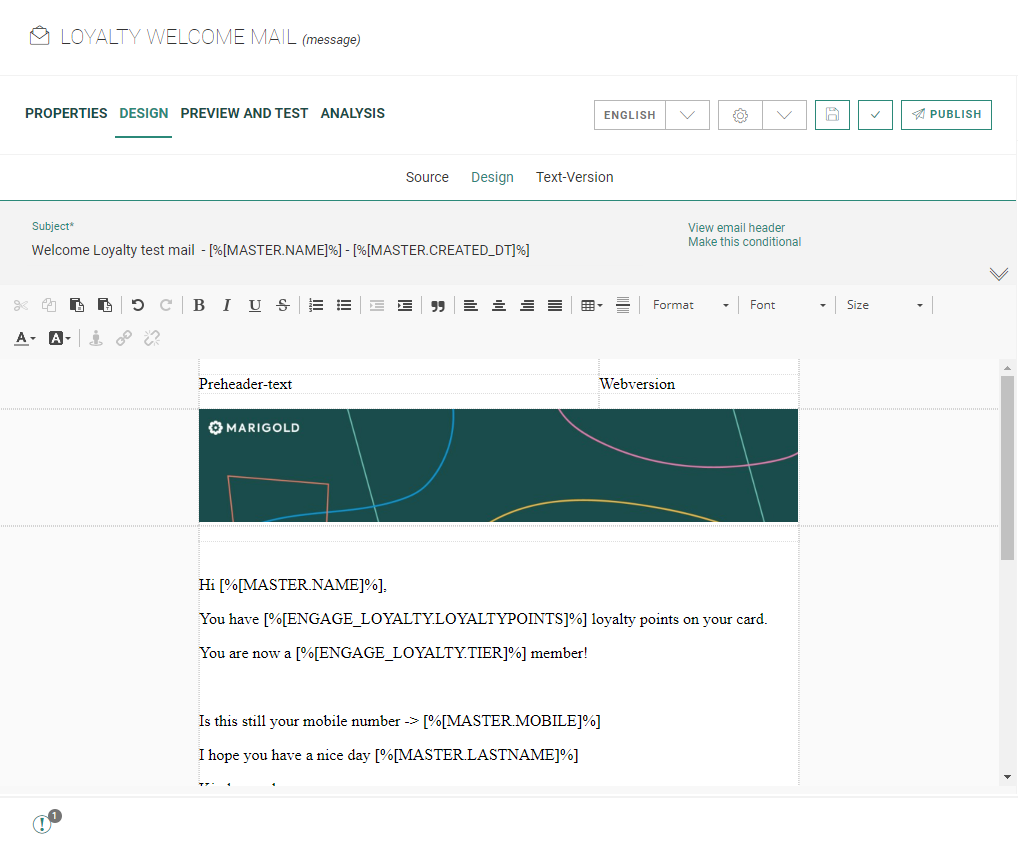
In the Content chapter of Selligent, set up a transactional email message.
In this email, you can use transactional data and field values that are stored in the main Audience List (MASTER.xxx) and the extended Loyalty profile (ENGAGE_LOYALTY.xxx).
Important:
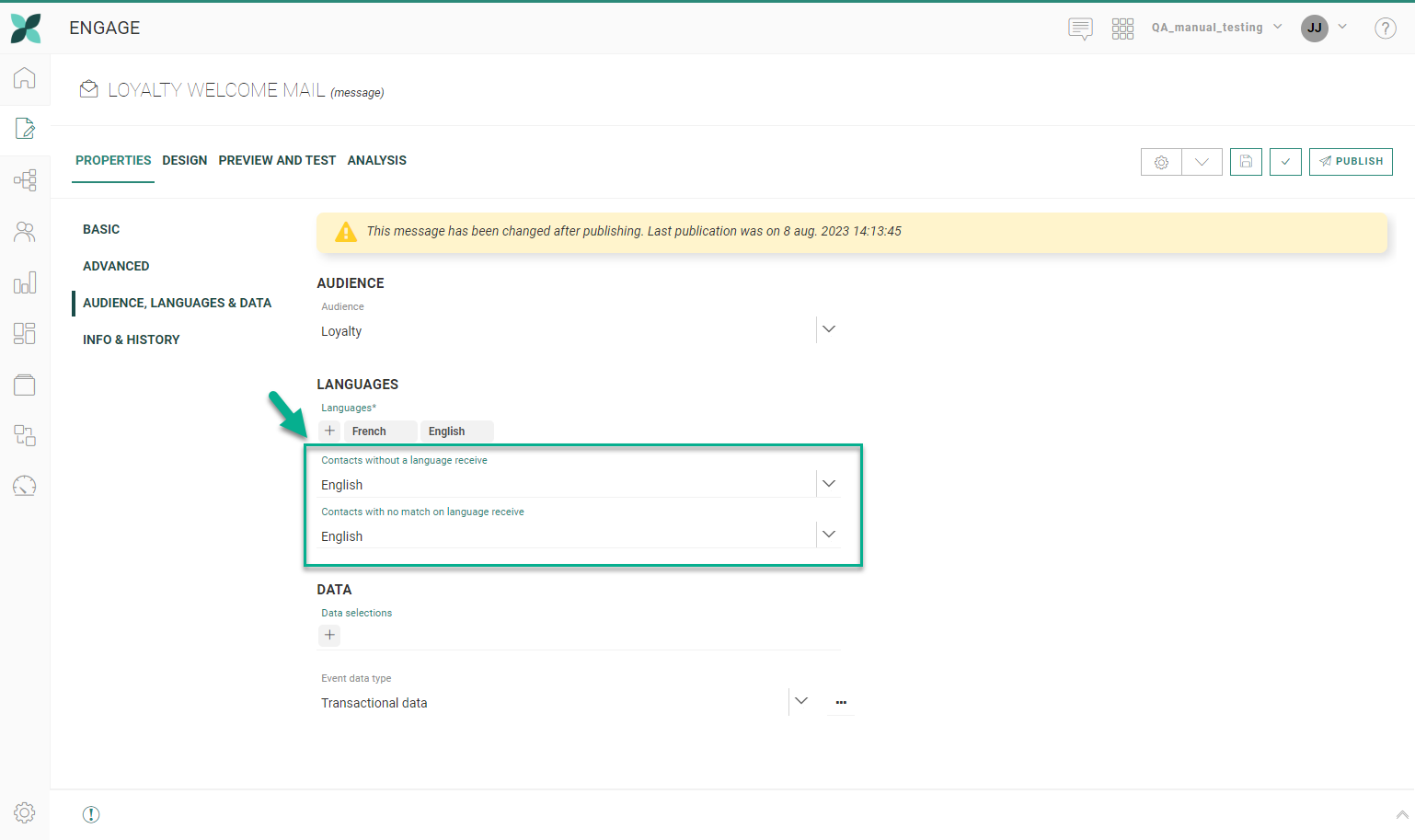
In the Properties of the message, set a fallback language for :
- contacts without a language (empty value)
- contacts with no match on language (a different language from the ones available)
These settings are required. When not set, it won't be possible to publish the message and create a Transactional Journey.
As all existing languages in the Business unit will be available for selection in Loyalty when setting up the integration with Selligent, fallback languages will allow the transactional message to be triggered when a different language is selected in the Loyalty setup than the ones available in the message.
Note: Don't forget to save and publish your transactional email.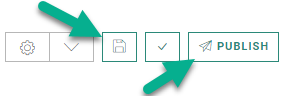
Creation of a Transactional Journey
When your transactional email is ready, you can create a Transactional Journey from it.
Note: The Transactional Journey is used in the Parameter settings of the triggered action in Loyalty.
Setting up an API Service Account
Once everything is set up and ready to be used (see the Usage in Selligent topic), Loyalty needs to be able to trigger the right Selligent API calls. (see the API Explorer for more details)
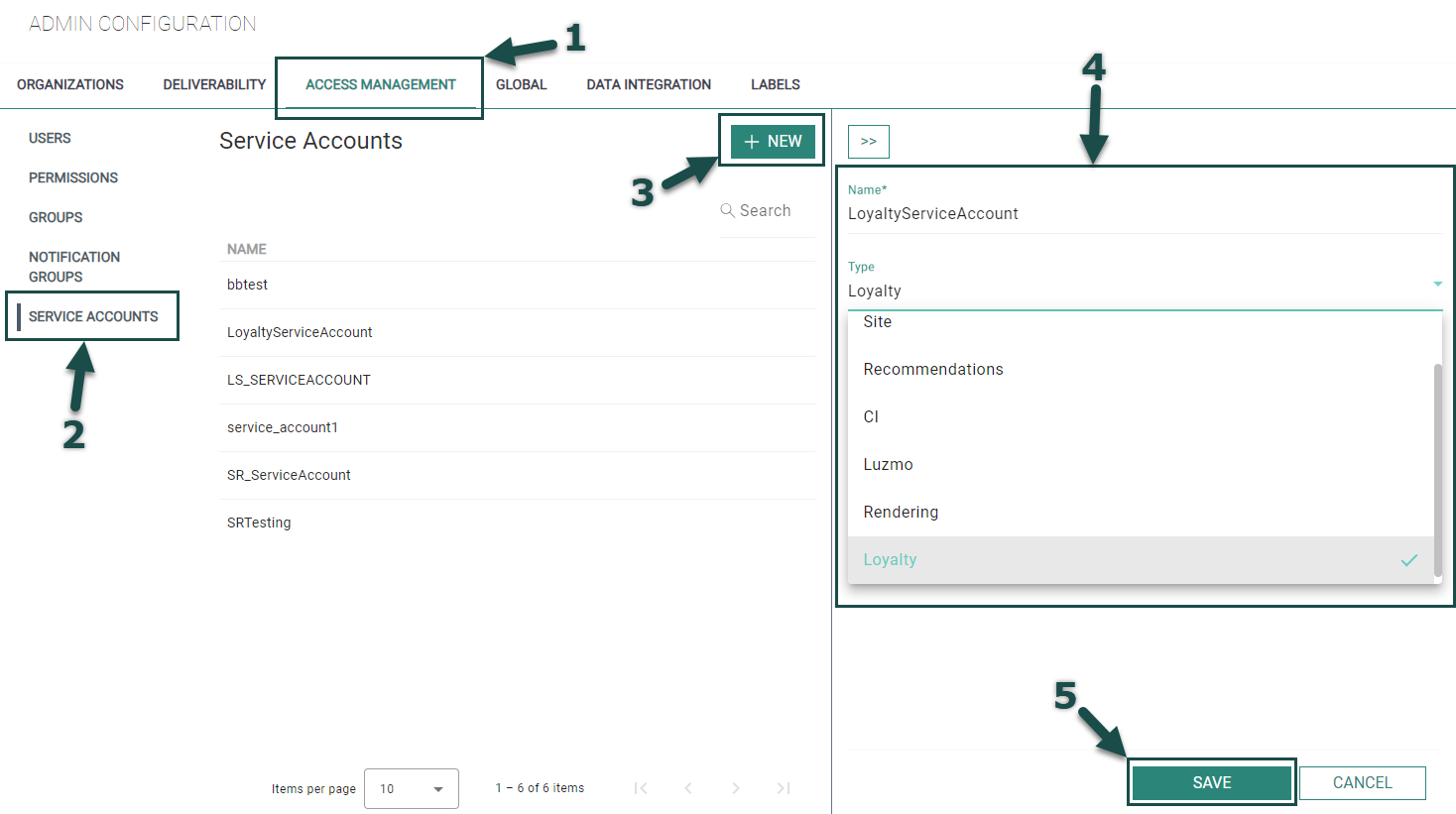
Therefore, it's necessary to create an API Service Account of type Loyalty in the Admin Configuration section of Selligent.
To create the Loyalty API Service Account, execute the following steps:
- In Admin Config > Access Management > Service Accounts, click New.
- Enter a name and select the type Loyalty for your API Service Account.
- Click Save.
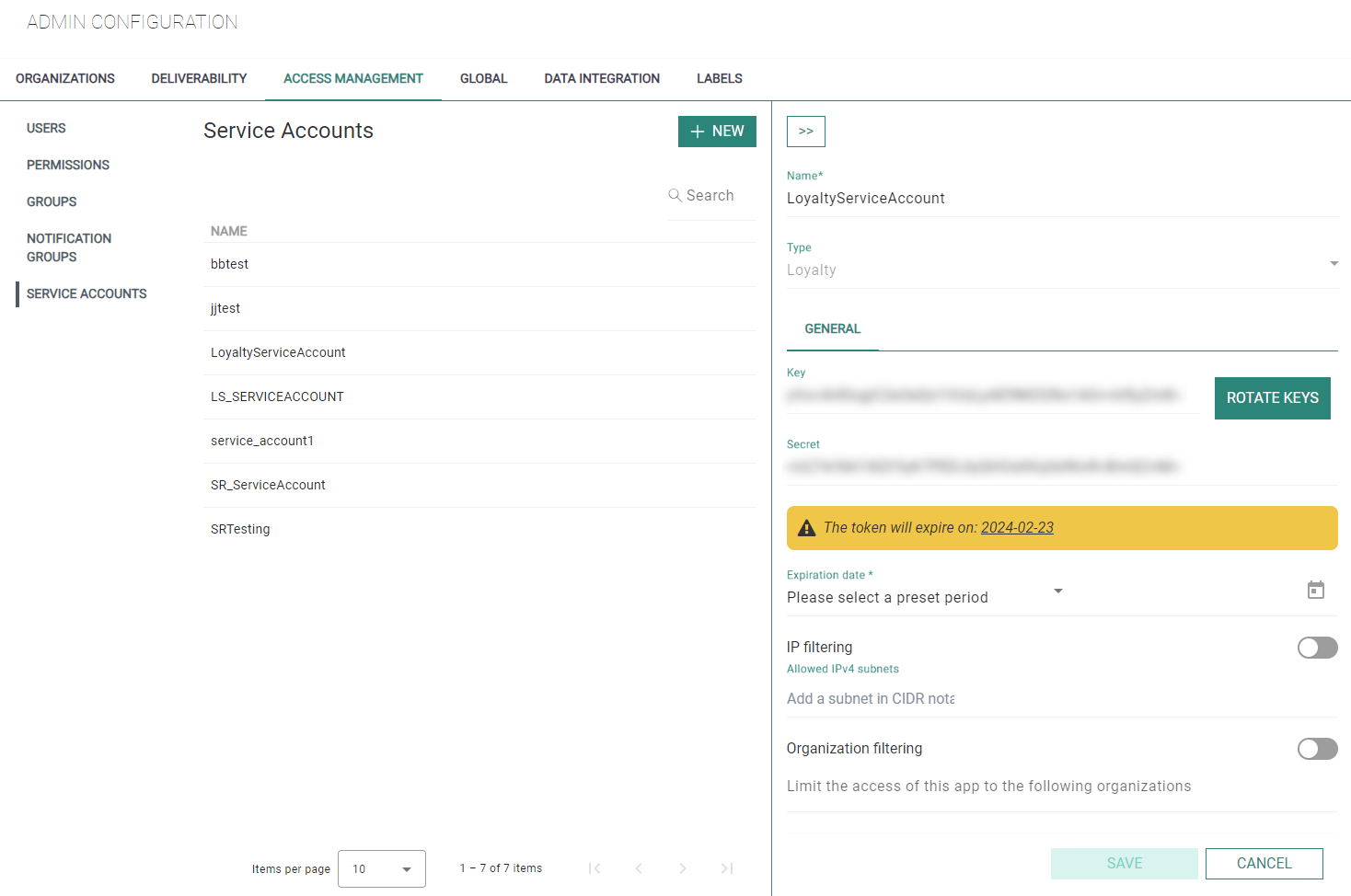
After successfully saving this setup, additional fields become visible:
-
API key and API secret values are automatically provided. (it's possible to renew these values by clicking the Rotate keys button)
Note: The API key and API secret are hidden by default for security. You can show them by clicking on the Reveal Secrets button.
-
Expiration date — Select 3 months, 6 months, 9 months or 12 months as the expiration period for the API key and API secret in the drop-down, or set a custom value.
Note: As a warning, the token expiration date is mentioned.

When no expiration date has been specified, or when the token has expired, this notification appears :
-
IP filtering — You can enable/disable this setting.
When enabled, enter the allowed IP-addresses in the field underneath. This ensures that only calls from the given IP-adresses will be taken into account. If a call is made to the API from a different IP-adress, it won't work. -
Business unit filtering — You can enable/disable this setting.
When enabled, select the allowed Selligent Business units in the field underneath. This ensures that only calls from the given Business units will be taken into account. Other Business units are not allowed.
Click Save to finish the configuration.
Note: The Loyalty API Service Account contains the applicable endpoint connections needed for the Loyalty with Selligent integration (including the following Journeys/Transactional API calls : Get, UpdateProfileAndSend and Status + the general API status get call).
Once the setup in Selligent is done, you can go to the Loyalty module and setup the integration with Selligent.
 Related Topics