
Content Blocks are reusable components that let you maintain consistent content across multiple messages within the same environment. By updating a Content Block once, you automatically update it everywhere it is used. Typical examples are
- The footer of a message with information and contact details that should be displayed in the same way in every message
- Disclaimers and legal text blocks
- Logos
- Branded dividers
These are Content Blocks you want to add to multiple messages sent for the same Business unit.
Content Blocks are supported in:
- Source mode
- WYSIWYG mode
- Responsive designs
They can be used in:
- email messages
- email templates
- pages
Content Blocks library overview
When you access the Content Blocks section, you land on the Library Start page, which provides an overview of all existing Content Blocks.
For each Content Block, the Start page displays:
- Name
- Description
- Labels
- Usage count
Content Blocks are organized in folders and follow the same folder structure and management rules as other library items. For more information, see the folder management documentation.
Permissions and Access
Users with read-only permissions can view Content Blocks but cannot modify them.
- An eye icon on the Start page allows read-only users to open a Content Block.
- A message clearly indicates that the user does not have permission to make changes.
Managing Content Blocks
From the Library Start page, users with access permissions can:
- Edit Content Blocks
- Duplicate Content Blocks
- Move Content Blocks to another folder
- Delete Content Blocks
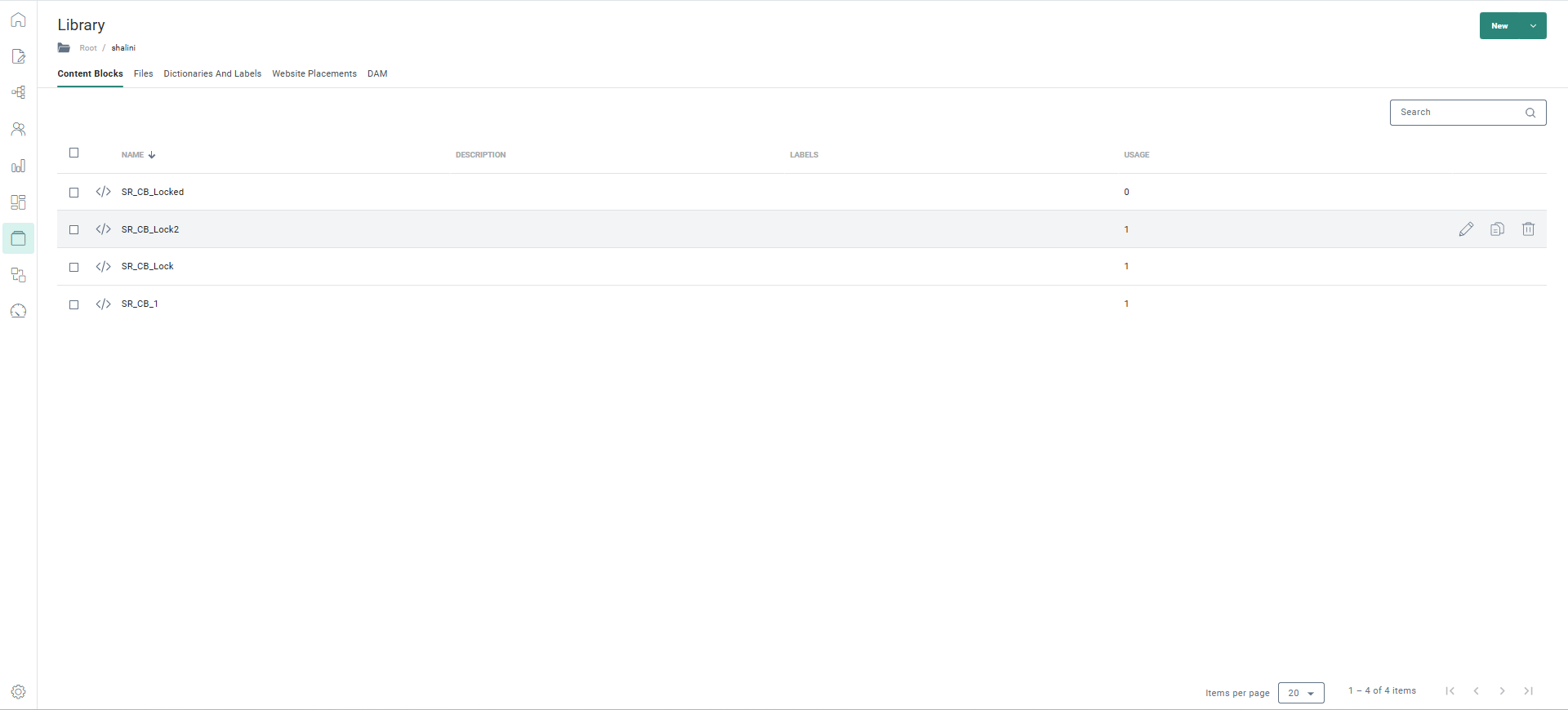
A Content Block can be:
- Available across multiple Business units, or
- Restricted to the Business unit in which it was created
This is defined in the General properties of the Content Block.
The usage counter indicates how many times a Content Block is currently used in messages.
Deleting Content blocks
Content Blocks can be deleted directly from the dashboard.
- If a Content Block is not used, it is deleted immediately.
- If a Content Block is used, the user is warned before deletion.
When a Content Block is in use:
- A list of messages using the Content Block is displayed only for Business units the user has access to.
- Messages in Business units or folders the user cannot access are not listed explicitly, an alert informs the user that the Content Block is used elsewhere, without revealing details.
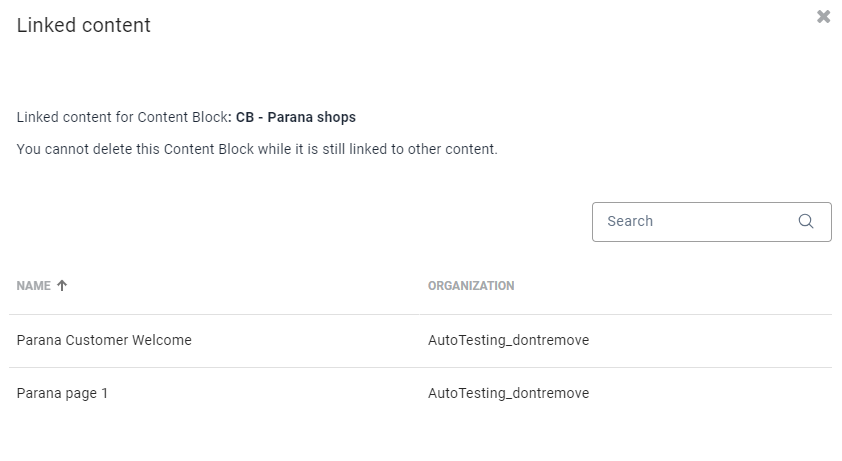
For example, when the Content Block is used in 3 messages, and the user has access to only 1 of those messages, the name of that message and the Business unit it's used in are shown, and for the other 2 messages an alert is shown:
In this chapter: