View/Edit existing Content Blocks
You can view and edit existing Content Blocks by accessing them through the Content Blocks start page in the Library chapter (or by using the fly-out menu on the left).
When viewing a Content Block, the following is displayed:
Properties tab
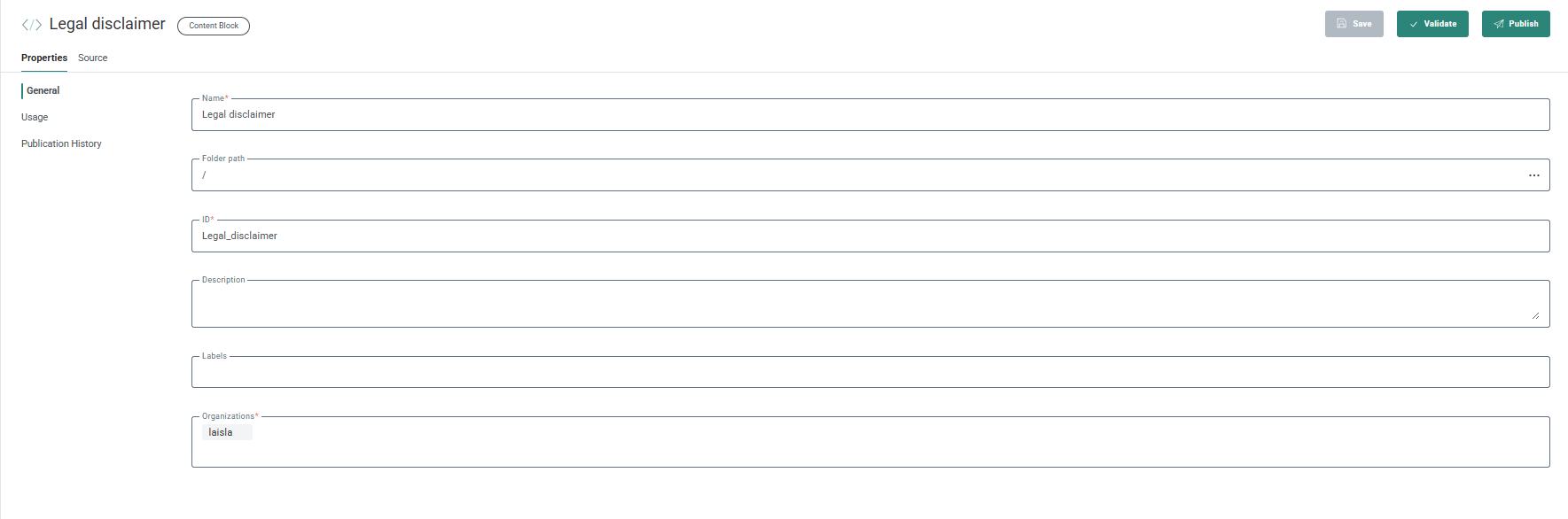
The General entry displays all properties entered upon creation of the Content Block.
When the Content Block is not locked, these properties can be edited here (except for the ID field which is read-only once the Content Block is used in a message).
The Usage entry provides an overview of all messages (and their Business unit) in which the Content Block is being used. Clicking on a message in the overview takes you to that specific message in the Content Editor.

Example of a Content Block that's being used in a message:
On the Content Blocks start page, you can see that the legal disclaimer Content Block is used once:
Click on that Content Block and navigate to Properties > Usage to show the message (and Business unit) the Content Block is currently being used in:
On the Source tab, the HTML code can still be edited:
For more information on how to use a Content Block in a message, read more in the Content Block Component topic.
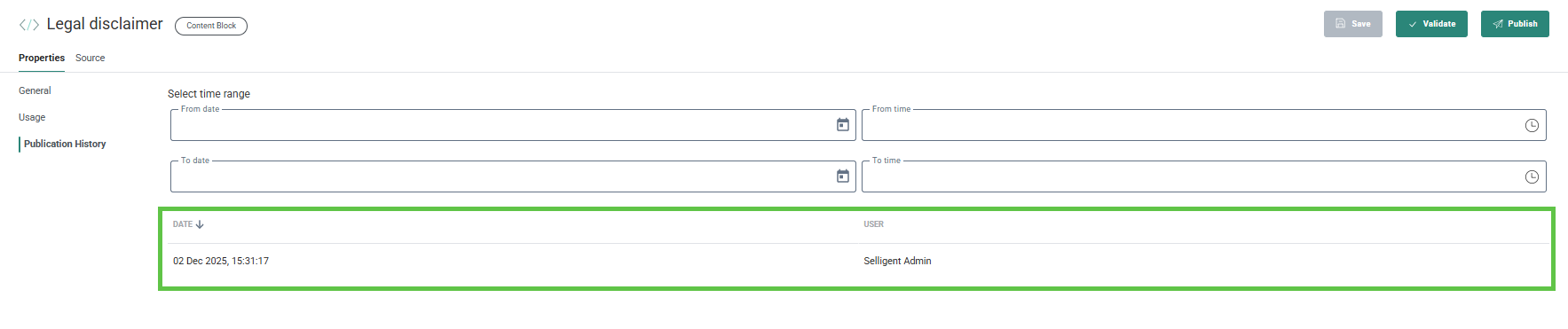
The Publication History entry provides an overview of the different published versions of the Content Block. The list can be filtered by entering a time range at the top. Clicking a specific version in that overview, will display the content for that version.
Read more on publishing in the Content Block Publish topic.
Source tab
On the Source tab, you can add/edit HTML code, identical to creating a new Content Block (as mentioned here).
U
Locked Content Blocks
When another user created/edited a Content Block, that Content Block becomes locked for other users:
- A read-only badge is shown on top.
- A message is visible at the top-right : The content is locked by [user. Unlock to edit.
- Editing the HTML source code isn't possible. A read-only tooltip is shown when trying to do so.
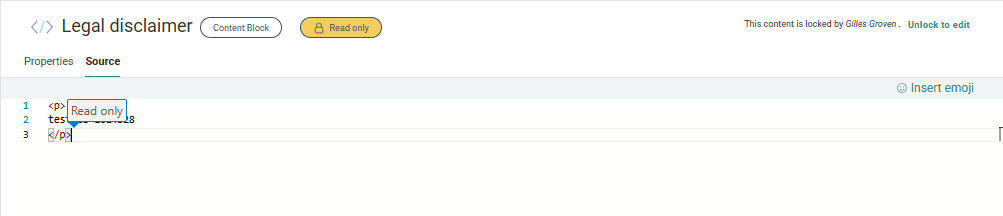
- The fields on the Properties tab are read-only.
Clicking the Unlock to edit link removes the lock and allows you to edit the Content Block.

Note: The user is notified when they have no access to certain linked content. See this section for more info.