
User Guide - User Creation with Zeta Login
About this guide — This guide explains how to set up and manage Selligent users after roll out of Zeta Login for your environment.
How to use it — It walks you through the main steps for creating and managing users once Zeta Login is enabled for your environment. Some actions are completed in Zeta Login, while others are still performed in Selligent. When a step is covered in more detail elsewhere, we’ll link you to the relevant Help Center article instead of repeating the full procedure here.
Assumption — This guide is written with the assumption that you have already defined your permission sets and user groups in Selligent. Once the user is created, they need to be given the correct permissions for the Business units they have access to.
Overview
If you are an existing Selligent customer and Zeta Login is rolled out for your environment, all existing Selligent users will be synced to Zeta Login together with their general settings and access rights to Business units and modules. From that point on, users access the applications via the Zeta Login app switcher.
(More details on this can be found in the migration guide.)
All new users are created in Zeta Login and synced to Selligent. Creation of users in Selligent is from that point on disabled, but you can still view all user settings in Selligent.
Note: Deleting or renaming a user is no longer possible in Selligent
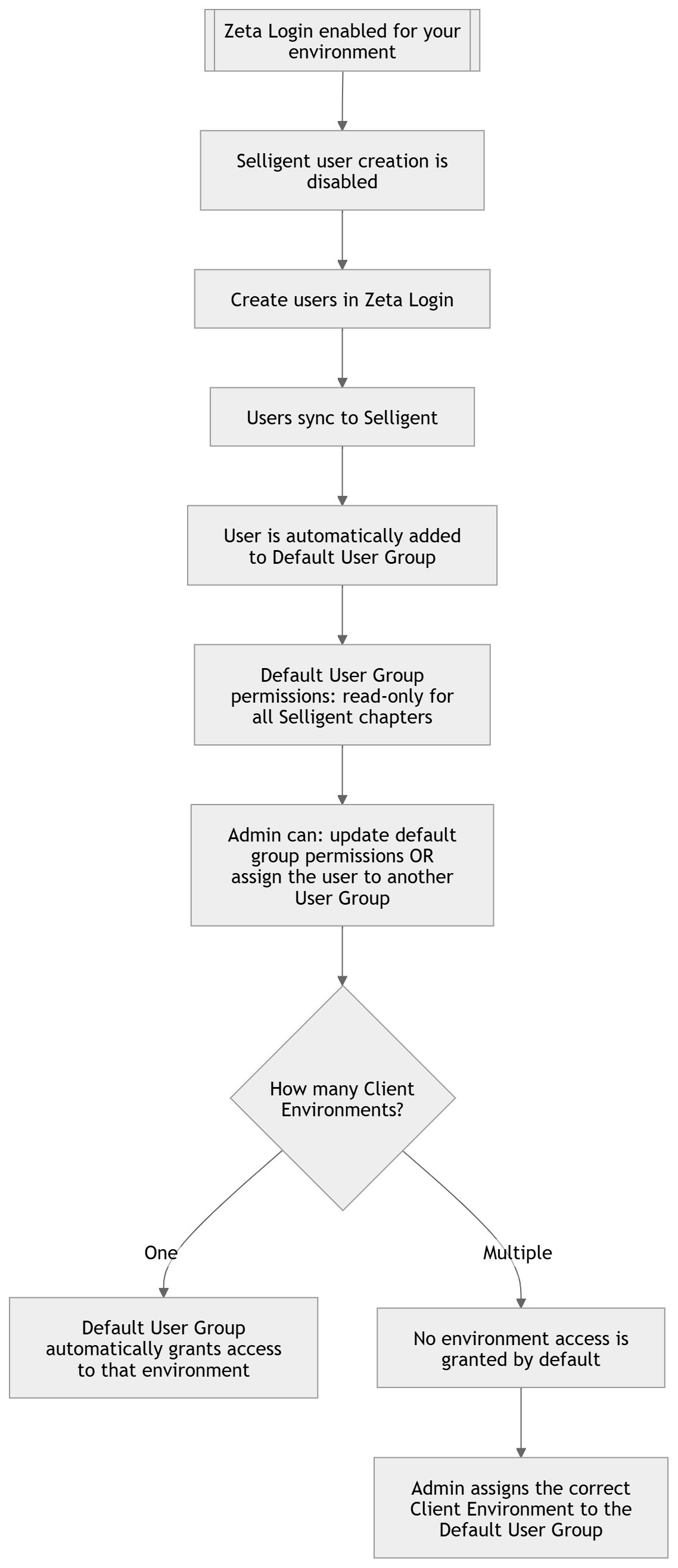
At the time of activation of Zeta Login for your environment, a default user group (Default Selligent Access) is created in Selligent to which new users created in Zeta Login will be added by default. This default user group has a pre-defined set of read-only permissions to all the Selligent chapters. These permissions can be modified if needed by the administrator.
Note: The default user group can not be deleted. The default Permission set used in this default group cannot be deleted either.
Create user in Zeta Login
After the roll out of Zeta Login for your environment, all new users have to be created in Zeta Login. This requires Zeta Login Business unit admin rights.
1. Create first a new user in Zeta Login. Personal settings are defined at this point (such as name, language, currency) and access is provided to the appropriate Business units and the applications within.
Note: Access to applications in Zeta Login is limited to Selligent, Loyalty, Grow, etc, meaning only applications that use Zeta Login will be assigned to the user there. Access to all other applications, such as Data Studio, Site, Recommendations is given in Selligent, through permissions, once the user has been synced.
Note: User creation is not possible in Selligent.
Details on how to create a user in Zeta Login are available in the Invite new users article.
2. Once a user is created in Zeta Login, they are synced to the Selligent application and immediately added to a default user group defined during the activation of Zeta Login for your environment. All personal settings defined in Zeta Login are copied over to Selligent.
3. This default user group has read-only permissions to all the Selligent chapters. This permission set (called Default Selligent Access PermissionSet) can be modified by the administrator. If needed you can assign this new user to other user groups as well, each with their own permission sets.
4. There are two situations that may occur. An environment where there is only one Business unit or one with multiple Business units.
One Business unit:
In this case, the default user group is automatically linked to that Business unit and the new user is added to that default group with access to that Business unit.
Multiple Business units:
In this case, no Business unit is by default attributed to the user group and the administrator can decide and assign a Business unit to the user group.
5. Now that the user exists in Selligent, by default they only have read-only rights to the one Business unit. You need to give additional permissions to other Business units to which the user should have access.
There are different ways in which this can be done. This depends on how your environment has been set up.
For example:
- If you need only one group and one permission set, you can edit the default permission set for the default group. All users remain in that group and they will all have the same rights.
- You can add additional business units for the permission set in the default group (in case you have more than one business unit). This will give users access to the other Business units as well, if there are any.
- You can create new groups and assign your user to these groups. For example have a user group per department, each with their own set of permissions.
- You can create new permission sets and link these to one or more business units in the default group or in new groups.
Note: Any changes made to the group permissions for a user are reflected in Zeta Login. For example, when a user is given access to additional Business units, this is synced to Zeta Login and will be visible there as well.
More details on creating Selligent user groups, permissions and folder rights can be found in the corresponding articles.
More details on inviting Zeta Login users can be found in this article.
Editing users
Personal settings
When it comes to making changes to the personal settings, editing a user is done in Zeta Login. This can be done by the admin but also by the user directly in their profile. All other settings such as permissions, group access and folder rights are defined in Selligent.
This applies to customers that are using Selligent for the first time as well as to customers migrating from an existing Selligent environment.
Note that when making changes to an existing user in Zeta Login that these changes are not immediately visible in the profile in Selligent. They are however taken into account by the application. For example, changing the currency of a user in Zeta Login will display reports in Selligent in the new currency.
Permissions and groups
In the course of a user's life span, their access to the different Business unit may evolve, and an existing access to a business unit might be taken away, or a new Business unit access might be added.
It is recommended to manage this in Selligent by adding or removing users from a specific group.
Users can be added or removed from groups via the Group configuration as well as through the User configuration.
When this happens, these users are synced to Zeta Login and their Business unit access will be updated.
Recommendations
It is recommended to always manage permissions for a user in Selligent. This includes access to additional modules or features as well as access to the different Business units.
-
When extending a user's access in Selligent to additional Business units, this will be synced to Zeta Login and the user will see the new Business unit appear in Zeta Login.
-
When extending a user's access in Selligent to additional applications, the user will see these applications appear in the App switcher.