
Zeta Login for Existing Selligent Customers
Zeta Login, what is it?
Zeta Login is the cloud-based identity management system, designed as a companion application and allowing users of the Zeta products to have a single login through which they can access the different Zeta applications available to them.
Why move to Zeta Login?
Zeta Login has modern security features such as enhanced password strength checking, adaptive MFA, and SAML integration. Zeta Login simplifies the provisioning of users to Zeta products and acts as a foundational component for the next generation of Zeta products and services. Going forward, many new features will require Zeta Login to be enabled.
For more information on Zeta Login, please refer to this article.
How to move to Zeta Login?
Moving to Selligent with Zeta Login is done by the Selligent team.
A move of all existing user profiles will be done based on the email address stored in the Selligent user profile. Every user will receive an activation email through the Zeta Login invite feature and once activated be automatically linked to their new Zeta Login profile. After the move from Selligent login to Zeta Login, all users will be listed in Zeta Login with their current access to Business units and applications.
In addition, all existing Business units in Selligent will be migrated to Business units in Zeta Login.
What is the impact for system administrator of using Zeta Login?
Changes in terminology from Organization to Business unit
Within Selligent, we currently refer to the customer's environment as a tenant, with one or more Business units to cover the different brands. Users can switch from one Business unit to another depending on their permissions.
Integrating Selligent with Zeta Login, ensures a better user experience and alignment of the different Zeta tools. Terminology and naming is an important element of this.
Therefore we will be aligning the Selligent terminology with the other tools, meaning that terms like tenant and Business unit will evolve into respectively Organizations and Business units, where an Organization can have one or more Business units.
You will see this change happen at multiple locations, in the top toolbar to switch from one Business unit to another, as well as in the Admin Configuration when setting up permissions and other configuration settings, in content creation when selecting an audience and Business unit, in Lists when sharing with other Business units, and more.
Note: These changes are applicable for all our customers, whether you are using Zeta Login or not.
You can read more about Business units in this article.
Business unit management
Business units will continue to be created and managed in Selligent. Once created they will be synced automatically with Zeta Login and be accessible from there as well. Although Business units can also be created in Zeta Login, it is highly recommended to create these in Selligent as all settings are actually configured in Selligent.
Any changes to a Business unit, will be done in Selligent.
Note:
Deletion and renaming of existing Business units will only be possible in Zeta Login. When a Business unitis de-activated or deleted in Zeta Login, the user can no longer access it in Selligent.
Note however, that administrators will still see the Business unit in Selligent.
It is highly recommended that before deleting a Business unit, all the necessary steps are taken in Selligent, such as updating the user groups, but also everywhere else where that Business unit might be used (Content, messages, etc).
Once the Business units are created and synced to Zeta Login, all the modules that are currently active in Selligent are automatically activated for these Business units in Zeta Login.
More information on Business units in Zeta Login are available in this article and more details on Business units in Selligent are available in this article.
Users management
User profiles will be centrally managed in Zeta Login. They are created, updated and deleted in Zeta Login. General settings of the profile are configured in Zeta Login. These settings correspond to the Personal tab of a user profile in Selligent and will therefor be read-only in Selligent.
All other settings, such as user groups, permissions and folder rights will continue to be managed in Selligent.
User suspension
Customers migrating to Zeta Login will benefit from additional features when managing users. User suspension, deactivation and deletion is possible in Zeta Login but not at the moment is Selligent. This will become available to customers managing their users in Zeta Login.
2FA
Selligent offers 2FA via email and SMS. Zeta Login currently offers 2FA via email as well as authentication via authenticator apps. Selligent customers that are currently using SMS can choose to use the email 2FA or one of the other options available in Zeta Login, such as multi-factor authentication via an authenticator app.
In Zeta Login, every 7 days a 2FA email is sent. Currently, in Selligent, this is at a 30 day interval.
Password policies
As part of our ongoing efforts to strengthen account security, the migration to Zeta Login now follows updated password and authentication standards.
These enhancements introduce stronger validation measures and improved protection against the use of weak or previously compromised passwords.
The new system helps ensure that all user credentials meet modern security best practices, while making it easier for users to manage and reset their passwords securely through Zeta Login.
Together, these improvements enhance overall resilience and align with modern industry-leading best practices to identity protection.
Note: As a result, the Password Policy entry in Selligent is no longer editable.
IP whitelisting
IP whitelisting will be done in Zeta Login and is handled by the services team after submitting a ticket.
Note: As a result, IP whitelisting in Selligent is no longer editable.
What is the impact for users to switch to Zeta Login?
Changes in terminology
Within Selligent, we currently refer to the customer's environment as a tenant, with one or more Business units to cover the different brands. Users can switch from one Business unit to another depending on their permissions.
Integrating Selligent with Zeta Login, ensures a better user experience and alignment of the different Zeta tools. Terminology and naming is an important element of this.
Therefore we will be aligning the Selligent terminology with the other tools, meaning that terms like tenant and Business unit will evolve into respectively Organizations and Business units, where an Organization can have one or more Business units.
You will see this change happen at multiple locations, in the top toolbar to switch from one Business unit to another, as well as in the Admin Configuration when setting up permissions and other configuration settings, in content creation when selecting an audience and Business unit, in Lists when sharing with other Business units, and more.
Note: These changes are applicable for all our customers, whether you are using Zeta Login or not.
You can read more about Business units in this article.
Activation through email
Every user will receive an activation email through the Zeta Login invite feature and once activated be automatically linked to their new Zeta Login profile.
The activation email expires after 7 days. The use can nevertheless resend the activation email themselves, through the button on the login screen:
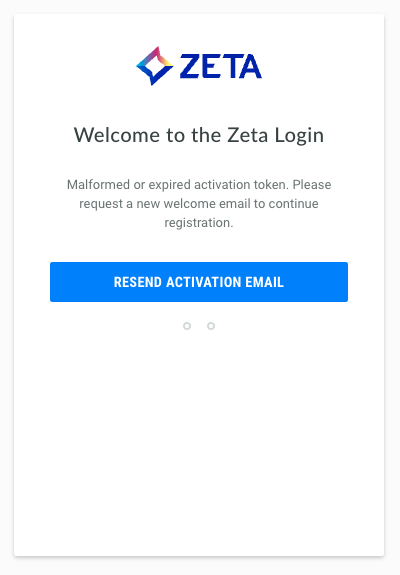
More information on the activation process for an account, is available in this article.
Different application login
Selligent customers using Zeta Login, will log on to the Selligent applications using the Zeta Login platform.
1. Log on to Zeta Login using the following URL: https://id.engageplatform.com/login.
2. Once logged on, your profile page is displayed.
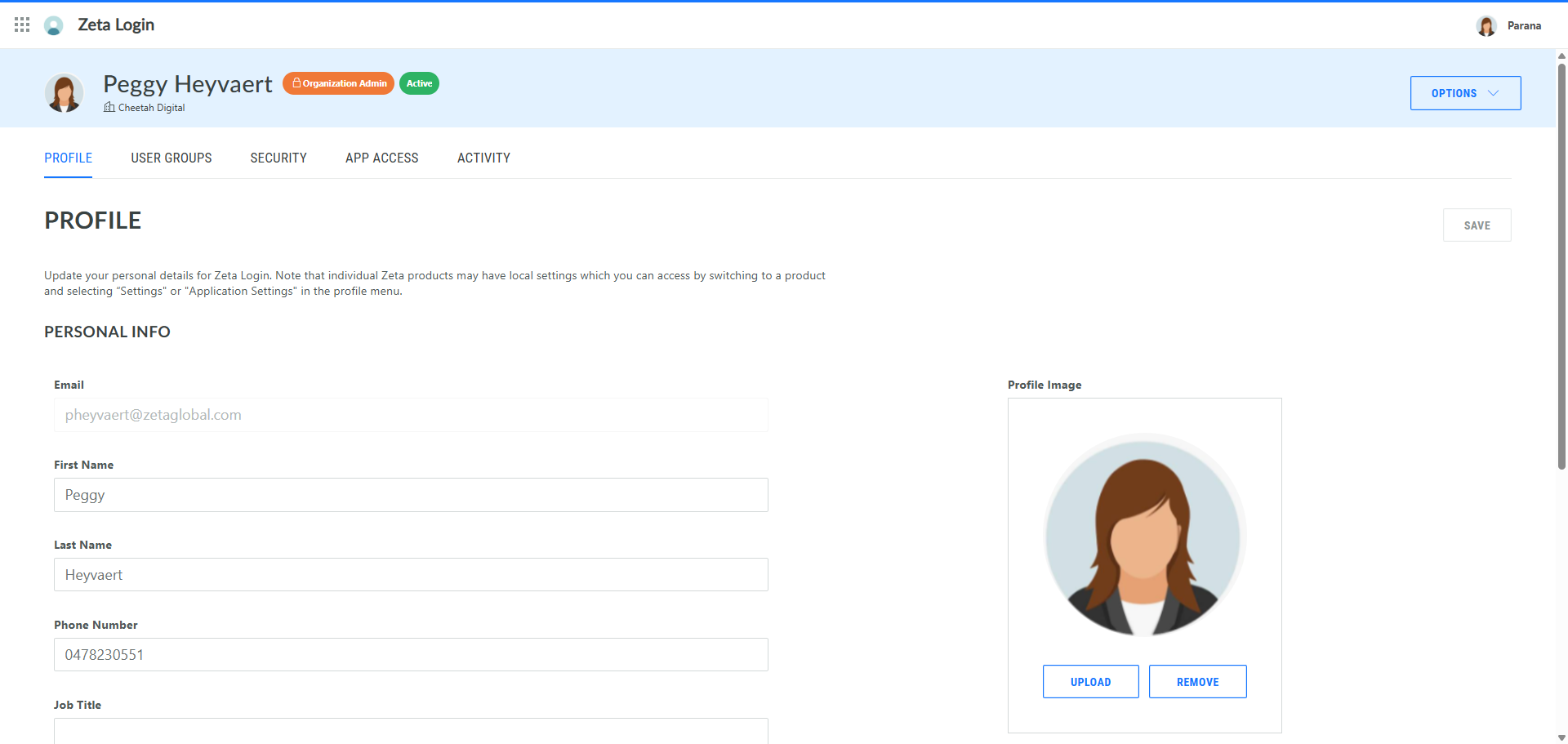
3. First, if you have access to multiple Business units, select first the Business unit you want to access. Click the current Business unit in the upper right corner. A dialog pops up. Click Change:

4. In the popup, navigate to your organization and select the Business unit of your choice:
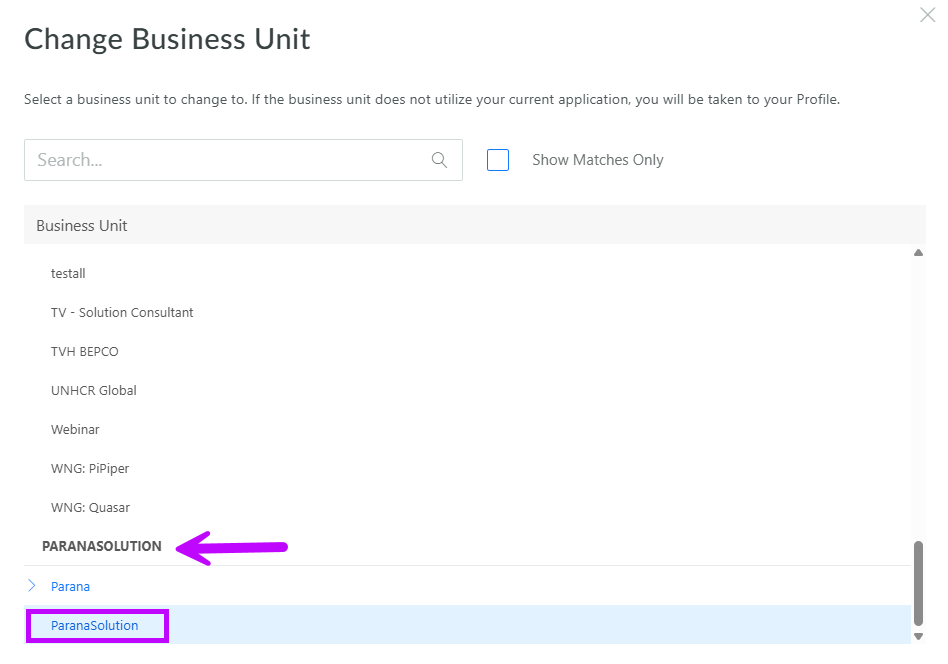
5. The Business unit in the upper right corner will automatically change to the selected one. Through the App switcher, you now have access to all the modules for which you have permissions within that Business unit:
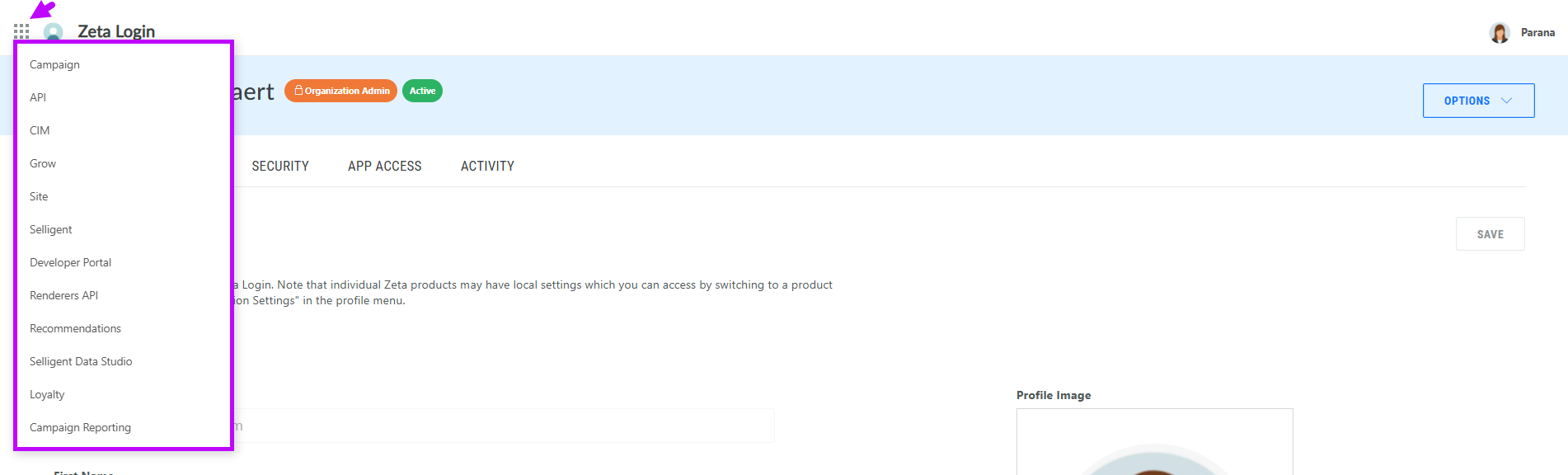
Note: When logging in directly to the Selligent URL, the user is redirected to the Zeta Login page and once the credentials have been entered, redirected directly to the Selligent page.
Find more information on switching apps in Zeta Login, in this article.
A slightly different top menu
After accessing Zeta Login and clicking through to the Selligent application, you will notice a slight difference in the top menu bar. The top bar is displayed in the language of the user in Zeta Login
Previously, the top menu looked as following, with access to all the modules on the right:

Now, access to the modules is available from the left

More details on the Zeta Login user interface can be found in this article.