
Once your RCS message has been created, you are ready to design the content.
For more info on how to create an RCS message and the RCS properties, check out the corresponding topics.
Designing the RCS content
Once an RCS (Rich Communication Services) message is created, the design canvas on the right-hand side allows you to define its content. There are four types of RCS messages you can choose from:
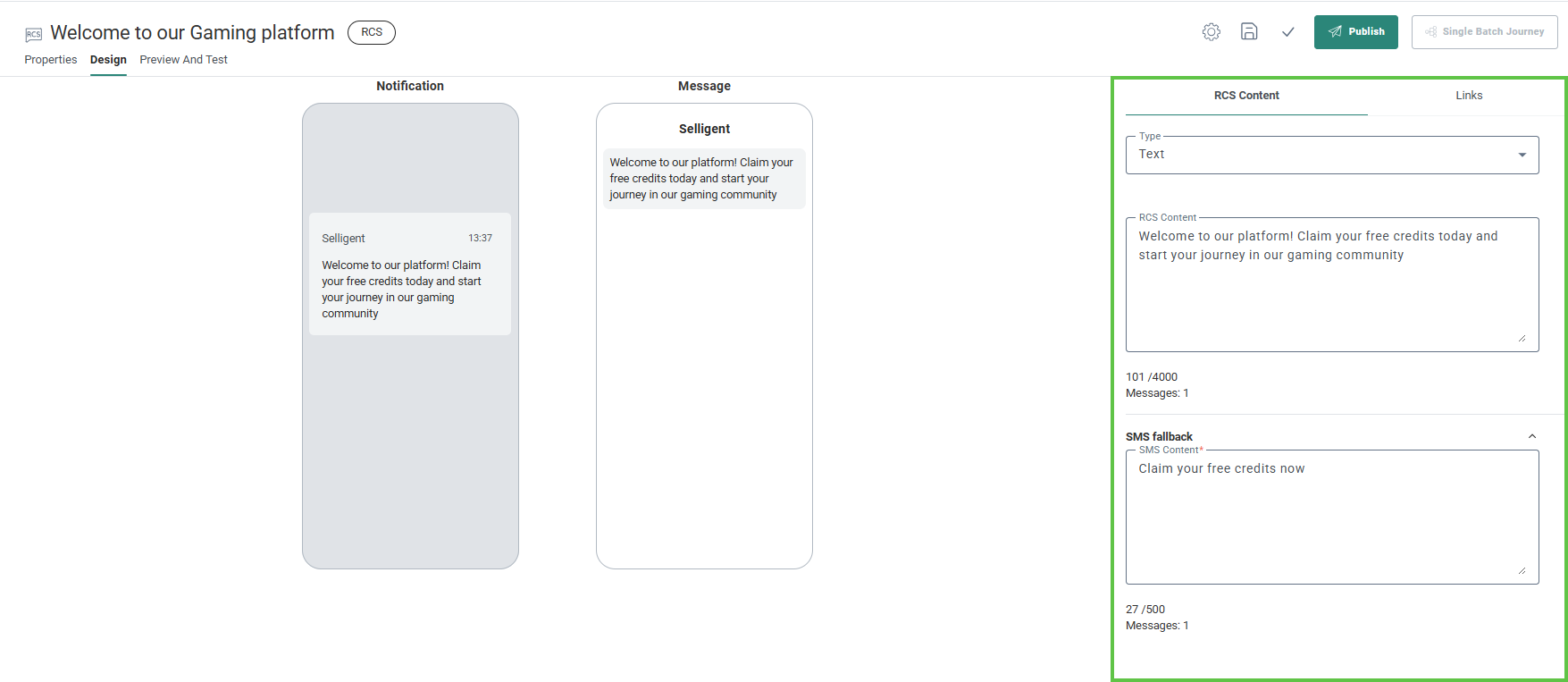
- Text — Contains only a text message.
- Rich card — Can include a title, message content, media (image or video), and/or action buttons.
- Carousel — A collection of up to 10 rich cards.
- PDF — Contains a PDF file.
Note: At any time you can decide to convert to a different type, for example from carousel to a single rich card or even text or PDF. When downgrading from rich card to text or PDF, the media assets and buttons are hidden but can be restored when switching back to rich card. When downgrading from carousel to rich card, only the first rich card remains visible.
Designing a text RCS
Using text in an RCS message offers significant advantages over traditional SMS, primarily providing a modern, internet-based messaging experience. Key benefits include character limits up to 3,072 (vs. 160 in SMS), and enhanced security. It allows for richer, more reliable conversations.
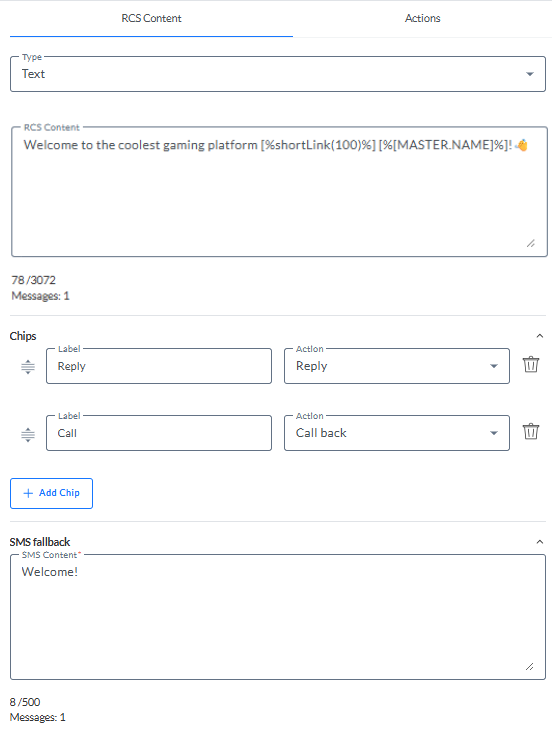
1. Enter your text. Type your message in the RCS content field. As you type, a toolbar appears for personalization.
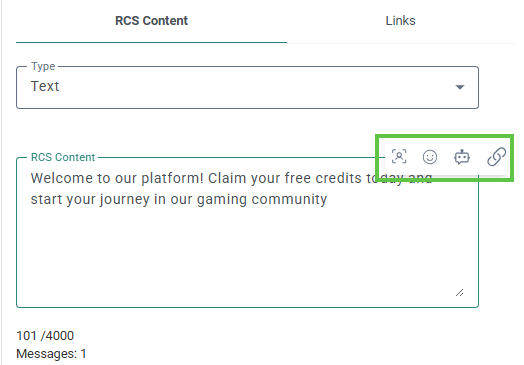
2. Personalize the message:
- Click the Personalization or Emoticon icon to insert elements at the cursor location.
- Use the Generate text with AI icon for assistance with message content.
- Click the Links icon to add tracked links.
3. Character limit:
- A maximum of 3072 characters is allowed for a single message. Basic messages are limited to 160 characters only.
- Below the input box, the used/max character count and remaining characters are displayed.
Note:
RCS content can contain personalization fields, emoticons as well as expressions and tracked shortlinks.
4. Add up to 11 chips to your message. Chips are suggested actions that help recipients continue the conversation. They appear at the bottom of the screen. Any subsequent messages in the conversation (from either a user or your agent) overwrite the chip list.
For each chip, define:
Label — Enter the text displayed on the chip.
Action — Select an existing action from the drop-down list, or create a new one. You can choose from seven different types.
5. Define a fallback SMS. This will be sent when the RCS message cannot be delivered. It uses the same channel endpoint as the RCS message.
Designing a PDF RCS
Using a PDF in an RCS message allows for sharing high-quality documents of up to 100 MB directly within a chat, avoiding MMS compression or the need to switch to email. It enables businesses to send tickets, invoices, and documents via rich cards improving user experience.
The recipient receives an RCS message with a PDF attachment. When clicked this PDF is downloaded.
1. Select PDF from the RCS type drop-down.
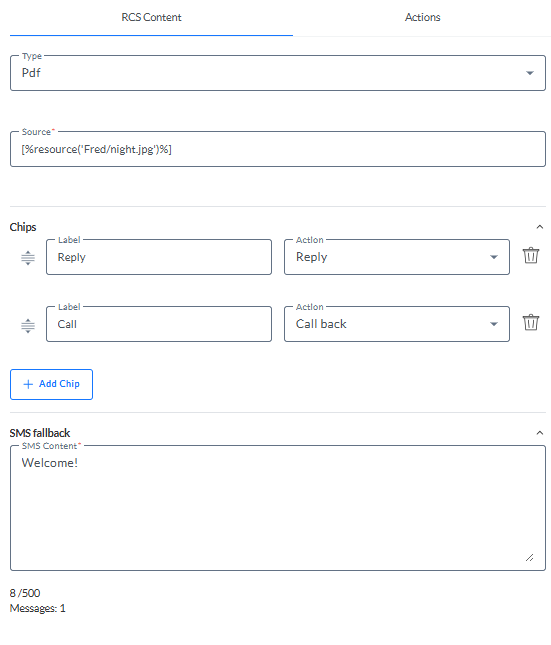
2. Enter the source of the PDF file. You can personalize the URL.
3. Add up to 11 chips to your message. Chips are suggested actions that help recipients continue the conversation. They appear at the bottom of the screen. Any subsequent messages in the conversation (from either a user or your agent) overwrite the chip list.
For each chip, define:
Label — Enter the text displayed on the chip.
Action — Select an existing action from the drop-down list, or create a new one. You can choose from seven different types.
4. Define a fallback SMS. This will be sent when the RCS message cannot be delivered. It uses the same channel endpoint as the RCS message.
Designing a rich card RCS
You would use a rich card in an RCS message to create engaging, interactive, and visually compelling customer experiences that significantly outperform plain text SMS. Rich cards combine images/videos, text, and action buttons in a single format, helping to boost engagement rates, increase conversion through clear actions, and provide a branded experience.
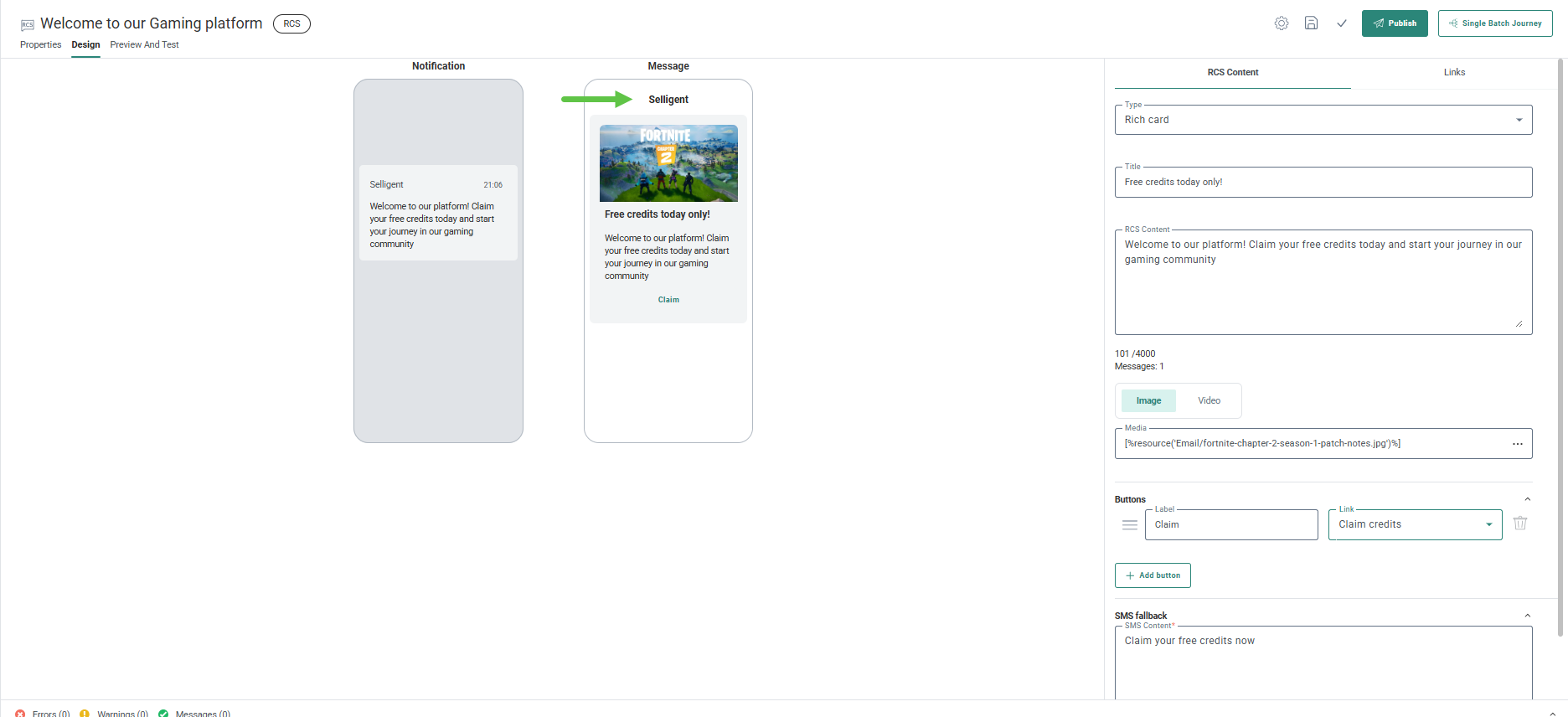
A rich card RCS can include title, content, media, chips and buttons.
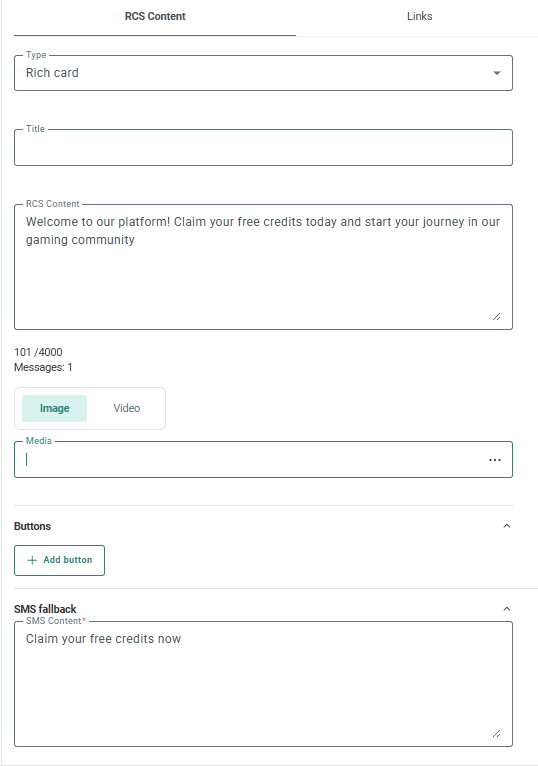
1. Select Rich card from the RCS Type drop-down.
2. Set a Title. This is displayed above the message content. A maximum of 128 characters is allowed.
3. Define the RCS content. A maximum of 30720 characters is allowed.
See Designing a Text RCS for details.
4. Choose from Image or Video as type of media.
Note:
For any file used in the Rich card message, the following applies:
- Maximum file size is 100Mb. This applies to JPG, PNG and GIF images as well a common video formats.
- Videos that exceed 100 Mb will be trimmed to 100 Mb. Any content beyond this limit is removed.
- Maximum length of URL of the file is 2045 characters.
5. Select or enter the Media asset. Click the ... to choose an asset from the library. Alternatively, enter an external URL manually.
Note: RCS does not support alt text for images or videos. Make sure the description of the card is properly filled out!
6. When Video is selected, choose the Media Thumbnail . Click the ... to choose an asset from the library. Alternatively, you can also enter the URL for the thumbnail. Thumbnails are optional.
Note: The behavior of Video media is as follows:
- Video only: Video is shown.
- Video and thumbnail: Thumbnail with play button is shown.
7. Add up to four Buttons, each containing maximum 25 characters. Click Add Button:
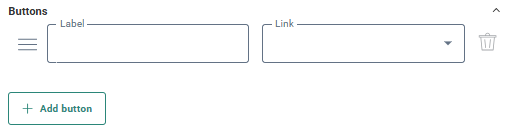
For each button define:
Label — Enter the text displayed on the button.
Action — Select an existing action from the drop-down list, or create a new one. This determines what happens when the recipient clicks the button. There are 7 different types of actions to choose from.
For more details on the different types of actions, how to create and use these, see RCS Links and Actions.
Button label — The text shown on the button.
8. Add up to 11 chips to your message. Chips are suggested actions that help recipients continue the conversation. They appear at the bottom of the screen. Any subsequent messages in the conversation (from either a user or your agent) overwrite the chip list.
For each chip, define:
Label — Enter the text displayed on the chip.
Action — Select an existing action from the drop-down list, or create a new one. You can choose from seven different types.
9. Define a fallback SMS. This will be sent when the RCS message cannot be delivered. It uses the same channel endpoint as the RCS message.
Note: If multiple languages are used for your message, you must also click on
the Language drop-down menu to
enter the text for the other languages.
Design a carousel RCS
RCS carousels help you drive engagement and conversions by letting you present up to 10 swipeable cards in a single message. Each card can include rich visuals, text, and buttons, so recipients can browse products, services, or options in an app-like experience—then take action right from their messaging app, without needing to leave the conversation.
A carousel RCS includes up to 10 rich cards.
1. Fill out the properties of the first rich card as explained in the section above. You can collapse the properties panel for a rich card by clicking the arrow.
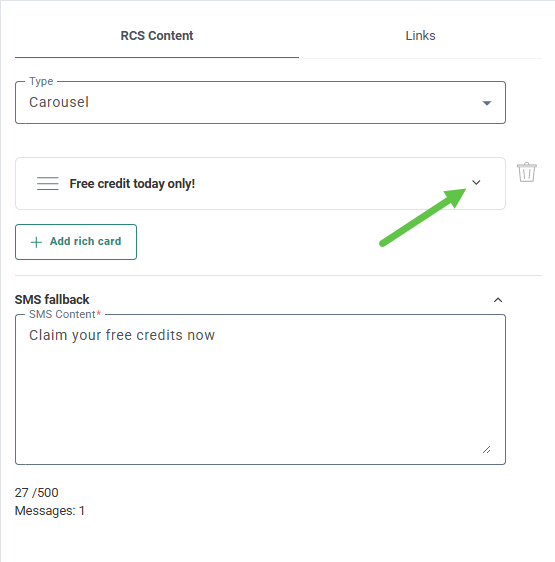
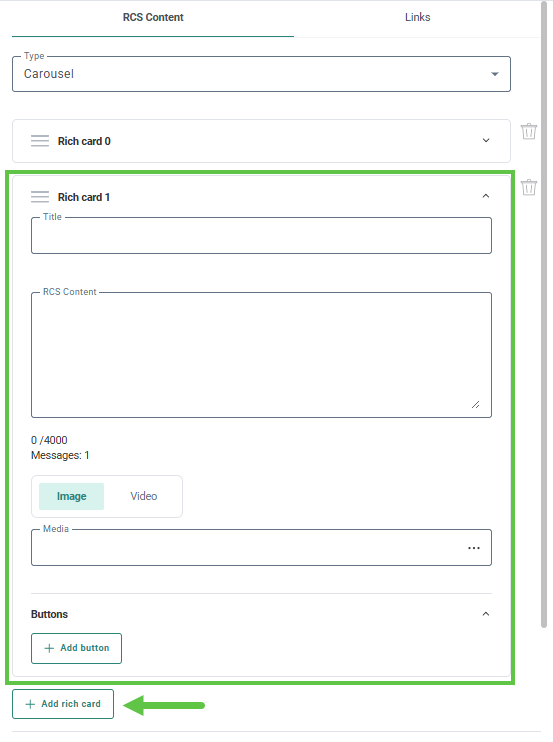
2. For every new rich card, click Add rich card. A new rich card properties panel is added.
Note:
In a carousel, the chips are added only once for the message, not per rich card and are common to all rich cards in the carousel.
It is possible to change the order of the rich cards and hence change their position in the carousel. This is done by hovering the reorder icon and dragging and dropping the rich card to the new position.
If the combined size of all the media in the carousel Rich card exceeds 100Mb, the message is rejected.
Previewing the message
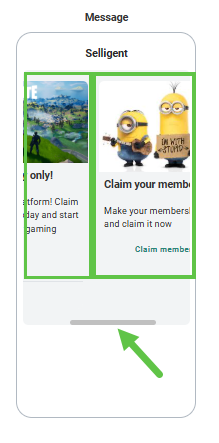
For RCS of type carousel, you can scroll through the different versions using the scroll bar at the bottom of the preview:
Technical note: For fallback SMS messages, make sure the Sender ID is registered to use business SMS, following the guidelines provided here.