
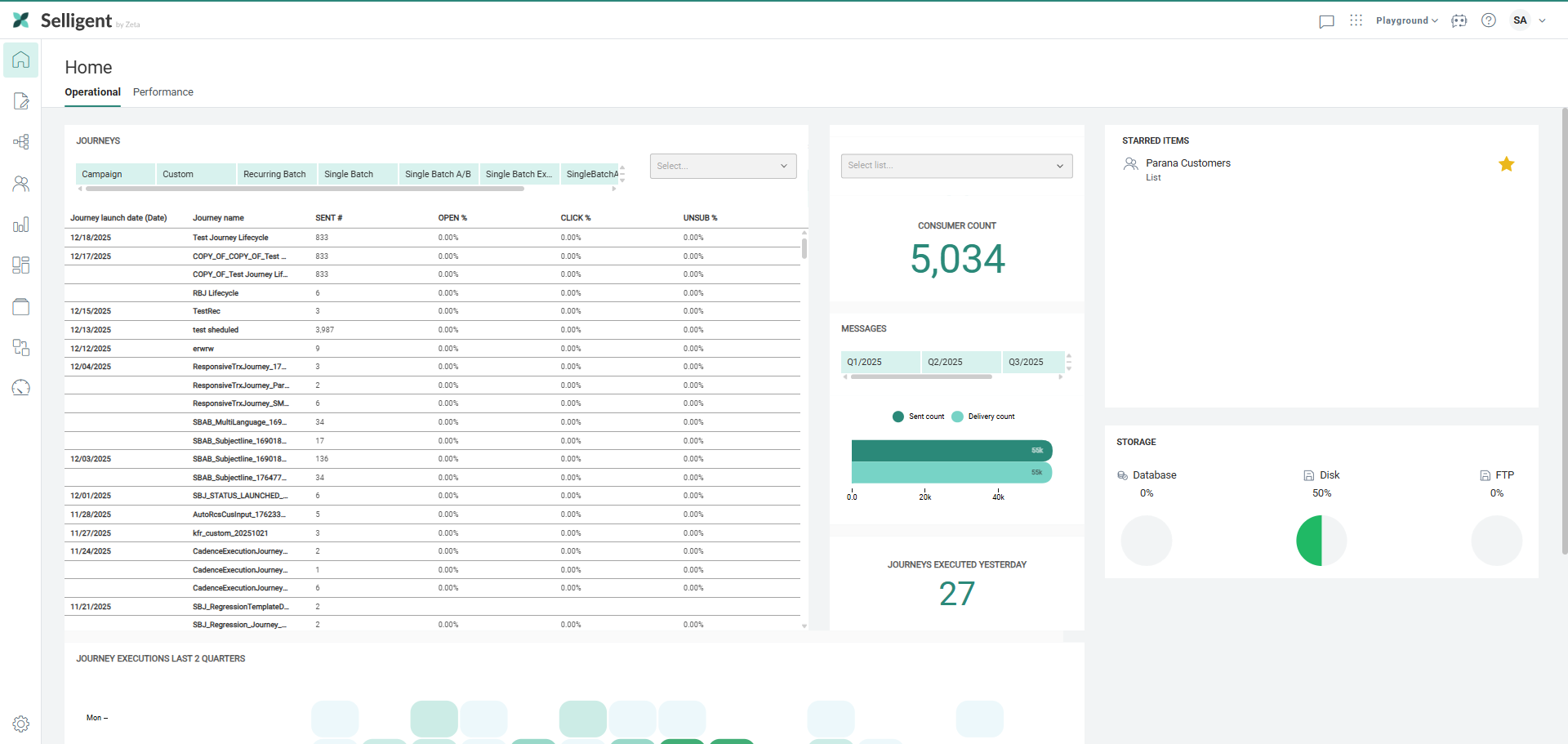
Note: The launch permission must be set to access the Selligent module.
The interface is built from the following elements:
Top bar
The top bar provides access to the active tasks, different modules, Business units, account details, the online help and the Selligent chatbot.
The order of the icons in the top bar is slightly different when logging on through Zeta Login or through Selligent. Also, some of the icons give access to different settings.
Zeta Login top bar

The active tasks, chatbot, and modules icons in the Zeta Login toolbar are identical to the Selligent toolbar. The only difference is the user/Business unit icon and the Question icon.
When you select the User/Business unit icon, the following dialog opens.
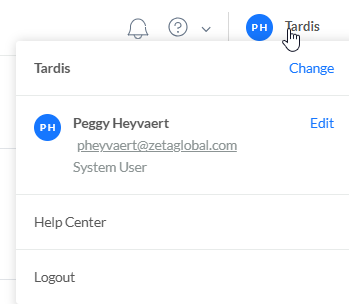
From here you can:
- Change the Business unit — Click Change to view the Business units you have access to, then select a different one. This is only applicable if there is more than one Business unit for your environment and you have been given access to more than one.
- Edit your personal profile — Click Edit to open your Zeta Login profile page and update your personal settings.
- Open the Zeta Login help center — Click the Help Center link to access documentation and guidance
- Log out — Sign out of the application.
When you select the question mark directly, the Selligent help center opens in a new tab.
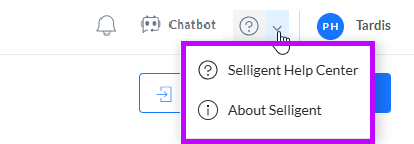
When the down arrow next to the question mark is clicked, a drop-down menu opens with two options:
-
 Selligent Help Center — The Selligent help center opens in a new tab.
 -
 About Selligent — This opens a modal dialog with version info about the Selligentapplication.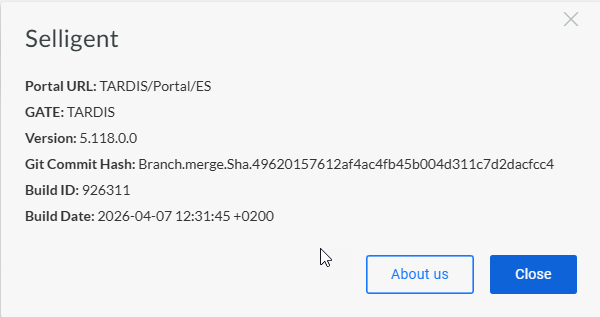
Selligent top bar

-
 — Active tasks: allows you to see tasks that are scheduled to be executed within Selligent by Zeta.
 -
 — Modules
: allows you to launch other modules directly from here.
— Modules
: allows you to launch other modules directly from here. -
 —
Access to the different
Business units, depending on the user's (group) permissions (only visible when there is more than one Business unit).
The selected Business unit defines the languages and maildomains, audiences, data
sources, endpoints and data integration details. So make sure to select the right Business unit here, before starting designing content or performing other actions. Business units are ordered alphabetically.
—
Access to the different
Business units, depending on the user's (group) permissions (only visible when there is more than one Business unit).
The selected Business unit defines the languages and maildomains, audiences, data
sources, endpoints and data integration details. So make sure to select the right Business unit here, before starting designing content or performing other actions. Business units are ordered alphabetically. -
 — The drop-down list provides access to account
details
and lets you log off. It also shows a link to the About screen.
— The drop-down list provides access to account
details
and lets you log off. It also shows a link to the About screen.- About : Provides information on the current Selligent version installed, build date, portal URL, and the Gate on which the install resides.
The link About us takes the user to the Zeta website. - Account Details : The account details are split over two tabs : Personal and Password.
- Personal — This tab contains all personal data belonging to the user : first name, name, the user's language, time zone, locale and preferred currency.
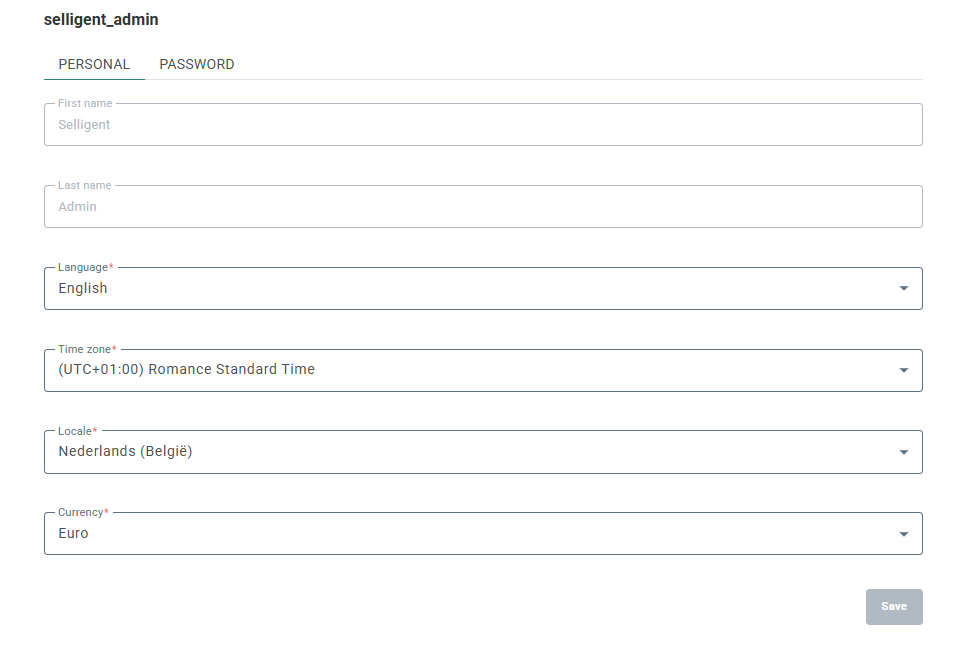
Note that it's only possible to edit the 'Language and locale' field values. Users can not change their first and last name; only admins with the proper permissions can fully edit user accounts in the Admin Configuration section of Selligent by Zeta.
Do not forget to click on 'Save' after making changes! - Password — This tab allows users to change their password.
- Password — Here the user needs to enter their current password.
- New password — Enter a new password.
- Repeat new password — Confirm the new password. This needs to match the value in the 'new password' field.
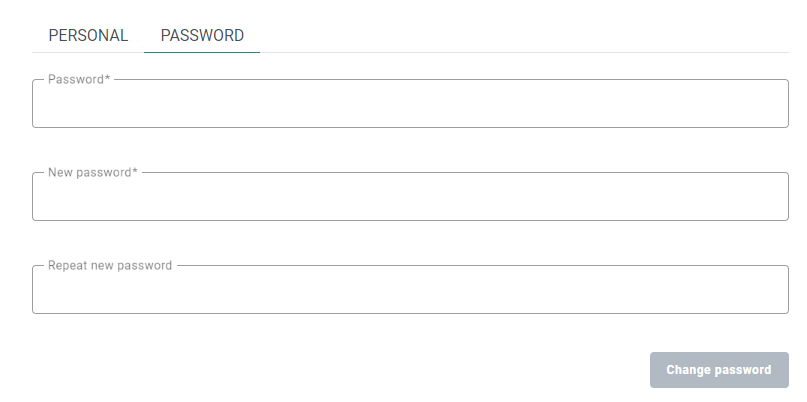
Do not forget to click on 'Change password' after making changes!
When two-factor authentication is active (see this section for more info about 2-FA), an additional section is shown to enter their authentication code that was sent by SMS and click on the Validate button. When this is successful, the password will be changed and the user is notified about the change.The user can retry to validate a code for a maximum of 3 times.
It's also possible to click 'Resend SMS' to receive a new code by SMS.
This is also allowed to be used for a maximum of 3 times.
- Personal — This tab contains all personal data belonging to the user : first name, name, the user's language, time zone, locale and preferred currency.
- About : Provides information on the current Selligent version installed, build date, portal URL, and the Gate on which the install resides.
-
 — Access to the online help.options:
 -
 — Access to the chatbot. Enter your questions with clear instructions to search the Selligent by Zeta help center using the integrated chatbot. The following dialog pops up: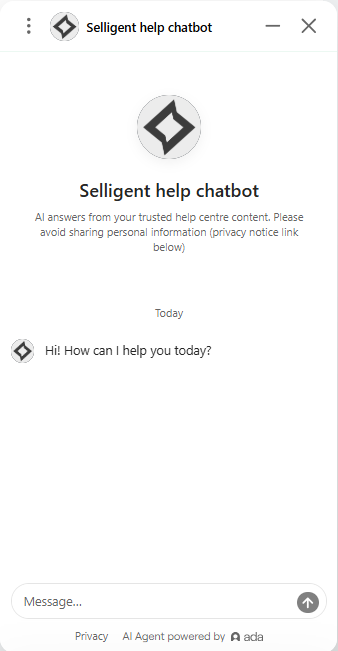
The previous interactions are available and allow you to go back to questions asked earlier.
For insights on how to best interact with the chatbot, refer to the Best practices article.
Left navigation bar
The left navigation bar provides entry points to the different functionality areas of Selligent. Hover the navigation bar to expand it:
 Home — The Home dashboard is accessible from the left navigation, providing marketers with valuable information on how their campaigns are doing and insights on messages, contacts, journeys (Operational tab).
 Content — Accesses a Content Overview
and lets you create or edit templates, messages, pages,
and push notifications.
Content — Accesses a Content Overview
and lets you create or edit templates, messages, pages,
and push notifications.
 Journeys — Accesses a list of all journeys
and lets you create and modify journeys using the Selligent Journey Builder.
Journeys — Accesses a list of all journeys
and lets you create and modify journeys using the Selligent Journey Builder.
 Lists — Accesses the Lists entry from where different list types can be created and managed
 Reports — Accesses detailed reports on
emails sent and overview of emails currently being sent.
Reports — Accesses detailed reports on
emails sent and overview of emails currently being sent.
 Dashboards — Accesses activity dashboards with dynamic reporting widgets on email performance.
 Library — Accesses a library of
images that are available in the application. Any Business unit-specific
images can be uploaded to the "My Business unit" folder
to restrict access to them to just those users in that Business unit
Library — Accesses a library of
images that are available in the application. Any Business unit-specific
images can be uploaded to the "My Business unit" folder
to restrict access to them to just those users in that Business unit
 Data Exchange — Accesses the Tasks entry and lets you search for or create a new task.
 Cadence Management — Accesses the Cadence Management functionality that lets you manage the load of messages sent to your audience over a given time.
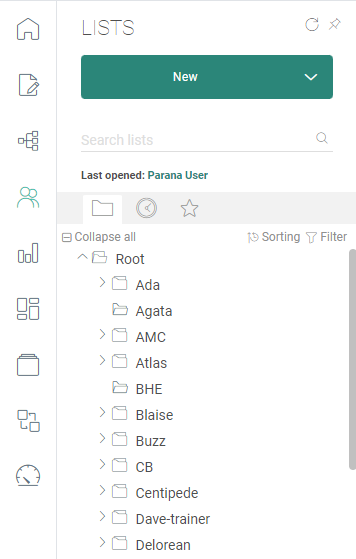
When you hover the navigation bar it flies out to the right and provides access to pinned/most recent items or the folder structure. You can toggle between both views. You can perform a search here or start the creation of a new item immediately from here.
Use the pin icon in the top right border to pin the fly-out menu and keep it displayed at all times. Pinning the fly out menu will be remembered through out the following sessions.
Central window
The central window depends on the selected entry in the left navigation. Displays either the Start page content or the configuration section of the different entries.