Zeta Login is our new cloud-based identity management system. It provides a single, shared login for your Zeta products and services. During our migration to Zeta Login, some customers will already be using it, while others will still sign in using the legacy Selligent logon. Both scenarios are covered below.
Accessing the application
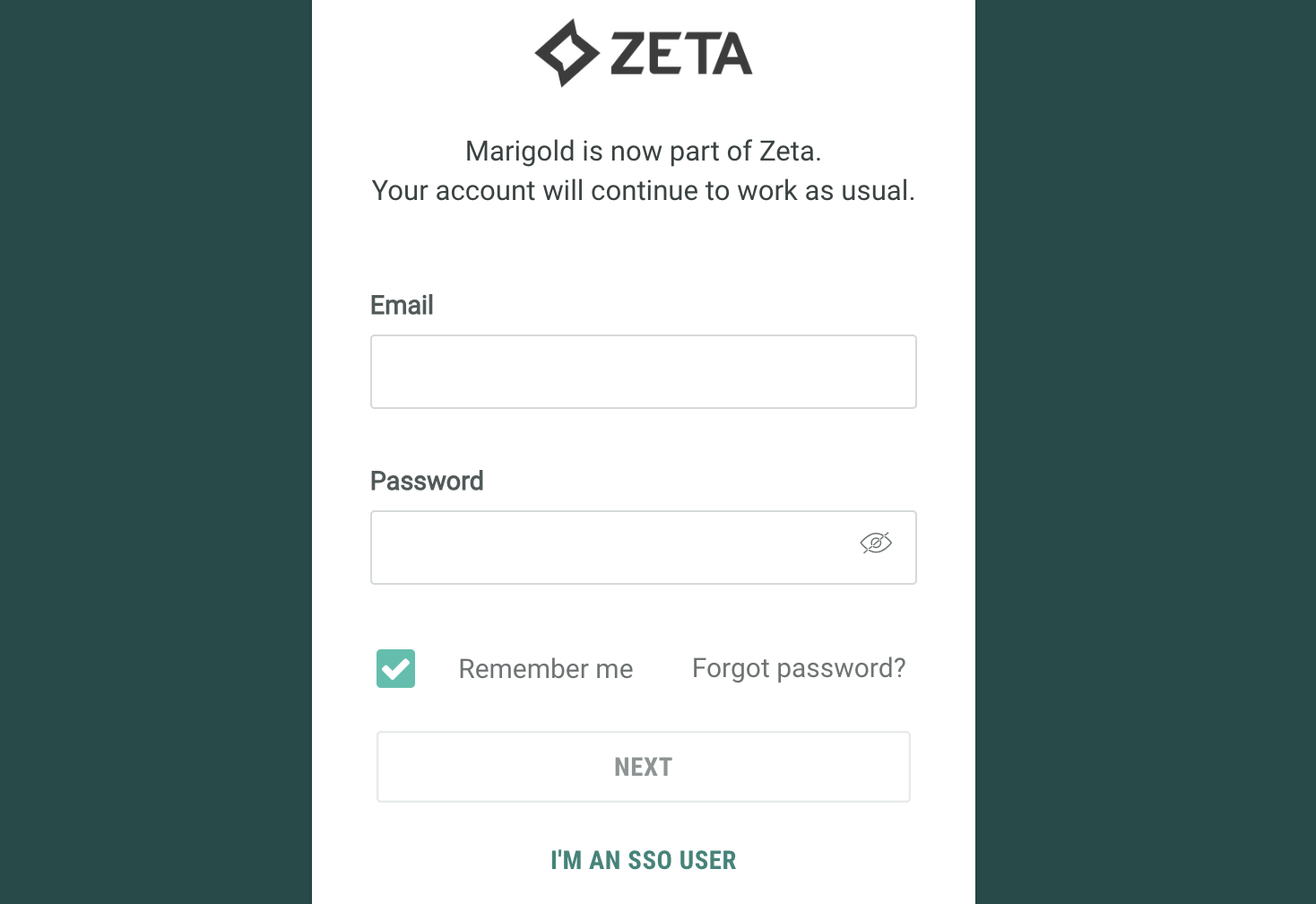
Logon via Zeta Login
Users are created within Zeta Login and accessing the different modules is done via the following url:
- US: https://login-us.id.engageplatform.com/test-email
- EU: https://login-eu.id.engageplatform.com/test-email
If you have trouble logging on, have a look at the Access QnA article first.
Note: Users for who Zeta Login has been activated and are accessing the Selligent environment directly (as described in the next section, will receive a message on the login screen informing them that this way of directly logging on to Selligent will be switched off soon.
Zeta Login supports SSO with Okta, Azure and Ping One. The login page contains an additional link for SSO users.
Logon via Selligent
Users are created in Selligent Admin configuration and attributed permissions. Accessing the different modules is done via the Selligent login.
Selligent by Zeta also supports use of an IDP. This external identity provider manages users and groups. When IDP is configured for an environment, the login page contains an additional tab, 'Identity providers', in which you can select the IDP to be used. (In most cases there is just one IDP configured for a customer and this is then automatically selected).
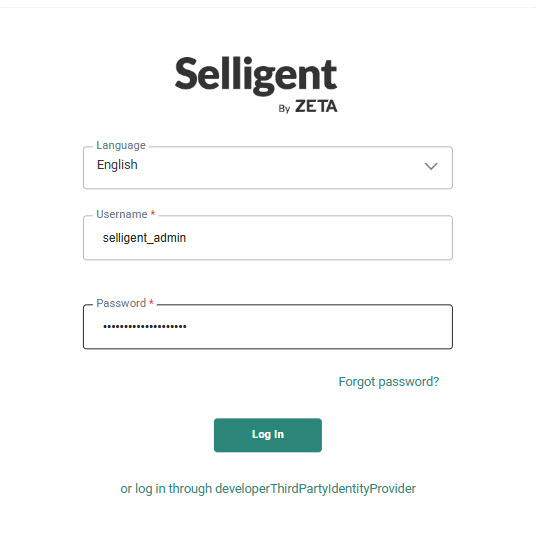
When the user selects the IDP, they're automatically logged on to the Selligent environment and have the permissions attributed to their group. (Permissions are configured in Admin Configuration. The permission sets are assigned to user groups.)
Note: In theory, it is possible to use multiple identity providers, or to use a combination of the Selligent identity provider and an external identity provider. However, in practice, only one will be used, which means that this is transparent for the end-user. If several are used, the end-user needs to select one, and only one, identity provider he or she wishes to use to log in.
Note: Customers that are in the process of moving to Zeta Login and for which users are trying to log in through the Selligent application will receive a message on the login screen stating the following:
Action required: Selligent Login is changing
Your organization is moving to Zeta Login.
Look for a "Welcome to Zeta Login" email from Zeta Login and follow the instructions.
Can't find it ? Check your spam folder or resend the activation email
Learn more: Zeta Login FAQ
Two Factor Authentication
Using Zeta Login
Zeta Login currently offers Multi Factor Authentication via email as well as authentication via authenticator apps, such as Google.
Multi-Factor Authentication (MFA) is mandatory for non-SSO users. MFA is a security measure that requires users to verify their identity using two or more distinct methods before being allowed to log in. You will be required to enter your email address / password, and also enter a one-time password (OTP) generated from Zeta Login and sent to your email address.
Details on how to configure MFA in Zeta Login are available in this article.
Using Selligent Login
There are two ways in which identity verification can be done: SMS and email. Two-factor authentication by email is activated by default for all customers who do not have Single Sign On activated. This does not apply to 2-FA by SMS, which can be activated on request for the customer environment.
For email, the email address of the user is known (it is a mandatory field when creating a user) and the user will receive an email with authentication code.
For SMS, a user logging on for the first time will have to enter a phone number to receive an authentication code via SMS.
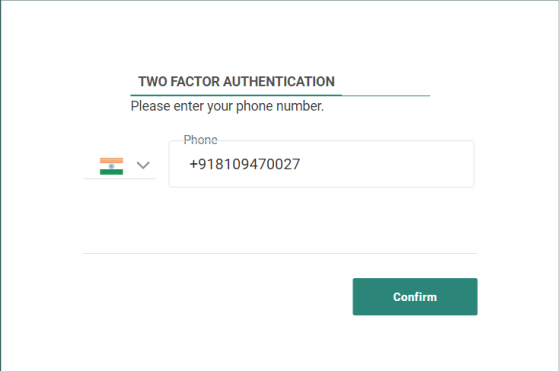
This phone number must contain the country prefix and have at least 10 digits. It will be stored in the profile of the user.
Click the Confirm button to receive the code on the mobile phone.
The user then needs to enter the code received by SMS or email:
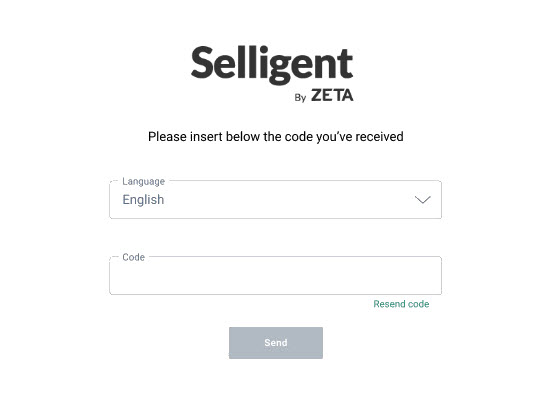
On entering an incorrect code, an error message is shown : "Provided code is incorrect".
The user can retry to enter a code for a maximum of 3 times. After that, a redirect to the login page occurs.
The user can also resend the code up to 3 times. After that, a redirect to the login page occurs.
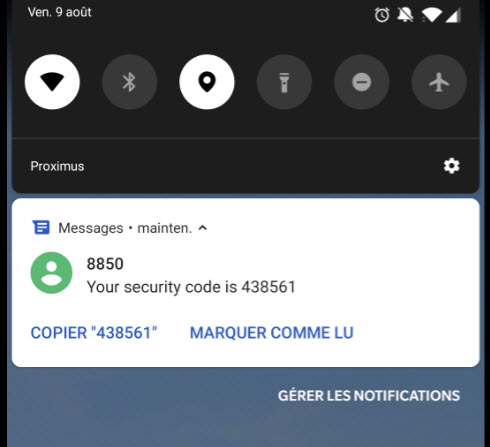
This code finalizes the login.
(Once the code is validated, the phone number is stored in the profile of the user.)
Note: The 2FA token is valid for 30 days, after that it is invalidated and you will need to go through the process again.
From the Users overview, the system administrator has a complete view on the users who are authenticated through Two Factor authentication.
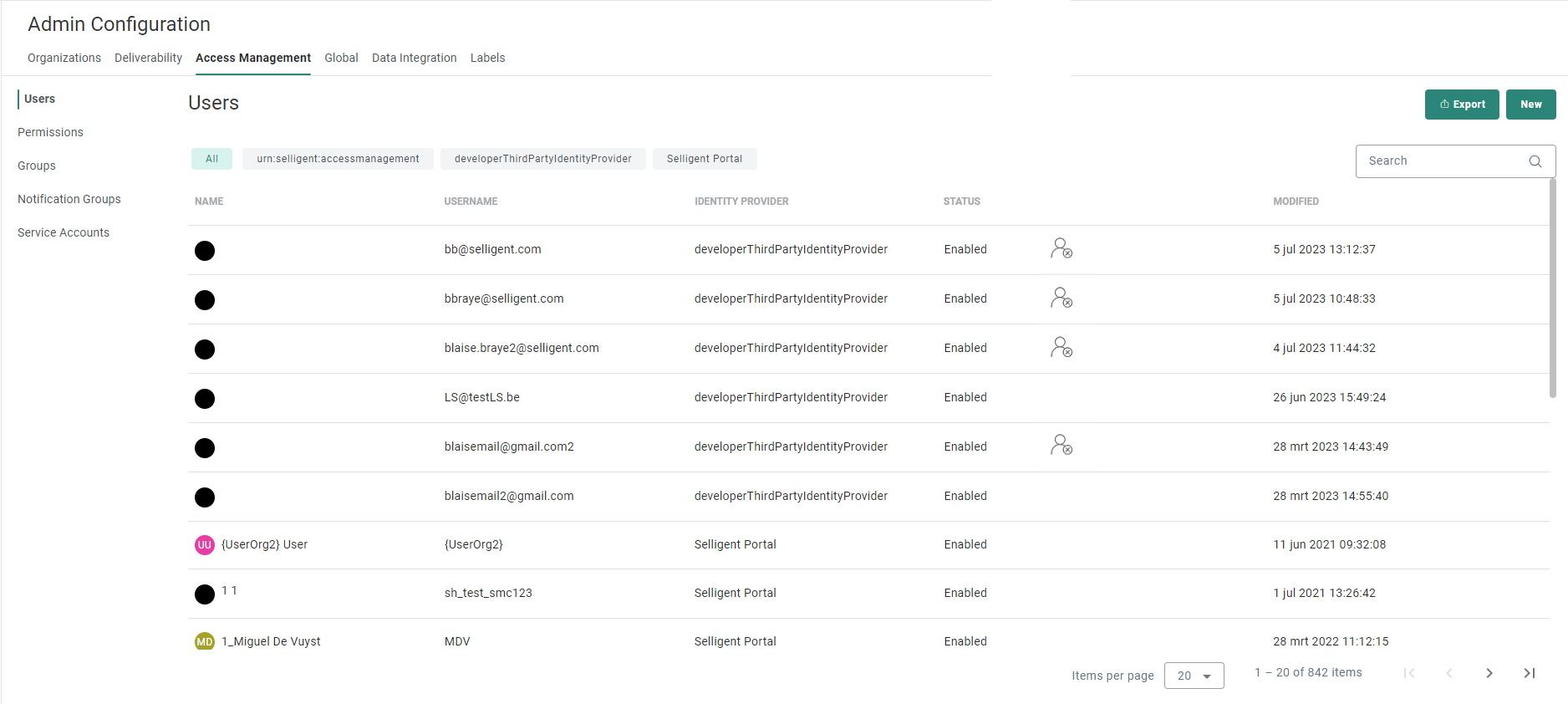
If you go in the profile of an individual user, the same information is available:

Users for whom Two Factor authentication is not passed are listed as follows:

The system administrator can reset the authentication when required, for example if the user changed phone number or changed his password.
The authentication is valid for 30 days. Throughout that time, the user does not need to re-enter a code and can login as usual.
Two Factor Authentication has no impact on Single Sign On.
Note that in case of authentication issues for a specific user, 2FA can be deactivated per user. A ticket needs to be logged and a Zeta employee will make this change.
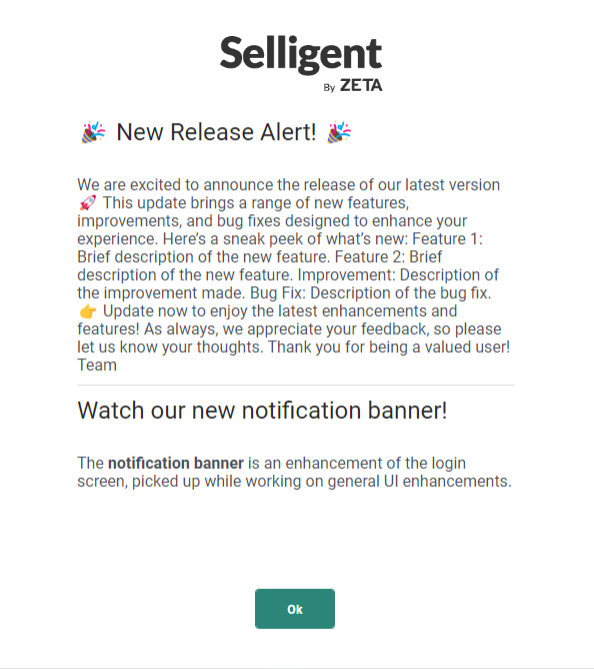
The login screen also shows important notifications (for example when a new Selligent by Zeta release is available).
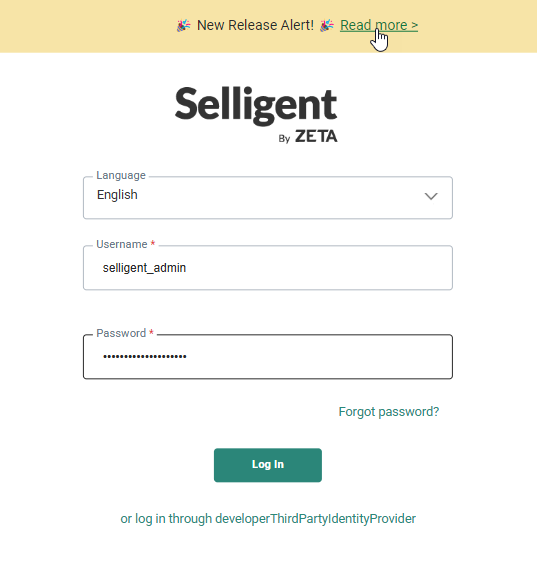
Clicking Read more opens a pop-up displaying the full notification: