Welcome Template
Overview
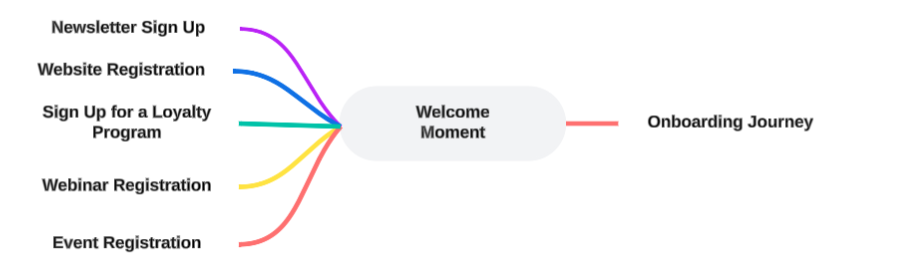
The Welcome Moment aims to send real-time communications when website visitors subscribe or sign up to your website, newsletter, webinar, etc. These visitors will receive a personalized welcome message to trigger their interest and get them excited about your brand. First impressions are important, so by interacting with them at this moment in time, they will feel embraced by your brand.
To track when a subscribe is happening, the signup event needs to be tracked. The signup signal with details on what the visitor is signing up for is then sent to the Moments application. These signals are then captured by Welcome Moment:
Configure the Welcome Moment
To configure a Welcome Moment, the following properties need to be set.
Settings
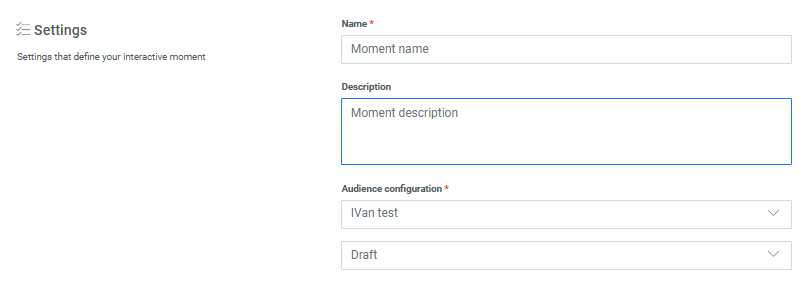
Check out the topic on creating a Moment for details on these generic settings.
Moments preferences
Signup
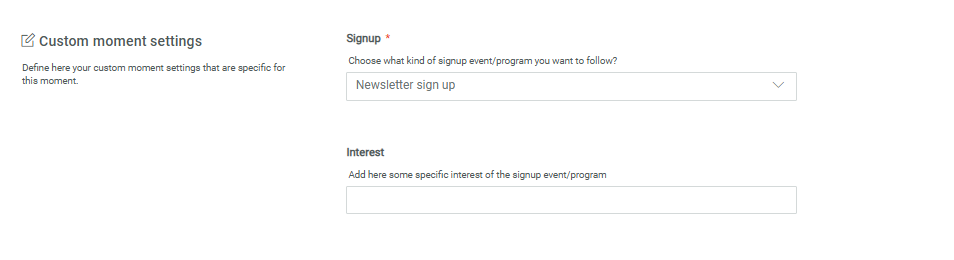
Select the type of signup. You can choose from newsletter, webinar, game, event, website or program. By setting the type, the Moment will only listen to signals of that specific type and ignore the others. This means that you can treat signups differently depending on the type.
For example, when a customer signs up for your website, you want to send them a welcome message, but when the customer signs up for your webinar, you send them the program.
Interest
Select the category of interest. This is a free text field and can be used to specify further details, such as the sports section for the website, or Finance for the newsletter.
App sources other than Moments to trigger the Moment (optional)
Note: The App source field is only displayed when at least one additional source, besides Moments and Signals, is configured for the environment. For example if you have a Loyalty integration, those events can also be used as a source for Interactive Moments to listen to.
The App source field let's you select additional sources for the Moment to listen to, such as Loyalty or Integrations.

Conditions to filter the signals triggering the Moment (optional)
Conditions let you define a filter on the incoming signals for this specific Moment using any attribute of the selected event.

When no condition is defined, all signals are captured.
Details on how to define a filter are available in the article Expression builder.
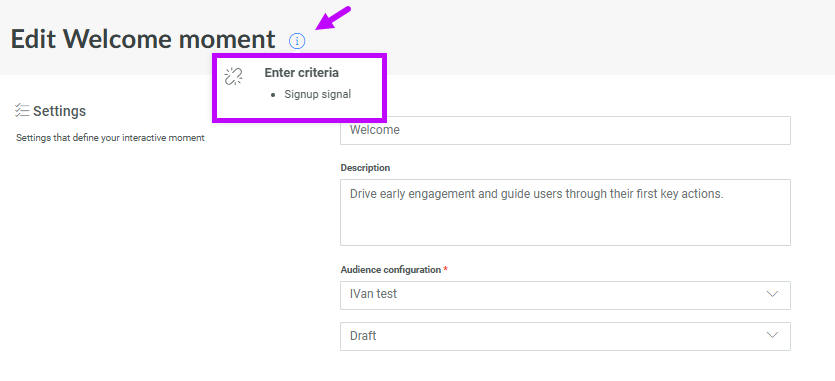
Note: The list of events that can be used for filtering corresponds to all the events that are available for this specific Moment and that are listed in the info box at the top: