Expression Builder
Overview
The Expression builder is a tool that let's you create conditions on the incoming signals for a Moment for maximum efficiency and optimized segmentation. By listening only to the signals that matter, you can improve targeting accuracy and fine tune the events that require an action.
Every Moment has one or more signals that can be used to filter on. All attributes for the selected signal can be used as a condition.
Note: An overview of the signals per Moment is listed in the info box next to the name of a specific Moment.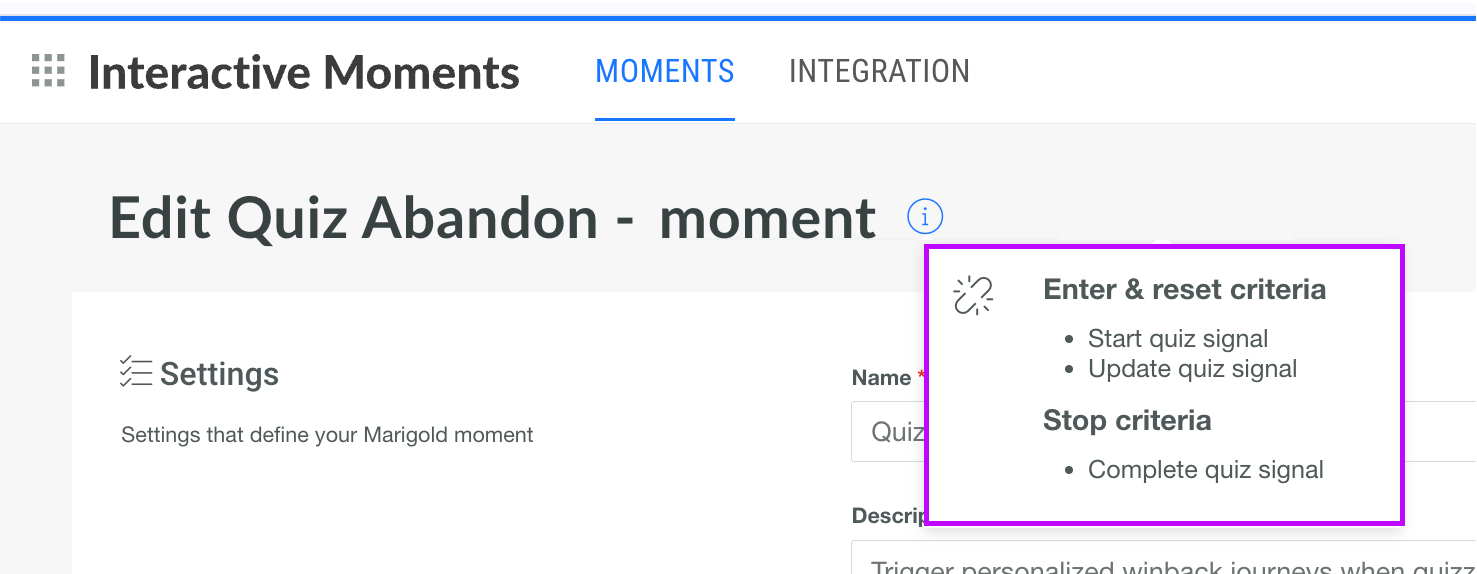
Key capabilities
- The expression builder supports string, number, boolean, datetime, arrays and objects allowing filtering for all possible attributes.
- Nested structures are supported enabling the possibility to go deeper into a level. For example filtering on item attributes such as price.
- Multiple conditions can be combined with AND and OR operators with clear color styling.
- Grouping of conditions is supported, enabling more complex filters.
Sample use cases
Because any attribute of the signal can be used to filter on, the list of use cases is vast.
- You noticed a decrease in the purchase of a specific product category and want to track when people browsing that category drop off to send a feedback form and find out more about the loss of interest.
- Track customers who fill their baskets with high value products but do not purchase in the end. Focus on basket above 200$ and send a message with free delivery or additional discounts.
- Connect with mobile app users that have uninstalled the app in the last 24 hours.
- Reach out to customers with purchases above 1000$, to thank them and reward with a voucher for the next purchase.
Configure a filter
There are two operating modes:
-
Auto-formatting enabled — A structured interface to build constraints in a visual way with guided input such as drop-downs, chips and more
-
Auto-formatting disabled — A text editor to create constraints freely, by entering the expressions manually. The expressions are validated for syntax issues before saving/
You can switch between both modes preserving the conditions created in the other mode.
Configure filters with auto-formatting enabled
1. Enable the option for the event or signal you want to filter on.
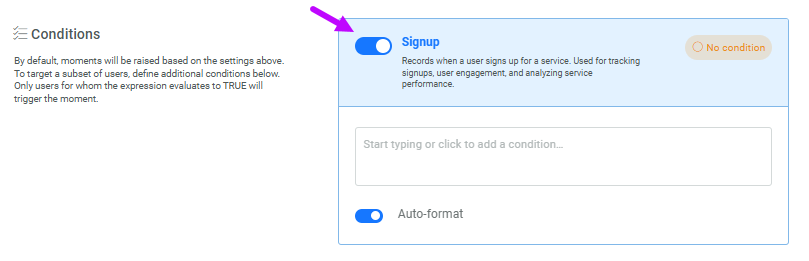
Note: Wen no conditions have been defined for the selected signal, a No condition pill is shown.
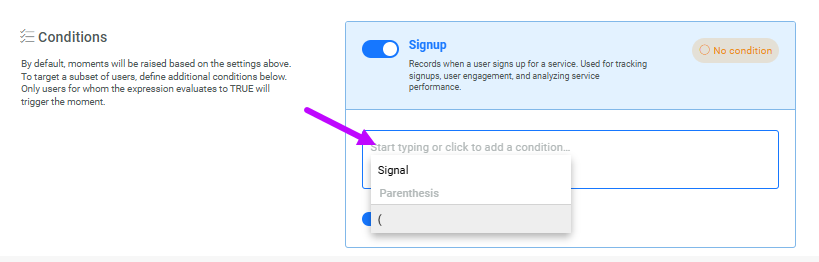
2. Click the entry field, then select Signal.
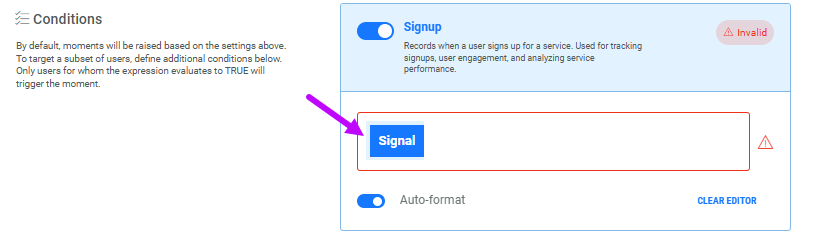
A signal placeholder is added. A red border indicates the condition is not complete:
3. Next, click in the field again and select an attribute from the drop-down. Attributes are listed alphabetically.
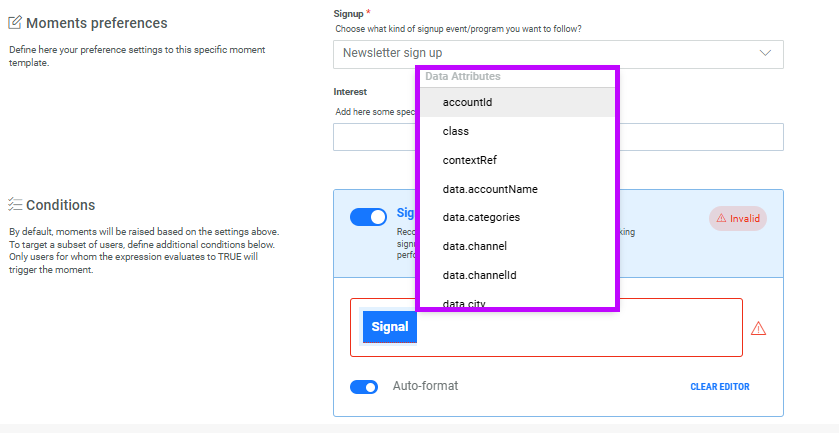
The attribute is added after the selected signal in red, indicating the configuration is not complete:
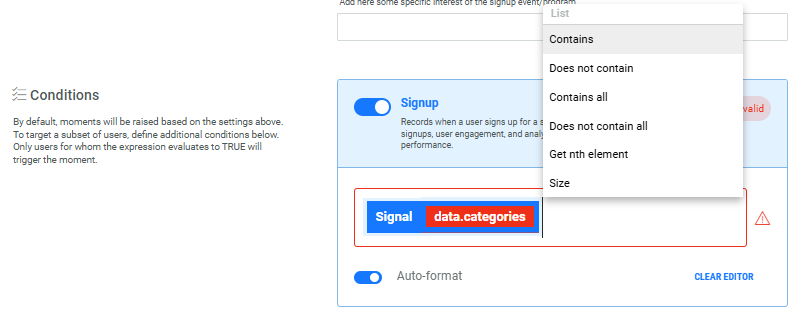
4. Next, select the operator from a drop-down. Operator values depend on the type of attribute selected (numeric, text, dates, ...):
The operator is added to the condition:
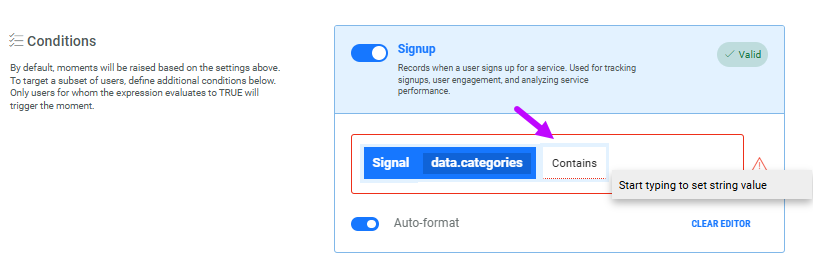
5. Enter the comparison value in the input field. Depending on the attribute type evaluated the entered value is either a string, numeric or a date.
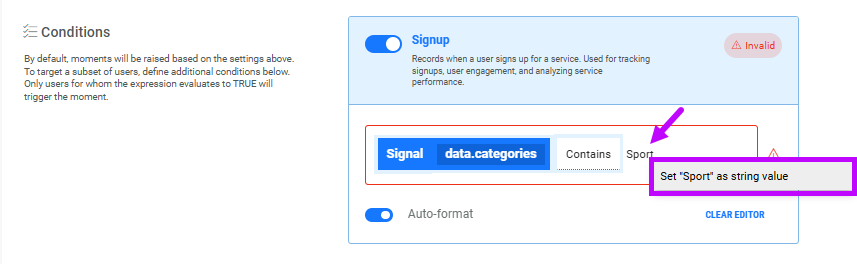
6. An action pops up to add the entered value as a string. Click it. A placeholder is now shown for the value:
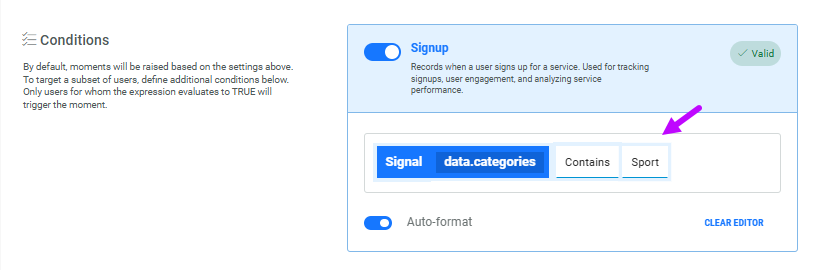
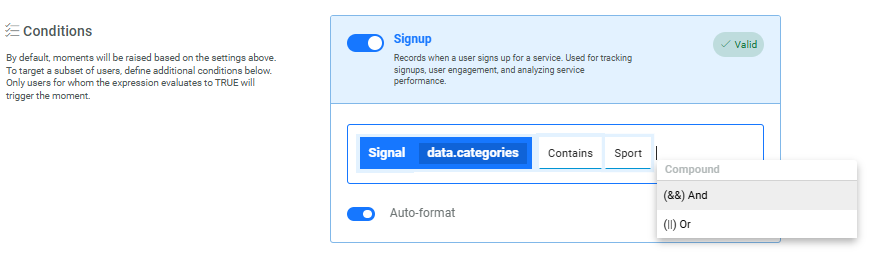
7. When required, you can add additional constraints using AND or OR operators:
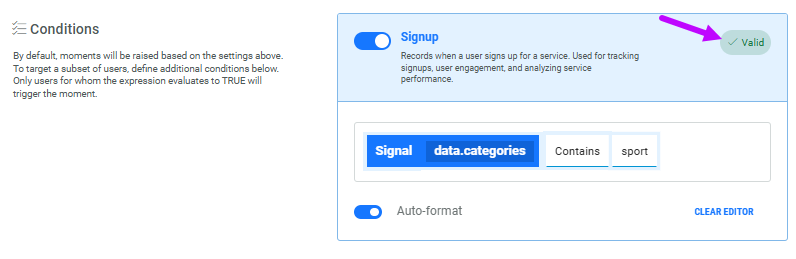
8. When the condition is correct, a Valid pill is shown:
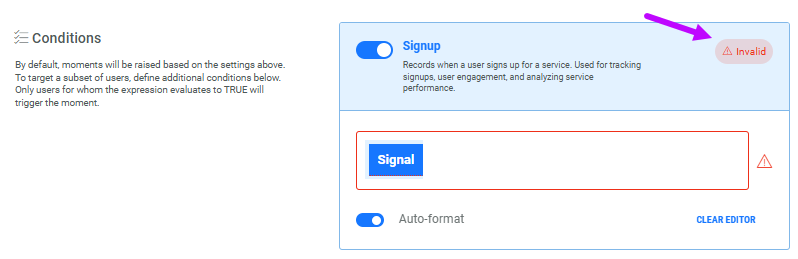
When the condition is incomplete or incorrect, the pill Invalid is shown:
Select Clear Editor to remove the expression entirely.
Note: Conditions on the same event can be combined with OR and AND operators. Use parenthesis to group your conditions.
Configure a filter with auto-formatting disabled
Instead of using the visual editor, you can enter the condition syntax freely. Validations are performed while entering the syntax and indicated in red when validation failed.
The syntax is as follows:
signal['data']['categories:array-string'].contains('sport')
where:
- signal refers to the selected signal within the Moment
- ['data'] refers to the attribute for the selected signal
- ['categories:array-string'] refers to the selected attribute and the type
- .contains refers to the operator
- ('sport') refers to the comparison value