Post Purchase Feedback Template
Overview
When a customer purchases a product or a service, it is important to show appreciation in order to create a personalized experience for the customer and let them feel embraced by the brand. This can be done by sending a simple thank you for your purchase message, or by offering a discount on the next purchase, a free loyalty card with points, etc.
When the customer purchases, it is possible to send information on the type of purchase, such as travel, food, support, insurance.
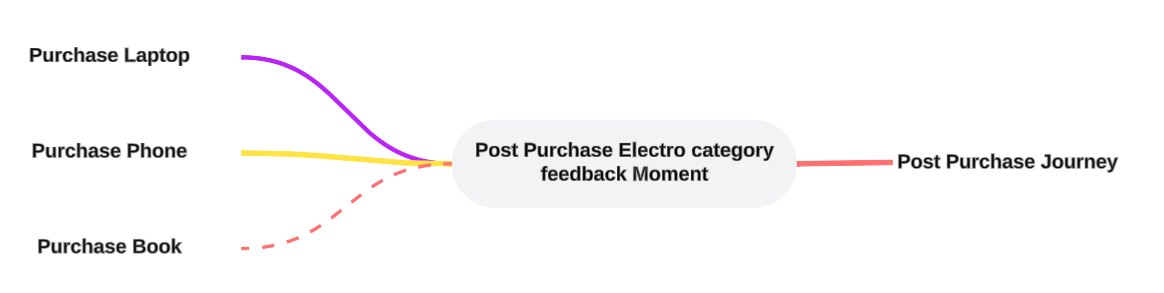
To track when a purchase is happening, the purchase event needs to be tracked, together with information on the category or service of the purchase. The Post Purchase Moment will only listen to purchase signals for a defined category or service and ignore the others:
Configure the Post Purchase Moment
To configure a Post Purchase Moment, the following properties need to be set.
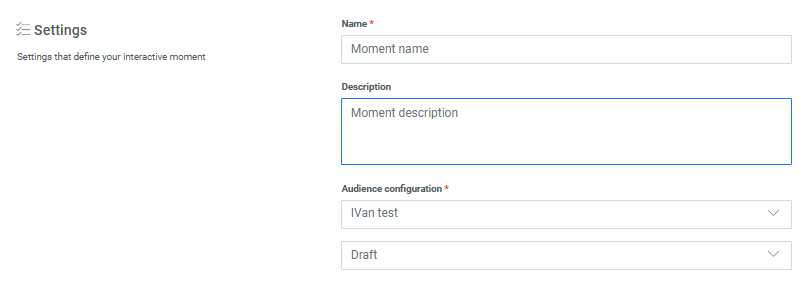
Settings
Check out the topic on creating a Moment for details on these generic settings.
Moments preferences

Purchase products and services categories
In the Overview of products or services you want to trigger the Moment on you can add as many products or services here as needed by manually entering them or by copy pasting them from somewhere else (spaces between the categories are required).
The Moment will only be triggered if a purchase signal comes in with a product or service category specified in the list here. All other purchase categories will be ignored and not trigger a Moment.
App sources other than Moments to trigger the Moment (optional)
Note: The App source field is only displayed when at least one additional source, besides Moments and Signals, is configured for the environment. For example if you have a Loyalty integration, those events can also be used as a source for Interactive Moments to listen to.
The App source field let's you select additional sources for the Moment to listen to, such as Loyalty or Integrations.

Conditions to filter the signals triggering the Moment (optional)
Conditions let you define a filter on the incoming signals for this specific Moment using any attribute of the selected event.

When no condition is defined, all signals are captured.
Details on how to define a filter are available in the article Expression builder.
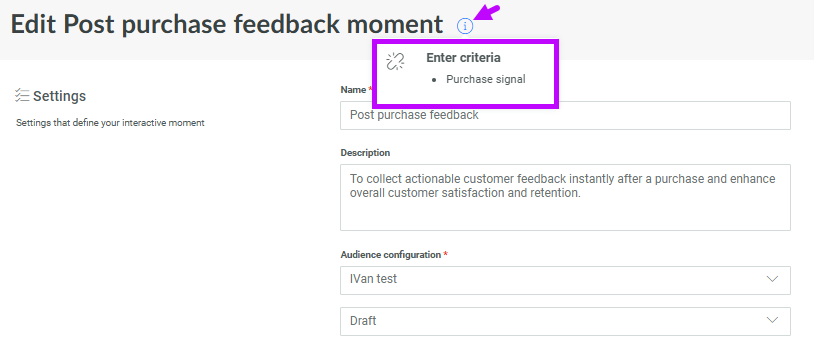
Note: The list of events that can be used for filtering corresponds to all the events that are available for this specific Moment and that are listed in the info box at the top: