RCS (Rich Communication Services) allows you to send branded, interactive mobile messages that go beyond traditional SMS. With RCS campaigns, you can include enhanced text formatting, images, buttons, and trackable links to create more engaging customer experiences, while also ensuring security by interacting with the verified sender.
RCS is an optional feature that must be enabled in your account. Please speak with your Zeta Representative for more details.
You can also watch this video:
This article helps you understand the two main RCS message types available:
- Basic RCS – Text-based messages
- Rich RCS – Visually enhanced messages with rich media (not just images) and options for interation
By the end, you’ll know which format best supports your campaign goals and where to find step-by-step setup instructions.
To learn RCS's basic concepts and best practices, see here.
When to use RCS Basic
RCS Basic messages are text-focused and ideal for:
- Announcements
- Alerts or reminders
- Awareness campaigns
- Simple call-to-action messages with links
In RCS Basic, you can:
- Add text content
- Include URL redirects
- Shorten and track links
- Configure SMS fallback delivery
Example use case: A financial services brand sends a retirement planning awareness message with links to different savings options.
For step-by-step instructions, see Create a Basic RCS Campaign with URL Redirects .
When to use RCS Rich Content
RCS Rich Content messages provide a more visual and interactive experience. They are ideal for:
- Promotions
- Event invitations
- Product launches
- Campaigns that benefit from visual branding
With RCS Rich Content, you can:
- Add images or banners
- Include structured titles and descriptions
- Add interactive suggestion buttons
- Redirect users to landing pages
- Track engagement
- Configure SMS fallback delivery
For example use case with step-by-step instructions, see:
- Create a Rich RCS Campaign with a single rich card with image and URL Redirects,
- Create a Rich RCS Campaign with rich cards and conversational replies.
Before you begin, regardless of message type, make sure:
- RCS is enabled for your account
- An RCS-enabled Sender Profile is configured
Campaign content preview
RCS brings interactive, app-like capabilities to the mobile messaging. From rich card carousels to integrated webviews, it offers a comprehensive toolkit for building conversational journeys that help people connect with businesses and take action.
As you build your content, the preview panel in your Content tab provides you a visual representation of how your message will appear to recipients. The preview most closely depicts an Android experience.
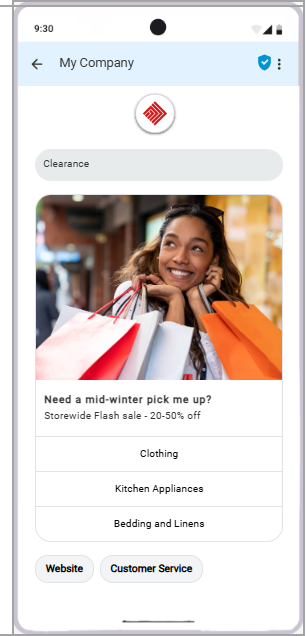
Note: The same message can display differently in Android and iOS devices, which represents a different audience experience. Always send proofs to both iOS and Android devices, review the appearance and content on each device, and adjust your message where necessary to ensure the best possible experience for recipients.
Explore the feature gallery here to understand how the content appears in Android and iOS devices.
Use cases
Following use cases will guide you to design your RCS Campaigns: