External Link Tracking
External Link Tracking tracks links that are supplied dynamically to campaign content rather than added through the standard content creation workflow. This includes links:
- inserted from personalization fields
- content passed to Advanced Event Trigger through the services2 API
To make a dynamically supplied link trackable, enclose it in the External Link Tracking merge symbol. During campaign generation, the merge symbol is converted to a tracked link so recipient clicks can be recorded in Campaign Reports. External Link Tracking supports standard external links and deep links that use the supported merge-symbol format. Links supplied without the merge symbol are not processed as external tracked links.
Using External Tracking Link
To identify a dynamically supplied URL as a trackable external link, enclose the URL in the External Link Tracking merge symbol.
Use the following format:
{$<link URL> | <link name> | <deep link parameters>$}The merge symbol supports:
- Link URL — The destination URL
- Link name — The name used to identify the link
- Deep link parameters — Optional parameters used when the link is a deep link
Note: Links that are not enclosed in the External Link Tracking merge symbol are not processed as external tracked links.
Example: Standard external link
<a href="{$http://www.google.com | GoogleLink$}">My Link!</a>Example: External deep link
<a href="{$http://www.myshoppingsite.com | DeepLinkToSweaters | nav_sweaters$}">My Link!</a>The deep link parameter is optional. When you provide a deep link parameter in the merge symbol, the generated tracking URL includes the information required to process the link as a deep link.
Use External Link Tracking in a standard email campaign
Use External Link Tracking in a standard email campaign when a database field stores Hypertext Markup Language (HTML) that contains a personalized link and you insert that field into the campaign content.
To use an external tracked link:
-
Import the HTML into a string-based field in the table used by your campaign. Supported field types include String, Long String, and Max String.
-
Include at least one link using the External Link Tracking merge symbol in the imported HTML.
-
Create an Email Campaign.
-
Add the personalization field containing the HTML to the campaign content.
-
Launch the campaign.
When the campaign generates the email, External Link Tracking replaces the merge symbol in the personalization field with a tracked link.
Use External Link Tracking with an Advanced Event Trigger
An Advanced Event Trigger (AET) is an event type for a triggered campaign that waits for a services2 API call to send the campaign. The API request can include personalized content. If the personalized content contains an external URL that should be tracked, enclose the URL in the External Link Tracking merge symbol.
Prerequisites
If the table does not contain an appropriate Long String field for the personalized HTML, add one before configuring the Advanced Event Trigger campaign.
Configure an Advanced Event Trigger campaign
-
Create an event-triggered email campaign.
-
In Setup, select Add Event Trigger.
-
Under Data, select Advanced Event Trigger.
-
Create the Campaign.
-
In Content tab, open Advanced Editor, then add the personalization fields that will contain the HTML fragments with External Link Tracking merge symbols.
-
Launch the campaign.
When the API triggers the campaign, the personalized content can contain the External Link Tracking merge symbol. During the send, External Link Tracking processes the merge symbol and converts it into a tracked URL.
View External Link Tracking results
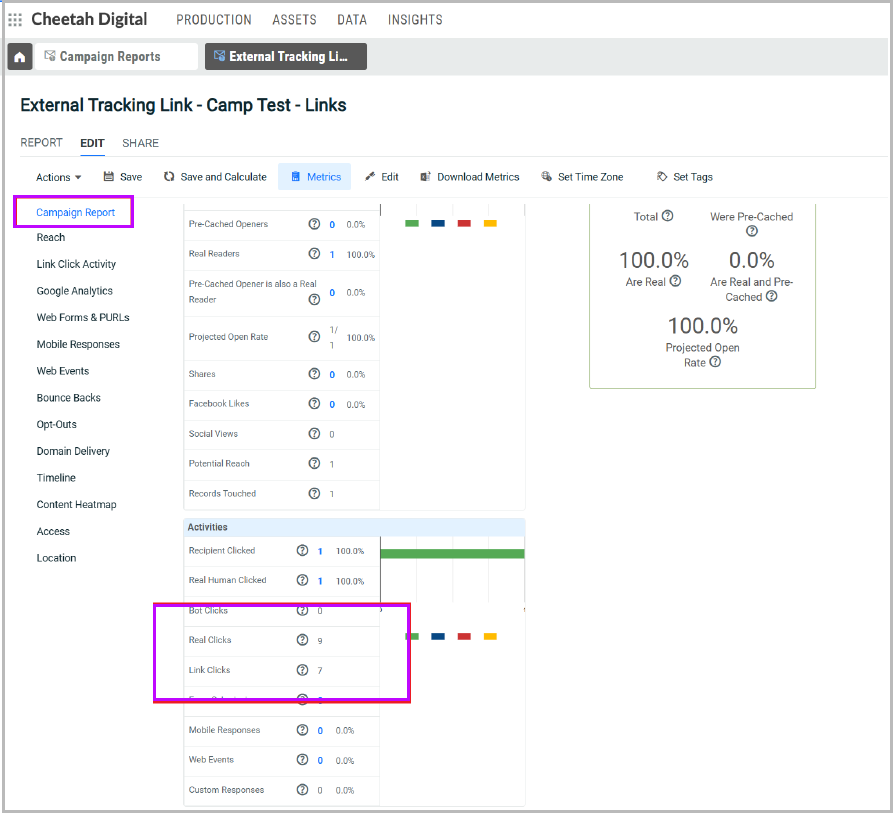
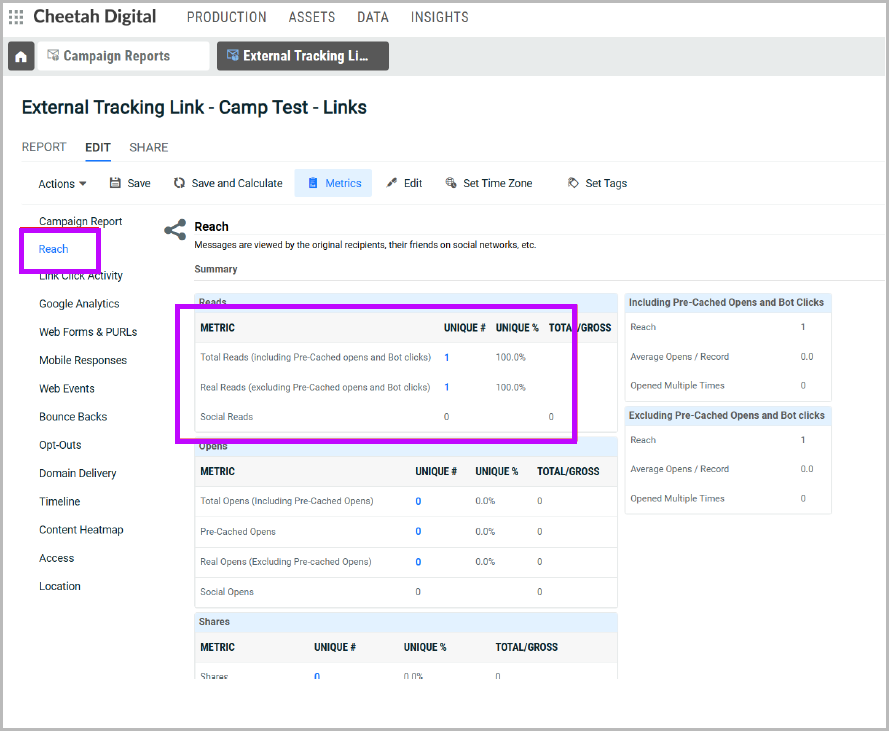
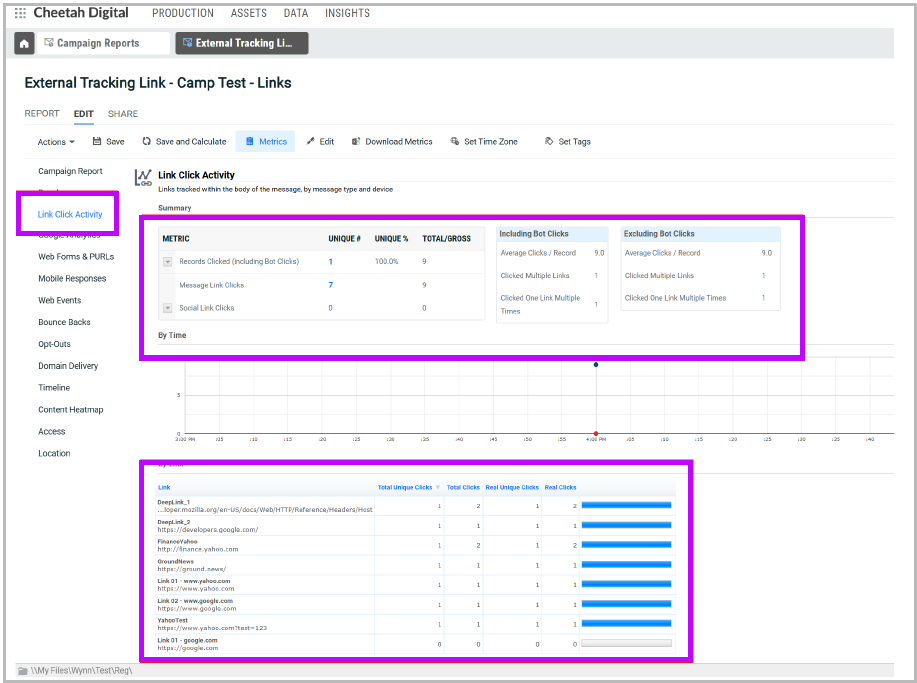
Clicks on external tracked links are included in the campaign's reporting data. See the Campaign Reports to review the campaign's click activity.
External tracked links can be included with the campaign's standard link and click reporting.
You can review individual tracked links and their click activity in Campaign Report and Link Click Activity reports.