
Support Team and Portal
The Selligent Support Team provides assistance to Selligent clients and partners. Accessed via the Support Portal and through a ticketing process, the Support Team will troubleshoot and work to resolve any issues encountered when operating the Selligent services.
The Selligent team can also assist in exploring and developing technical use cases and helping you to maximize the platform’s full potential. This type of assistance should be directed to your Technical Project Manager rather than the Support Team.
Support portal
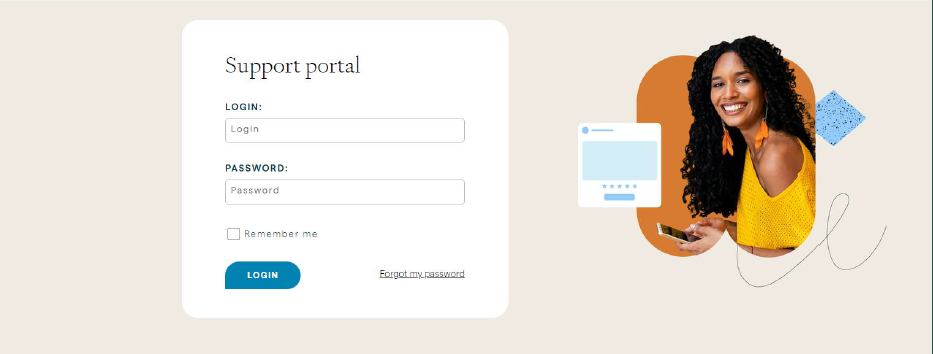
The Selligent Support Portal is available 24/7/365, including weekends and holidays, to Selligent clients and partners. To access the portal visit https://support.selligent.com. Clients and partners will receive credentials to log on to the Support Portal throughout the duration of the subscription term. If you currently don’t have access to the portal, you may contact you Technical Project Manager.
During office hours, the Support Team is in the office and requests are monitored as they come in. Outside of office hours, for business critical and high priority requests, the hotline may be utilized to activate the response time for such tickets. Normal and low priority requests introduced outside office hours, and business critical and high priority requests that are not activated using the hotline, will be managed on the next business day.
The default language used on the Support Portal is English, but the Support Team will answer tickets in the incoming language where possible.
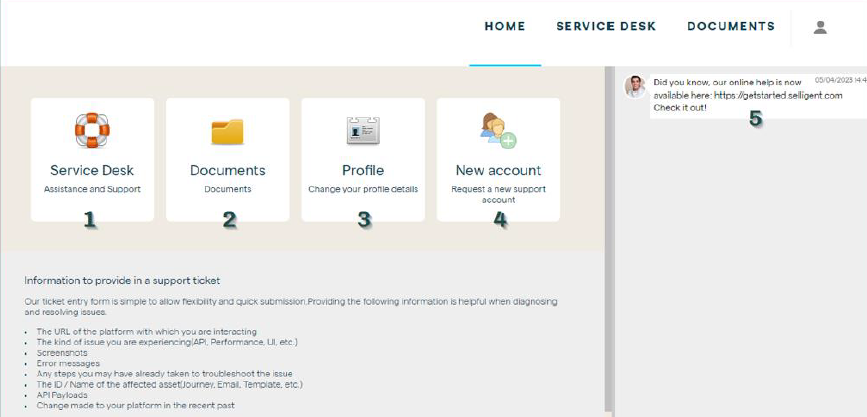
1. Ask your questions through a ticket and view previously registered enquiries
2. Available documentation and training materials
3. View your profile and change your password
4. Request a support account for a colleague
5. Latest news, announcements and services availability
Submitting a ticket to the support team
The Service Desk is a ticketing system within the Selligent Portal.
To create a new ticket, click the Service Desk icon.
You will then be presented with the following view. For optimal tracking and follow-up, a separate ticket must be created per question or problem.
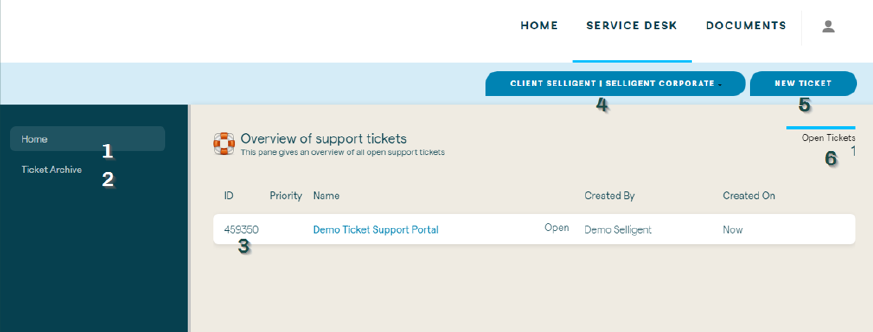
1. All currently opened tickets
2. History of tickets that have already been closed
3. Unique ticket identification
4. Client selection in case of delegation or partnership
5. Create a new ticket
6. Number of currently pending tickets
When creating a new ticket, you will be requested to fill in a number of fields:
- SUBJECT: a brief recap of your request
- DESCRIPTION: a detailed explanation of your question or issue
- REQUEST TYPE: indicate the type of your request. Make sure to read the description to select the appropriate type
- PRIORITY: indicate the urgency of your question or issue. Available priorities depend on the Request Type. Urgent issues introduced outside office hours must be activated by calling the Selligent hotline
- ATTACH FILE: drag your attachment within the ticket dialog or click the ‘Attach File’ button. In case you need to add multiple files, create a zip file with all necessary items
The ticket entry form is simple to allow flexibility and quick submission. Providing the following information is relevant and helpful when diagnosing and resolving issues:
- The URL of the platform you are interacting with
- The kind of issue you are experiencing (API, Performance, UI, etc.)
- The ID/Name of the affected asset (Journey, Email, Template, etc.)
- Error messages returned by the service
- Screenshots
- API Payloads
- Any steps taken to troubleshoot or reproduce the issue
- Changes made to the platform in the recent past
Email-to-ticket service
If desired, we offer the possibility to raise questions or issues via email, the Support Portal will automatically convert them into a ticket.
The following should be considered when using this service:
- Emails must be sent to the following email address: simsupport@selligent.com
- The aforementioned email address must be placed in the “To” field of the email. Adding it in “CC” or “BCC” will not generate a ticket, nor will it update an existing ticket
- When adding more information to an existing ticket, the ticket ID should be retained within the subject line of the email with the following format: “#TIDxxxxx”
- Only the creator of the ticket can add more information to it via email. Other members using the same ticket ID in the subject line of the email will generate a new ticket
- External follower cannot be added to a ticket, therefore members in CC of an email will not be visible in the ticket itself
- This service is only operational for clients and partners with an active Support account
Hotlines
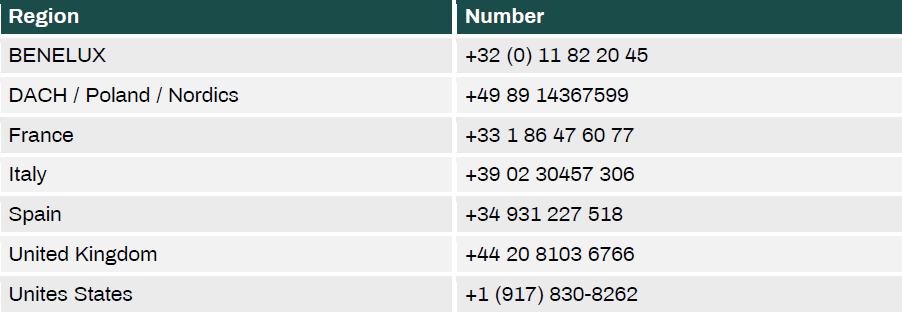
HOTLINES Region Number BENELUX +32 (0) 11 82 20 45 DACH / Poland / Nordics +49 89 14367599 France +33 1 86 47 60 77 Italy +39 02 30457 306 Spain +34 931 227 518 United Kingdom +44 20 8103 6766 Unites States +1 (917) 830-8262