
Single Sign-On Guide for Azure
Zeta Login supports Security Assertion Markup Language (SAML) Single Sign-On. This functionality streamlines user access by requiring a single authentication with your company’s IdP, granting access to Zeta Login and Zeta products without the need to manage additional credentials.
As a Zeta customer, you can configure SSO with Azure as described below.
Azure IdP Mapping
If your company is using Azure as your IdP, please follow the steps below to obtain the SAML certificate and metadata and pass them to your Zeta team.
-
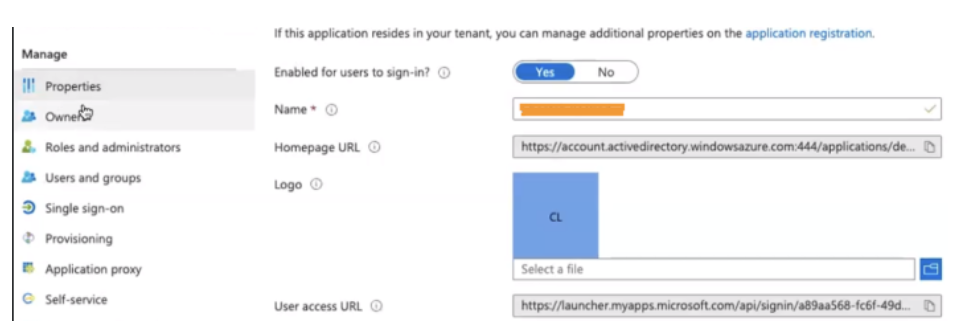
In Azure, create a "Zeta Login" Application.
-
Setup Single Sign-On by clicking App > Single Sign-on.
-
Configure the following values:
-
Identifier (Entity ID): <any URL>
-
Reply URL (Assertion Consumer Service URL): <any URL>
-
-
Configure Attributes and claims:
-
email: user.userprincipalname. The user.userprincipalname may vary depending on your settings. When configuring this attribute, confirm you are using the correct email attribute to ensure the submission of the correct email address. Azure employs various types of email variables, which may differ significantly from other platforms.
-
firstName: user.givenname
-
lastName: user.surname
-
-
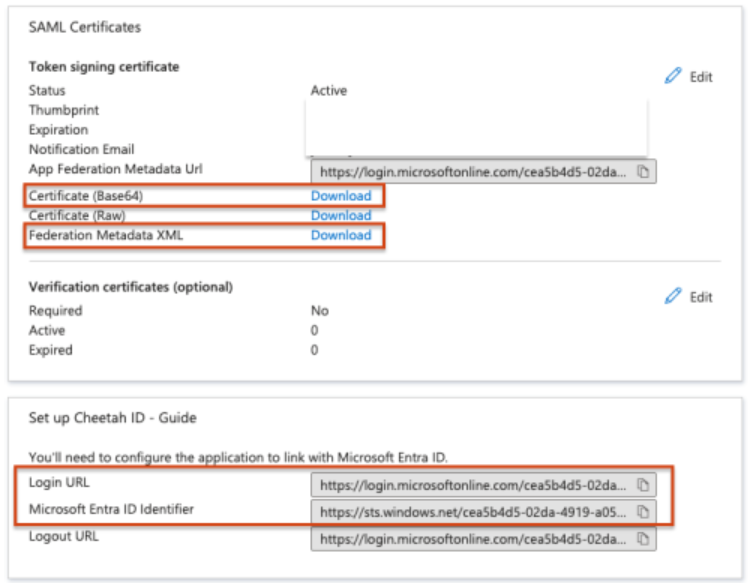
From the same Single Sign-on screen, note and pass the following details to your Zeta team:
-
Certificate
-
Federation Metadata XML
-
Login URL
-
Microsoft Entra ID Identifier
-
Once Zeta’s IdP is configured, your Zeta team will provide the Azure IdP Metadata and the information below for configuring your Identity Provider to communicate with the Zeta Login application.
| Client IdP | Zeta Values |
|
Single sign-on URL |
Assertion Consumer URL |
|
Audience URI (SP Entity ID) |
Audience URL |
|
Default Relay State |
Default Relay State URL |
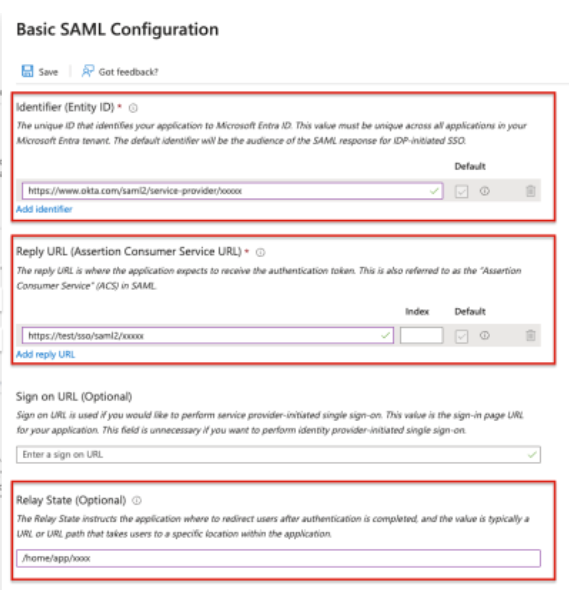
Please note that the default RelayState is needed for your IdP to directly forward to the Zeta Login application when your user logs in to Zeta Login.
When the above is completed, please contact your Zeta team so that a meeting can be arranged to test the integration.
User Management
For organizations integrated with Zeta via Single Sign-On, all user management must be handled through your organization’s IdP. User accounts and access permissions should not be managed directly within the Zeta platform.
When a new user is provisioned in your IdP and assigned access to the Zeta application, the SSO integration will grant access based on the permissions defined in the mapped user groups.
Conversely, if a user is de-provisioned or removed from your IdP, the system will prevent them from accessing Zeta.
Please note that this approach represents a one-way user management flow. Your organization’s IdP acts as the single source of truth for managing user access to Zeta applications.
The platform supports two ways of assigning user access in Zeta Login:
-
Direct Assignment: Access is assigned at the individual user level (known as personal access).
-
User Group Assignment: Users are added to a user group that has predefined access. Any changes to the user group’s access will automatically apply to all users within that group.
Note: Both personal access and user group access can be assigned to a user simultaneously. The system will evaluate both and grant the user the highest level of access (i.e., the most privileged role) between the two.
If your organization has more than a handful of users (e.g., 10+), or you expect to scale access across departments or brands, utilizing user groups is the more efficient and scalable option.
Direct Assignment
Direct Assignment is ideal for assigning access to a small number of users without needing to configure or rely on user groups. This approach allows for customized permissions tailored to specific users based on their individual roles or responsibilities.
To add a user and grant them access to Zeta Login:
-
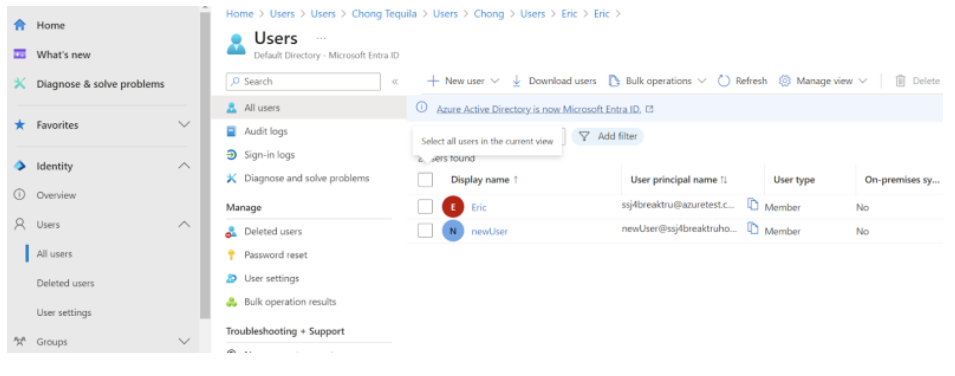
In Azure, select Users > All Users from the left navigation bar. The User Management page is displayed.
-
Click New User.
-
Enter the required user information and click Save. Make sure the correct domain is selected for the User Principal Name field.
-
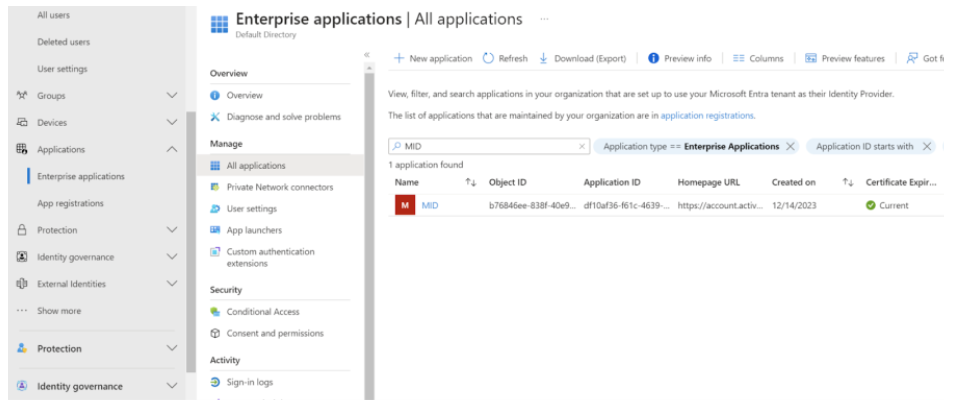
Assign the user to the Enterprise Application created to integrate with Zeta Login. Select Application > Enterprise Application from the left navigation bar.
-
Find and select the Zeta Login application from the application list.
-
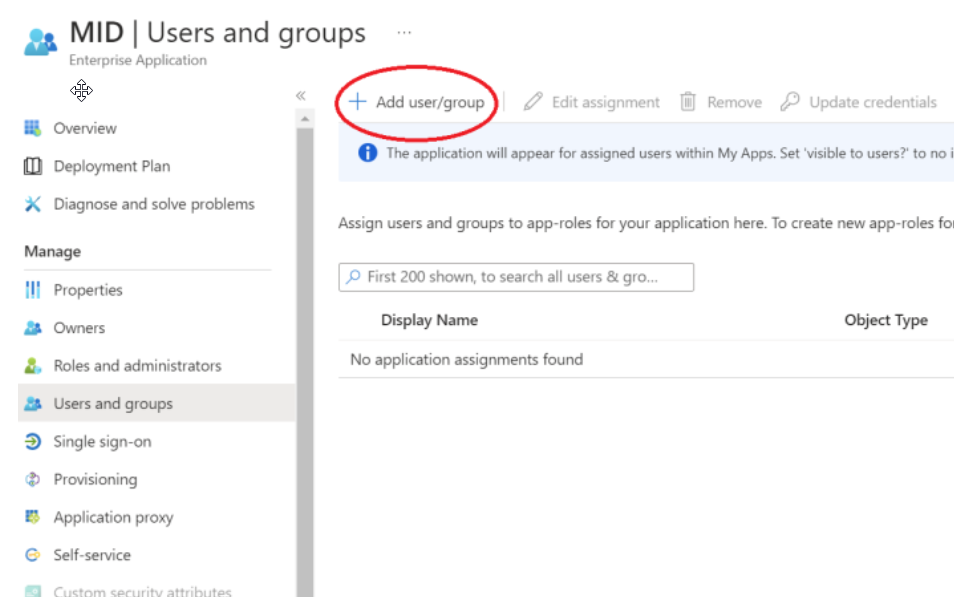
In the displayed application window, select Manage > Users and Groups.
-
Click Assign users and groups.
-
In the Users and Groups window, click Add user / group.
-
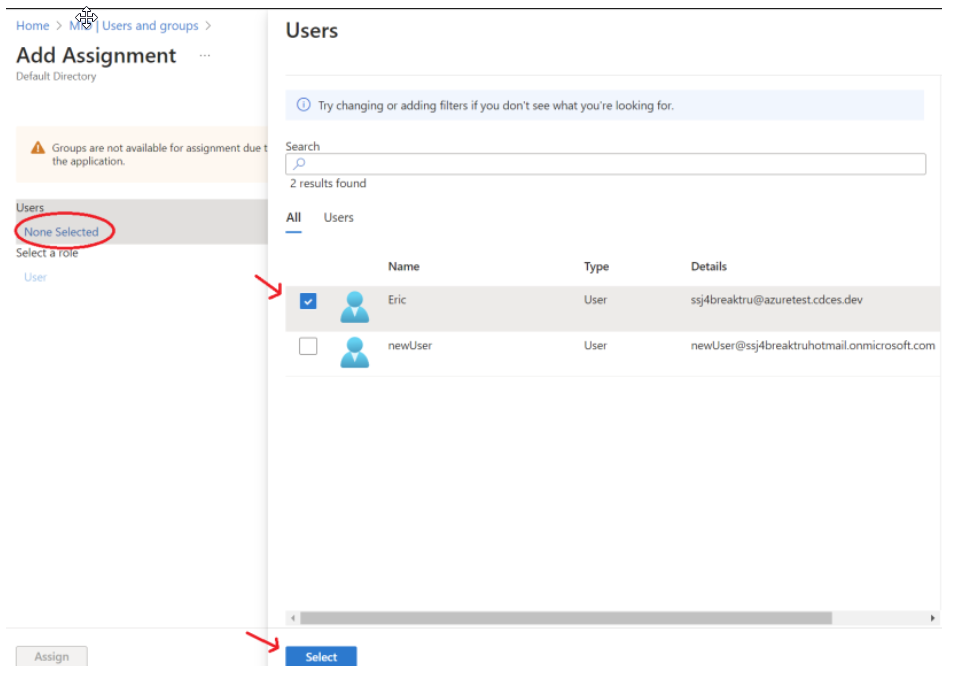
Click None Selected, then select the user to be added from the Users popup window, and click Select.
-
Click Assign to save the selection.
The user assigned to the application can now log in from the Azure domain, and they will see the Zeta Login application. Clicking the application will redirect the user to Zeta Login, where their account will be automatically created if it does not already exist.
User Group Assignment
To enable SSO to access Zeta products using Zeta Login’s User Groups, please note the following:
| Existing Client | New Client |
|
If you are an existing Zeta client using Cheetah Digital, Loyalty, and/or Platform, before the migration: If you currently have an active SSO integration with a Zeta product, your Zeta team will export the list of existing users along with their current permissions. Please review the exported user access and inform the Zeta team of the User Groups and related access / permissions that need to be created. Please note the criteria for group name creation as below:
For example: org-admin-all-applications, standard-user, report-viewer Your Zeta team will set up these User Groups for your organization. You will then need to map them to the corresponding user groups in your Identity Provider to complete the SSO setup. |
If you are a new Zeta client, or if your company has not previously integrated SSO with any Zeta products, please inform your Zeta team of the User Groups and access levels that need to be created. Please note the criteria for group name creation as below:
For example: org-admin-all-applications, standard-user, report-viewer Your Zeta team will set up these User Groups for your organization. You will then need to map them to the corresponding user groups in your Identity Provider to complete the SSO setup. |
Configure Custom Groups in Azure
Once the User Groups are created by your Zeta team in Zeta Login, follow these steps to create the same groups in your organization’s Azure IdP.
-
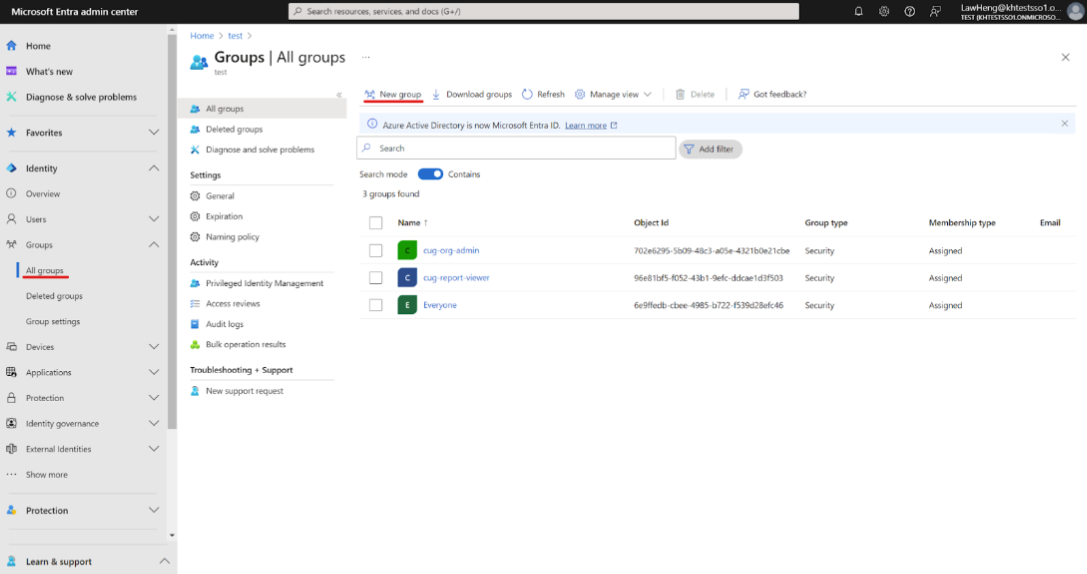
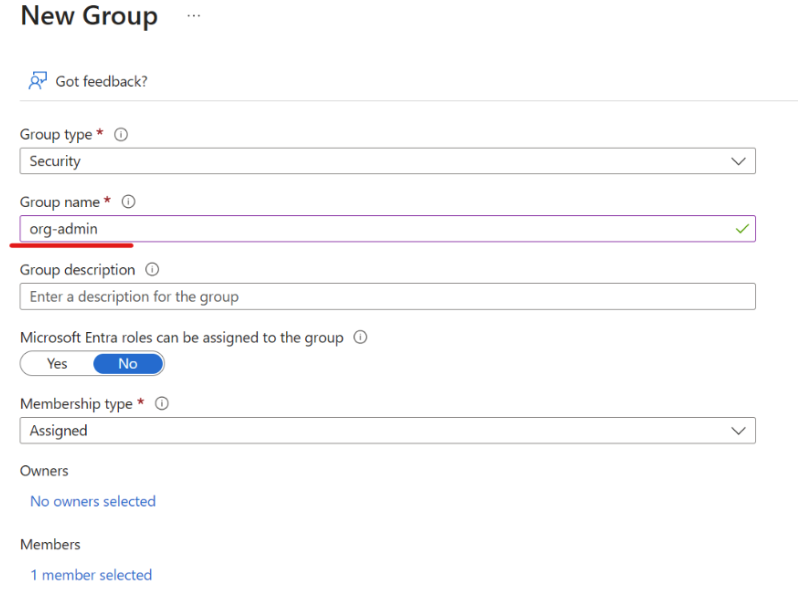
Navigate to Azure Groups and click New Group.
-
Enter a name for the new Group. This Group name should be the name of the User Group, in all lowercase, without any spaces. For example: "org-admin."
-
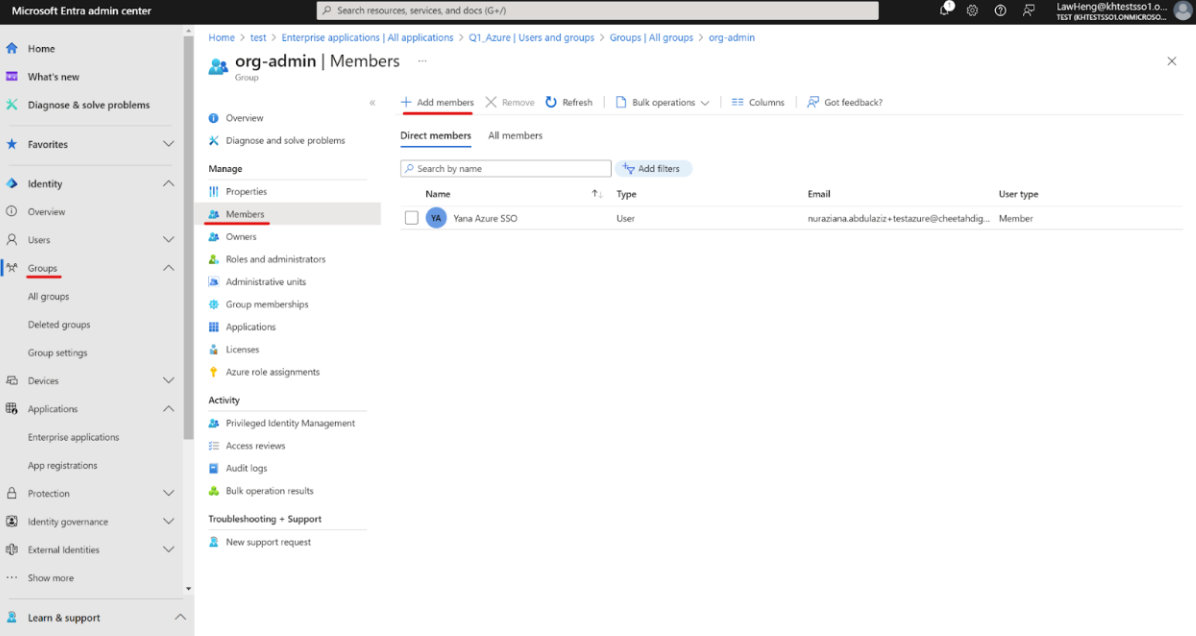
Click Add Members to assign users to the new Group.
-
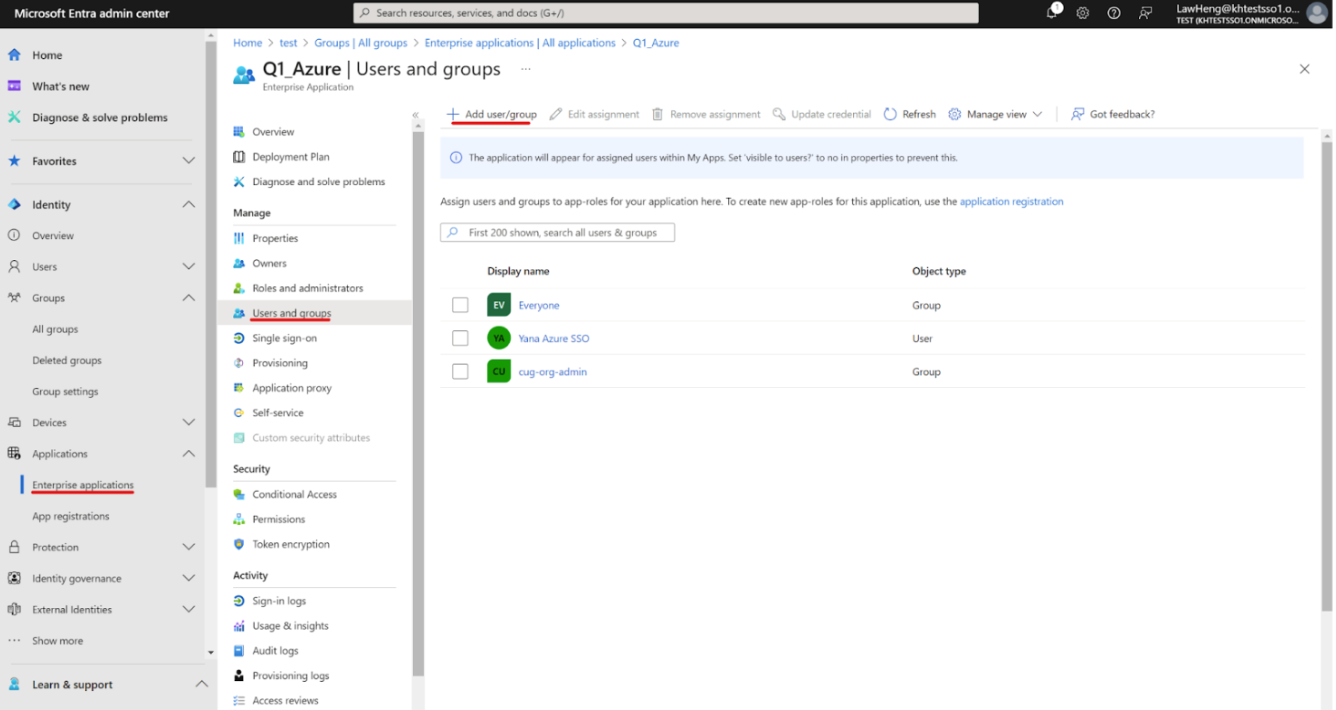
Assign the Group to the Enterprise Application.
-
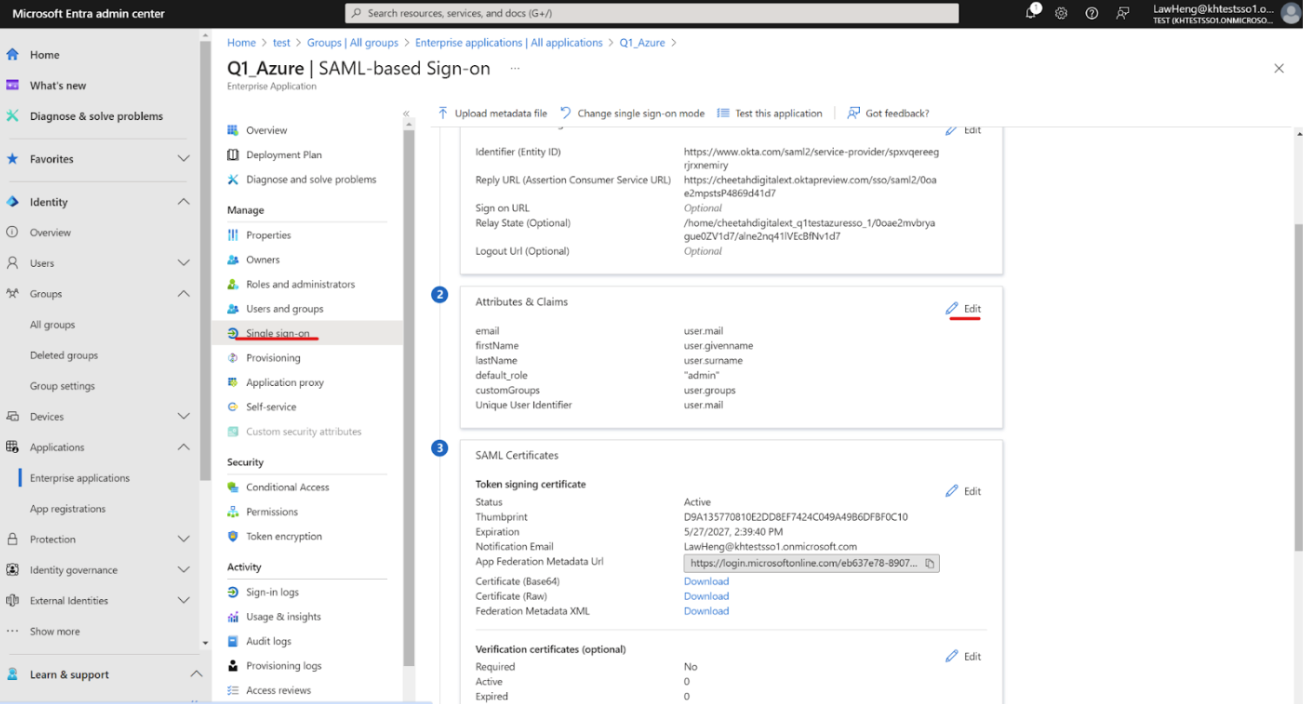
Create the customGroup claim.

-
Enter the following required Claims (on top of existing group)
-
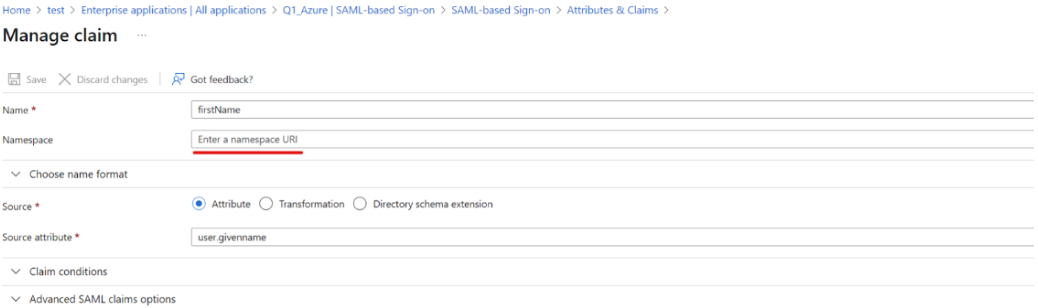
firstName: user.givenname
-
lastName: user.surname
-
email: user.mail
-
Unique User Identifier: user.userprincipalname
-
customGroups (group claims)
-
-
Remove the namespace for the claims.
-
Enter CustomGroups Claims Requirements:
-
Group associated: Select Groups assigned to the application
-
Source attribute: Select Cloud-only group display names
-
Name: Should be customGroups
-
Configure and Maintain User Groups in Zeta Login
Once onboarded to Zeta Login, your Organization Administrator can access the Zeta Login Administration environment and verify the User Groups created by your Zeta team.
If you need to create additional User Groups within Zeta Login, please see Create a User Group for more information on this process. Please note the following when creating a User Group in Zeta Login:
-
The Zeta Login Group Name field must match the Group name in your IdP.
-
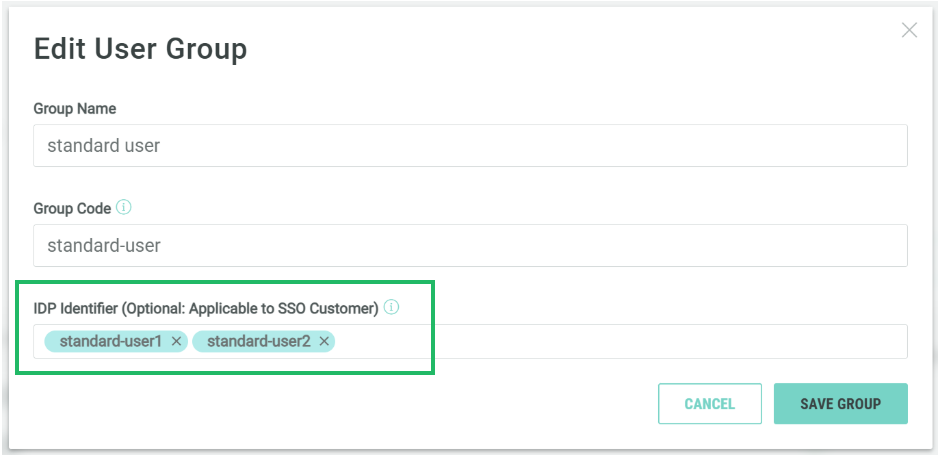
Leave the IDP Identifier field empty.
For any new User Groups created, be sure to map them to your organization’s IdP groups. This mapping ensures that users can be assigned to the appropriate groups through your IdP.
Once you create and save a new User Group, any users add to the User Group will automatically be granted access to the Business Units and applications defined for that User Group.
IdP Identifier
By default, the IDP Identifier field is left empty; as a result, users can be mapped to this User Group only based on the Group code. Optionally, you can use the IDP Identifier field to associate multiple group names with a specific User Group for more flexible user mapping.
User Group Synchronization
The platform supports two options for synchronizing User Groups in Zeta Login with Groups in Azure. For information on these options, please see Manage SSO User Group Synchronization .
Application Specific User Group Mapping
For the Cheetah Digital, Grow by Zeta, and Loyalty by Zeta applications, Zeta Login allows Organization Administrators to assign permissions specific to those applications.
For more information on integrating with Cheetah Digital, please see Map a User Group to an Cheetah Digital Access Group.
Zeta Login integrates with Grow by Zeta and Loyalty by Zeta using a feature called App Attributes. This option allows Organization Administrators to manually select the desired application-specific Role to which users in this User Group will be assigned, and also to customize the privileges granted to the user by that Role. See Configure Application Role for a User Group for more information.