
User Guide: Managing Consent for Email Open Tracking in Selligent
Why consent for email open tracking is important
Email open tracking is commonly implemented using a tracking pixel embedded in email content. When an email is opened, this pixel is loaded and sends information back to the platform, allowing organizations to measure engagement. Through this pixel you are able to identify the recipient, observe, and store their behavior.
Data protection laws and rules, such as the French (CNIL) and Italian data protection authorities (Garante), impose that individual (user‑level) email open tracking requires consent.
Personal open tracking implies:
- User identifiers in the pixel.
- Opens tracked per individual.
- Use for profiling, segmentation, personalization, and optimization.
As a result, organizations must:
- Inform recipients about email open tracking, the specific purposes for which it is used, and the parties involved.
- Collect and manage consent when individualized tracking is used.
- Provide a way for recipients to opt out. Recipients must be able to withdraw consent at any time.
- Keep proof that consent was given.
There are some use cases that are exempt from consent.
Consent is not required:
- When pixels are strictly necessary for security or authentication purposes.
- When pixels are used exclusively for deliverability, under strict conditions (limited data, minimization, emails requested by the user, etc.).
- For transactional messages. (For example, when a customer buys an item in an online store, this action can trigger a transactional email that supports the purchase process, such as an order confirmation or invoice.)
Examples:
- Open tracking to identify inactive recipients and stop sending emails to them does not require consent, but tracking data is limited to the last open date.
- Measuring open rates to optimize campaigns requires consent.
- Profiling users for use in other channels requires consent.
Country-specific consent requirements
France — CNIL
Under the CNIL guidance, individual email open tracking requires prior consent unless a specific exemption applies.
| Situation | Tracking pixel | Action |
|---|---|---|
| No prior consent | No | Ask for consent first using a non-tracked email or collect consent when the email address is collected. |
| Consent collected | Yes | Use tracking only for the purposes stated in the consent request. |
| Deliverability-only use case | Yes | No consent is required. Only the last open date can be stored. |
| Consent withdrawn | No | Disable individual tracking immediately. |
This guidance applies primarily to open tracking via pixels. Click tracking is not in scope.
Italy — Garante
Under the Garante guidance, individual email open tracking also requires consent unless a specific exemption applies.
Until October 28, 2026, Selligent users can manually set OPTIN_VIEWTRACKING to 1 for contacts in Italy (see details below). This temporary option supports the transition period set by the Garante.
When you set this value to 1, your next communication to these recipients must clearly state that email open tracking is used. It must also provide a clear and easy way for recipients to withdraw consent for email open tracking while continuing to receive email communications, if they choose.
From October 29, 2026, the same consent-based tracking behavior applies for Italy as for France:
- Individual open tracking occurs only when a user preference record exists and OPTIN_VIEWTRACKING is set to 1.
- A value of 0 or NULL means that consent is missing or withdrawn.
- Selligent does not record individual open-tracking data when consent is missing or withdrawn.
Note: Your organization is responsible for identifying the recipients and markets to which the France and Italy requirements apply, and for ensuring that consent values are set and maintained correctly.
Solution provided in Selligent to manage consent for email open tracking
Note: This feature is available on request, through a Support ticket.
To support email open tracking consent, Selligent introduces a solution for personal tracking.
Storage table and scope for user preferences
Selligent stores email open tracking consent in a SIM_USER_PREFERENCES system table.
Selligent also exposes this consent data through a SYS_USER_PREFERENCES_xxx scope per Audience List, where xxx is an ID (linked to the ID of the OP_BRANDS table) that is unique per Audience List and Business unit.
You can use this scope in Selligent wherever scopes are available.
The SIM_USER_PREFERENCES table contains the following fields:
| Field | Data type | Description |
|---|---|---|
| ID | bigint | The identifier that Selligent uses to filter the relation or scope. When an audience is shared across multiple Business units, Selligent creates a unique scope identifier for each Business unit as needed. |
| LISTID | integer | The Audience List that contains the linked user record. |
| USERID | bigint | The profile ID of the linked user. This corresponds to the ID field of the Audience List. |
| BRANDID | uniqueidentifier | The Business unit ID, mapped to the OP_BRANDS table. This allows different consent values to exist for the same contact across different Business units. |
| OPTIN_VIEWTRACKING | bit | The opt-in value for open tracking. 1 means consent was given. 0 or NULL means consent is missing or withdrawn. The default value is 0, until the user gives their explicit consent. |
| CREATED_DT | datetime | The date and time when the user preference record was created. (This is the moment when the user gave or withheld consent.) |
| MODIFIED_DT | datetime | The date and time when the user preference record was last updated. (For example, initially the user gave consent, and later they revoked consent.) |
Note: Campaign does not use Business units. For Campaign-only implementations, you can use the zero GUID for the BRANDID: 00000000-0000-0000-0000-000000000000.
Individual tracking only occurs when a user preference record exists and OPTIN_VIEWTRACKING is set to 1.
Tracking behavior when the feature is activated
When the feature is activated:
- Personal tracking is allowed when consent is present. Identifiers are available in the tracking pixel.
- No tracking is happening when consent is missing or withdrawn. In this case:
- There are no user‑level identifiers in the pixel.
- No user‑level open data is stored.
When a user opts out of personal email open tracking, or when consent is not present:
- Individual open tracking is disabled.
- No tracking pixel is being processed.
- No user‑level open data is stored or linked.
- Email delivery is not impacted.
Impact of email open tracking consent management on reporting
When open tracking is disabled:
- Email opens are not recorded.
- Clicks are still recorded.
As a result:
- Open rates may decrease or be unavailable.
- Clicks are treated as implicit opens.
- Click‑through rates will not exceed 100%.
What customers need to do now
To implement email open tracking correctly, customers should follow these steps:
Step 1 – Inform users
Update privacy notices and preference centers to clearly explain:
- Email open tracking is used.
- The purpose of this tracking.
- How users can opt out of open tracking.
Step 2 – Prepare your data model
Use the SYS_USER_PREFERENCES_xxx scope to store and use email open tracking consent in Selligent.
Selligent creates the required relation automatically when the system fetches the scopes for an Audience List. This means you do not need to run a migration script or create the relation manually.
If the relation does not appear immediately in the database, this is expected. The relation is created on demand when the Audience List is used in Selligent.
The physical backend table is SIM_USER_PREFERENCES. You can use Stored Procedures to store tracking consent in this table. An example SP is shown below.
The table can also be queried with the Data Explorer to view consent (if you have Data Explorer access).
Step 3 – Manage existing users (if applicable)
If you have a valid legal basis, such as previously collected consent, you may enable tracking for existing users.
For contacts in Italy, Selligent users can manually set OPTIN_VIEWTRACKING to 1 until October 28, 2026, as part of the Garante transition period. From October 29, 2026, set this value to 1 only where valid consent has been obtained.
Step 4 – Update marketing and consent flows
Align your preference centers, opt‑in / opt‑out mechanisms, and data loaders and integrations to ensure privacy choices are consistently applied.
Where you can use the User Preferences scope
You can use the SYS_USER_PREFERENCES_xxx scope wherever Selligent lets you select a scope.
For example, you can use it in:
- Audience filters and segments
- Journey components that support scopes, such as Data, Audience Filter, Rule Based Split, and Lookup.
- Personalization fields in content
- Visibility constraints
- Data Imports
- Data Exports
Example: You can create an Audience List segment that excludes contacts who have not consented to open tracking for the current Business unit.
Collect consent
How to view consent
You can view email open tracking consent in different ways, depending on your access permissions and the task you need to complete.
Audience List scope
To view consent records from an Audience List:
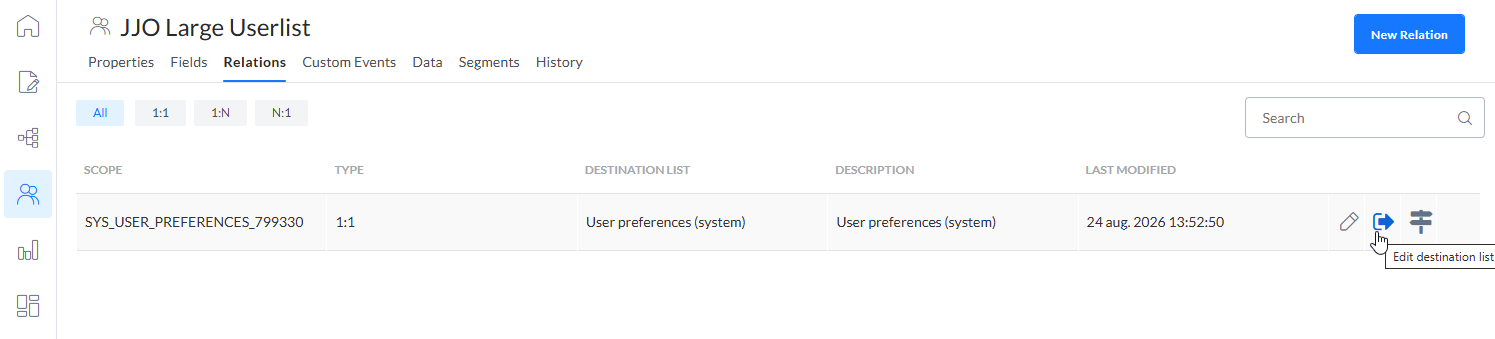
- Open the Audience List.
- Navigate to the Relations tab, where you see the SYS_USER_PREFERENCES_xxx scope.
- Click the Edit destination list icon.
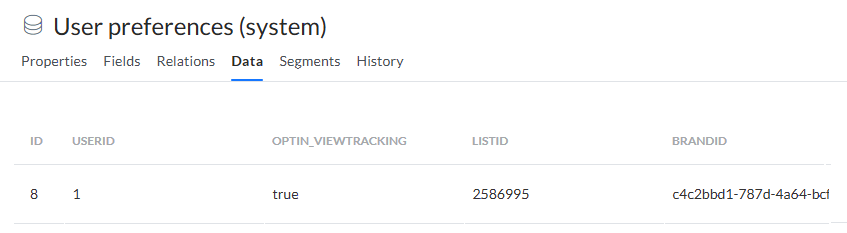
- The User preferences (system) Data List is shown.
- On the Data tab, you can view and edit the stored records.
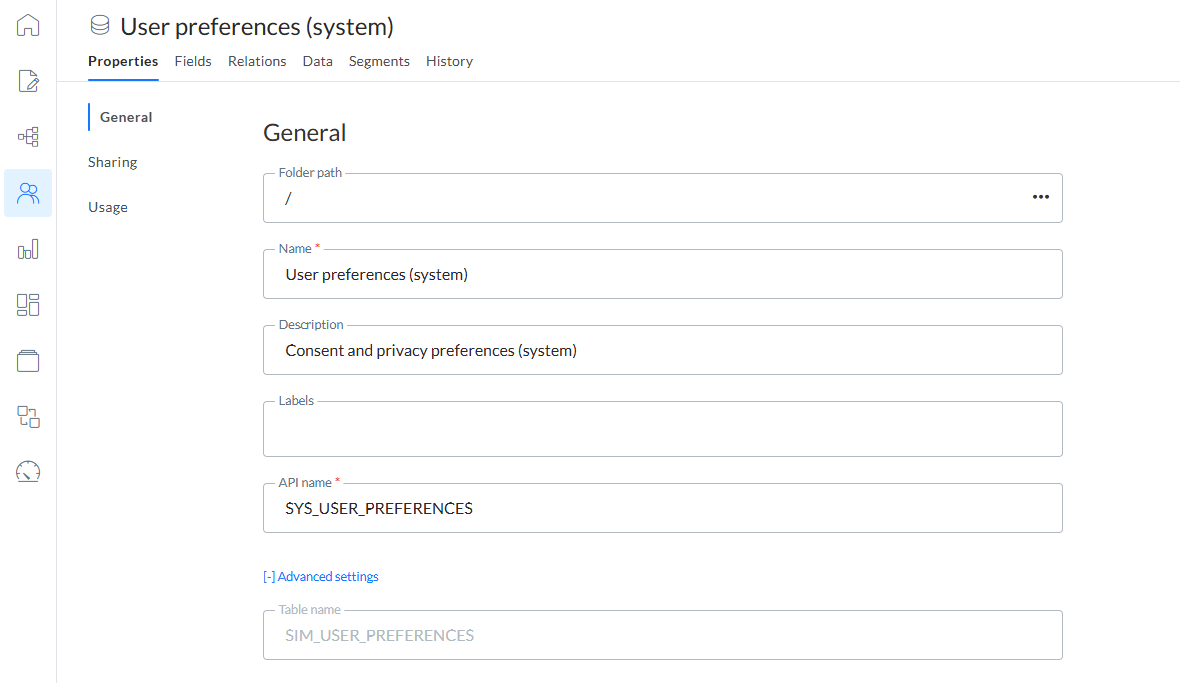
Data List access
You can access the User preferences (system) Data List directly from the Lists start page.

Note: The API name of the Data List is SYS_USER_PREFERENCES and the backend table name is SIM_USER_PREFERENCES.
Data Explorer
If you have Data Explorer access, you can view consent data in the physical backend table SIM_USER_PREFERENCES in the Data Explorer.
How to update consent
Depending on your needs, you can update consent in different ways.
Use a Data component in a Custom Journey
In a Custom Journey, use a Data component to update the open tracking consent value.
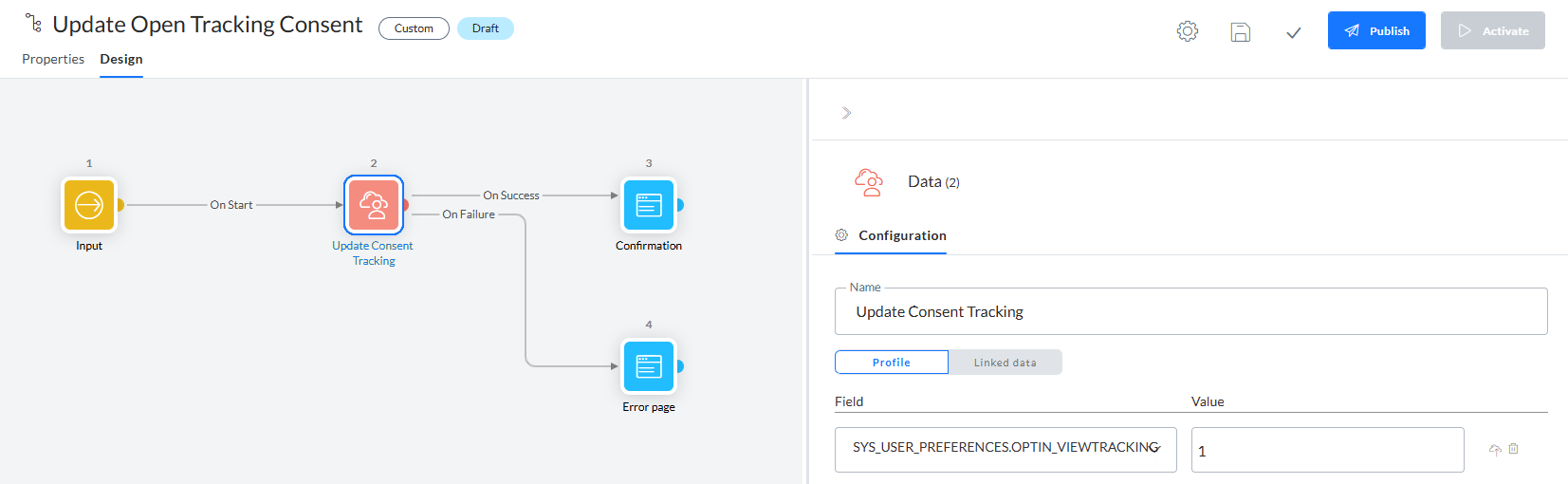
In the Data component properties:
- Select SYS_USER_PREFERENCES.OPTIN_VIEWTRACKING (where SYS_USER_PREFERENCES is the Data List linked to the Audience List, and OPTIN_VIEWTRACKING is the field).
- Set the value to:
- 1 for consent.
- 0 for no consent or withdrawn consent.
Use a Data Import
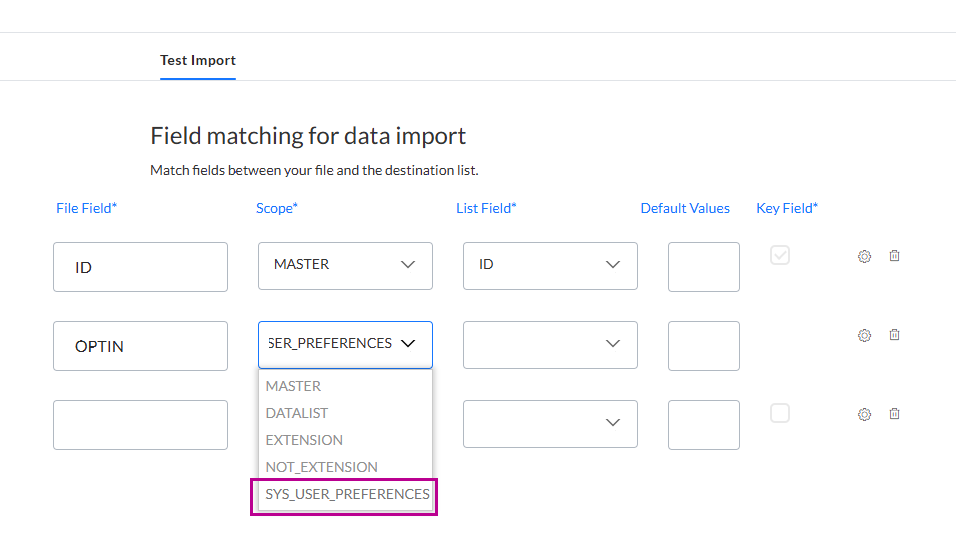
You can update consent through a Data Import in the Data Exchange chapter.
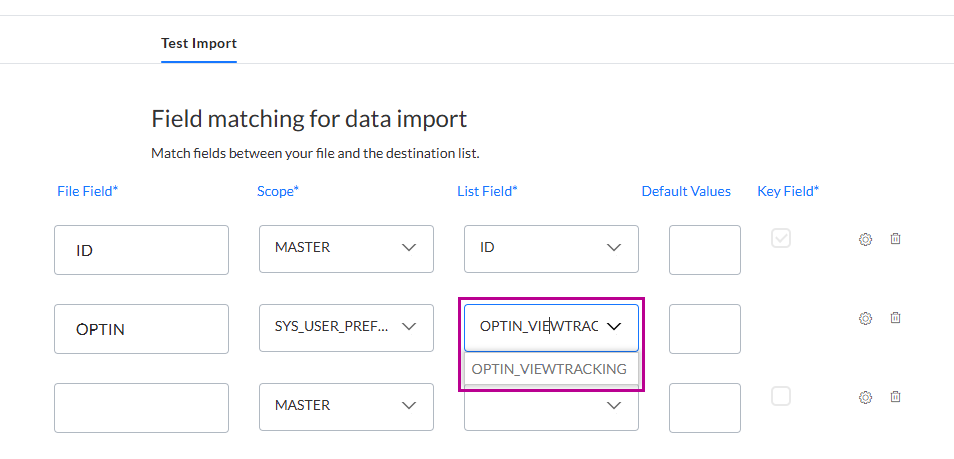
When you define the field matching:
- Select the file field from the import file that contains the consent values.
- Select SYS_USER_PREFERENCES_xxx as the scope.
- Select OPTIN_VIEWTRACKING as the list field.
- Optionally, set a default value (1 for consent, 0 for no consent).
Use Stored Procedures
You can use Stored Procedures for bulk updates and integrations, that write to the SIM_USER_PREFERENCES table.
-- This MERGE SQL statement performs an upsert on SIM_USER_PREFERENCES.
-- It updates an existing preference record if one already exists,
-- or inserts a new record if it does not exist yet.

-- The keys used to identify the preference row are:
-- USERID=1234, LISTID=5678, BRANDID=550E8400-E29B-41D4-A716-446655440000

MERGE SIM_USER_PREFERENCES AS UP
-- Define the source data.
-- This creates one temporary row with the values we want to apply.
USING
    (SELECT
        1234 AS USERID,
        5678 AS LISTID,
        '550E8400-E29B-41D4-A716-446655440000' AS BRANDID,
        1 AS OPTIN_VIEWTRACKING        -- 1 = Consent given
    ) AS SRC
-- Match the source row to an existing row in SIM_USER_PREFERENCES.
-- A row is considered the same preference record only when USERID,
-- LISTID, and BRANDID all match.
ON UP.[USERID] = SRC.[USERID]
AND UP.[LISTID] = SRC.[LISTID]
-- Convert the source BRANDID text value into a uniqueidentifier
-- so it can be compared correctly with the BRANDID field in the table.
AND UP.[BRANDID] = CONVERT(uniqueidentifier, SRC.[BRANDID])
-- If a matching row already exists, update that row.
WHEN MATCHED THEN
UPDATE
SET
    -- Update the view tracking preference to the value from the source row.
    UP.OPTIN_VIEWTRACKING=SRC.OPTIN_VIEWTRACKING,
    -- Record the date and time when the existing preference was changed.
    UP.MODIFIED_DT=GETDATE()
-- If no matching row exists, insert a new preference row.
WHEN NOT MATCHED THEN
INSERT (
    USERID,
    LISTID,
    BRANDID,
    OPTIN_VIEWTRACKING,
    CREATED_DT
)
VALUES (
    SRC.USERID,
    SRC.LISTID,
    SRC.BRANDID,
    SRC.OPTIN_VIEWTRACKING,
    GETDATE()        -- The date and time when the preference row was created.
);
Create records in the Data List
You can add new records in the User preferences (system) Data List itself, by clicking on the New Record button at the top-right of the Data tab.

Note: Make sure to enter valid values for USERID, LISTID and BRANDID.
Recommendations for managing email open tracking consent
The following recommendations describe a general consent-management approach and reflect the France CNIL and Italy Garante guidance. They do not replace a legal assessment of the rules that apply to your organization, recipients, or use case.
Recommendation 1 — Collect consent when the email address is collected (BEST practice)
This is the clearest method. How to do it (very concretely)
When a user enters their email address (signup form, account creation, newsletter form):
- Add a dedicated consent checkbox (not pre-checked)
- Explain clearly that tracking pixels will be used
- State the exact purposes
- Link to detailed information
Example:
☐ I agree that [Company name] may use tracking pixels in emails to:
measure email opening,
personalize content and sending frequency.
Learn more about email tracking (link to privacy / tracking policy)
Why this is compliant
- Consent is prior to tracking
- The user understands what will happen later
- The link between email address and tracking is explicit
Recommendation 2 — If consent was NOT collected initially
This happens often with legacy databases.
The absolute rule is that you cannot send a tracked email to ask for consent.
Correct execution (step by step):
Step 1 — Send a non-tracked email
- No tracking pixel
- No hidden tracking on images or links
- Plain email only
Step 2 — Include a secure consent link in the email
The link must:
- Be unique per recipient
- Lead to a page where the user actively confirms their choice
Example email text:
We would like your permission to use email tracking to improve our communications.
[Manage my email tracking preferences]
If the recipient clicks the link, this is considered as giving consent. Consent requires an explicit action on the page.
Step 3 — Consent page behavior
On the page:
- Explain the tracking purposes
- Require an explicit action (button click)
Example:
Email tracking preferences
☐ I agree to the use of tracking pixels in emails for:
campaign performance measurement
content personalization
[Accept] [Refuse]
When there is no scrolling or inactivity, this implies refusal. The decision is stored and logged.
Recommendation 3 — What information MUST be shown when asking for consent
Whenever consent is requested (form or page), the user must clearly understand:
Mandatory elements
- Who places the tracking pixel
- What data is collected (email opening, date, device info, etc.)
- Why it is collected (specific purposes)
- That tracking applies to all devices used to read emails
Example compliant wording:
We use tracking pixels to detect when you open our emails.
This allows us to analyze performance and personalize our communications.
Tracking applies regardless of the device used to read emails.
Recommendation 4 — Consent must be specific (no “all-in-one” consent)
There can NOT be one checkbox covering:
- Marketing
- Profiling
- Tracking
- Cross-channel targeting
There needs to be a separate consent per purpose OR clear grouping of closely related purposes only.
Recommendation 5 — Store proof of consent
You must be able to demonstrate:
- Which email address gave consent
- When it happened
- How it was obtained
- For which purposes
Recommendation 6 — Withdrawal of consent must be easy
Every tracked email should contain a footer link to manage email tracking preferences. The link must be:
- Unique per recipient
- Allows withdrawal in one click
- Does NOT require entering the email address again
When consent is withdrawn, tracking pixels must be disabled for future emails and previously sent emails must no longer exploit tracking data.
Optional anonymized open tracking
Selligent does not collect user-level open tracking data when a contact has not given consent for email open tracking.
On request, Zeta can enable anonymized open tracking for your tenant. To request this setup, submit a Support ticket.
When anonymized open tracking is enabled, Selligent anonymizes email opens when consent is missing. This setting applies at the tenant level, which means it applies to all Business units or to none.
Anonymized open tracking helps you measure journey performance without using open data to identify or target individual contacts.
You can use anonymized data in reporting to see the total number of opens and unique opens.
Technical note: Anonymized open tracking uses the tracking pixel to count email opens. Selligent stores the open with a unique GUID instead of the contact's USERID. This GUID cannot be linked back to the contact.
Because the data is anonymous, it cannot be used for profile-level actions, including:
- Retargeting
- Personalization
- Segmentation
Once an open is anonymized, it stays anonymous. Zeta cannot reverse anonymization or connect that open back to a contact, even if the contact gives consent later.
Note: Do you have any questions? Have a look at the FAQ section.