
Loyalty Profile Enrichment with Selligent - User Guide
The Loyalty Profile Enrichment feature offers a streamlined and automated data exchange between Loyalty by Zeta and Selligent by Zeta allowing marketers to create personalized and targeted campaigns using member loyalty data with high accuracy, delivering more consistent results than previous import solutions. Loyalty Profile Enrichment doesn’t require queries, exports and imports, triggered actions, or scheduled jobs. The setup process is intuitive, and requires no scripting or programming.
The feature provides self-service access enabling marketers to configure and manage which Loyalty member attributes, preferences and metrics should be shared with Selligent by Zeta to enable personalization related to the member profile. The selected details are sent to Selligent by Zeta any time a value changes in Loyalty by Zeta, giving higher accuracy of profile attributes with reduced latency and giving marketers the opportunity to create highly personalized campaigns that drive engagement, retention, and loyalty.
Prerequisites
Sending Loyalty data to the Event stream
Note: These tasks are to be performed by technical marketers or expert users in partnership with our Technical Services team. Please contact your Zeta Global Representative to learn more.
A first step is to ensure that the Loyalty information is pushed to the Event stream and all the necessary profile information is synced whenever a change happens in Loyalty.
Setting up this profile stream in Loyalty is a one time set up and is done by Technical services, but you will need to provide the type of information that you want to make available.
More details on Profile stream can be found in this article.
Set up connection between the event stream and Selligent
Note: This task is performed by our Technical Services team. Please contact your Zeta Global Representative to learn more.
The event stream collects a lot of information from all different kinds of sources. The goal is to only pick up the events that matter and that are specific for the Business unit. This requires a connection defining what events are being read based on the Business unit they have been created for.
This step is done by platform architects and is a one time setup.
To benefit from this feature, contact your Zeta representative to activate this feature and have the necessary actions taken.
Create the necessary Audience or profile extension in Selligent
To be able to store the loyalty data in Selligent, you need to have an Audience List or extended profile with all the required fields to store the Loyalty data in.
This step can be executed by all users with access to the Lists chapter.
For more information on Audience Lists and profile extensions have a look at the following topics:
Set up the data synchronization between Selligent and the event stream
This is a one-time set up that can be done by any user with access to the Data Exchange chapter and knowledge of the database model.
This data sync ensures that all new or updated profile information is automatically synced and available in Selligent.
1. Setting up the continuous data stream is done through the Data Exchange chapter. Click New and select Profile enrichment from the drop-down.
Note: If this option is greyed out, the feature is not activated for your environment. Contact your Zeta representative.
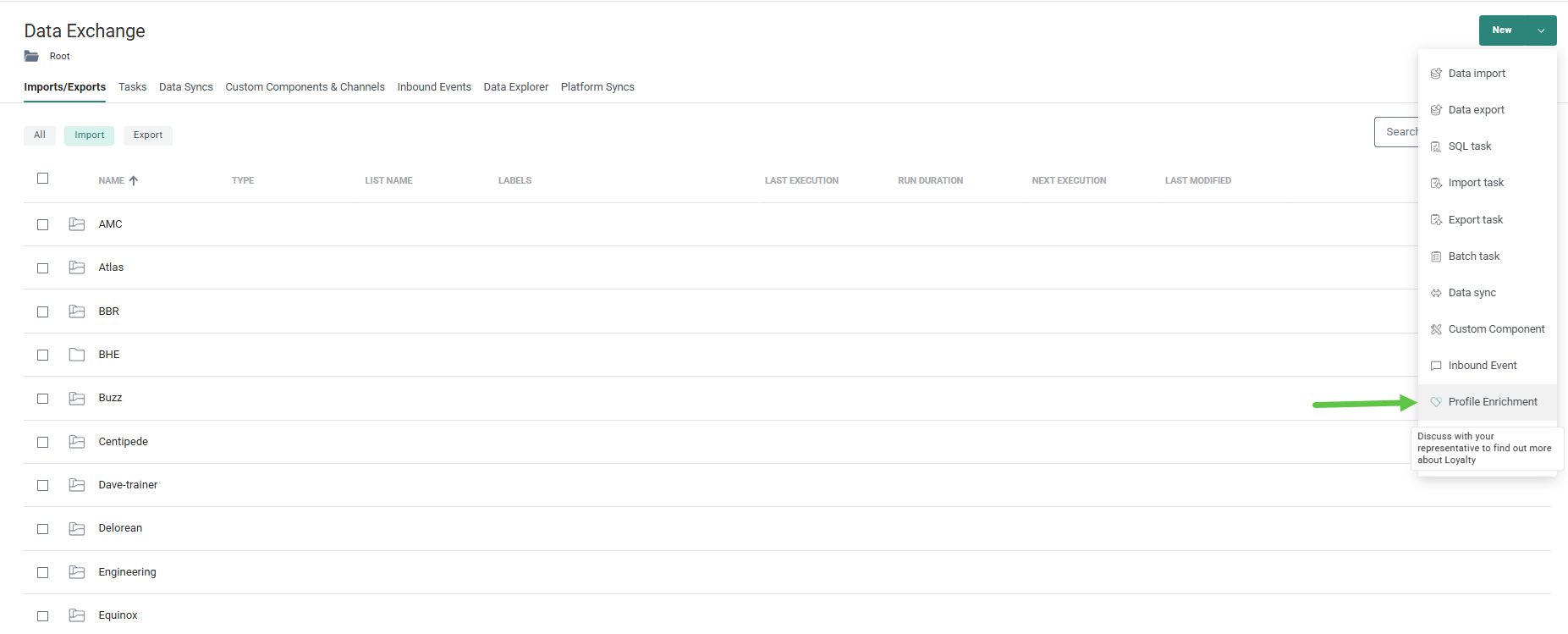
2. The setup wizard is shown where you can enter the general properties for the data sync:
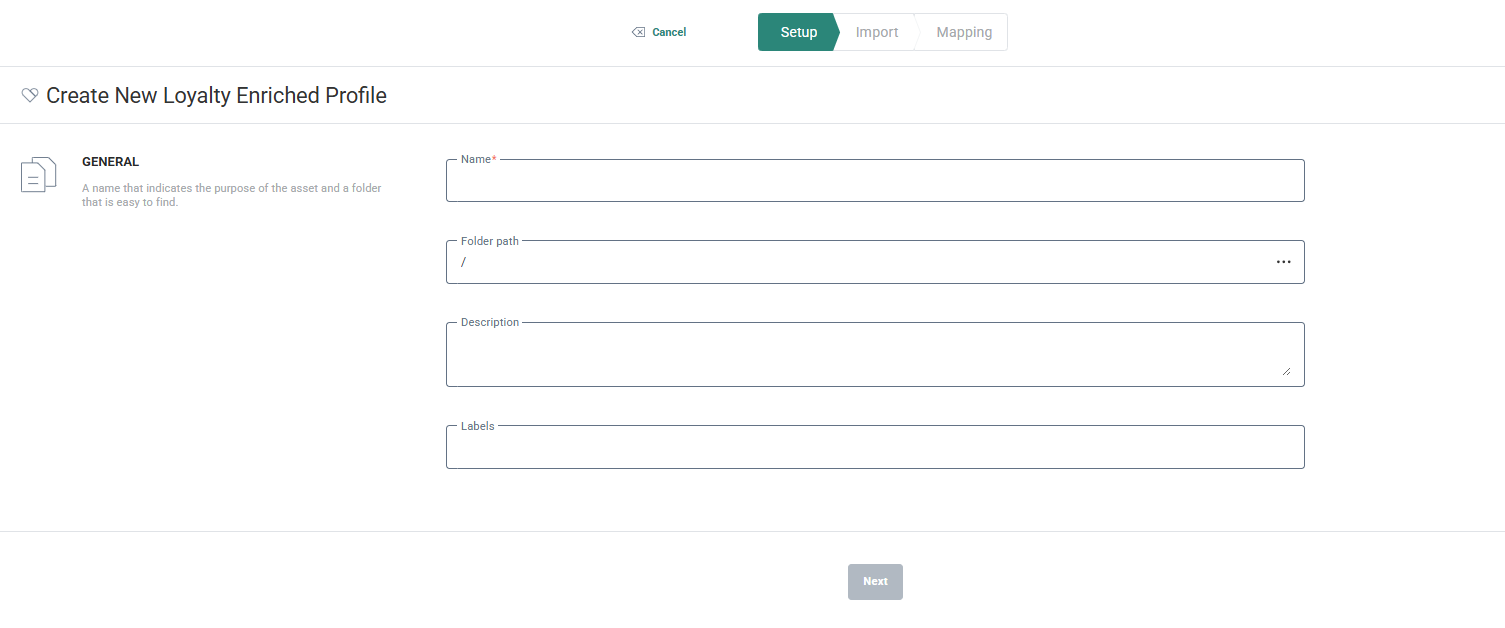
- Name — Give a name to this datasync. Make it explicit so it's easier to find it and consult the history later on.
- Folder path — Set the folder where this data sync needs to be stored.
- Description — Provide a description clarifying what the data sync does and what it is used for
- Labels — The label(s) assigned to this data sync. Select one or more labels from the drop-down. (These labels are configured in the Admin configuration.) Users with the proper Access permissions can also create new labels here by typing the new label value in the field.
3. When done, click Next. You can fill out the source and destination:
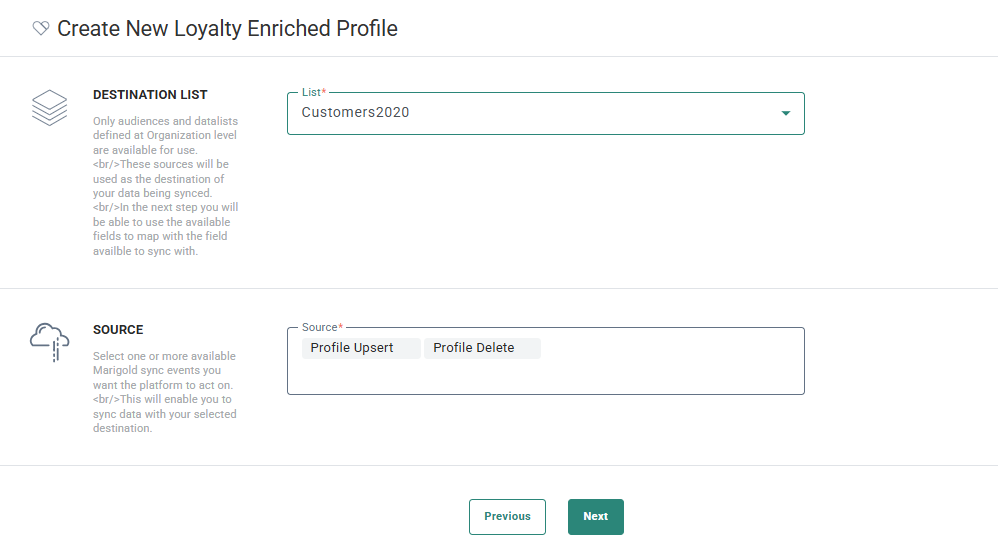
Destination List — Select the Audience List or extended profile where you would like to store the profile information coming from Loyalty.
Source — Select the source for the profile information and what needs to happen with the data.
You can choose between Profile Upsert and Profile Delete.
-
Profile Upsert updates existing profiles and inserts new ones when they don't yet exists.
-
Profile Delete deletes a profile in Selligent if the profile has been deleted in Loyalty. Note that this will not delete the original contact record but only the extended Loyalty profile information.
4. Click Next to access the Field matching tab and define which source data should go in which target field in the destination list.
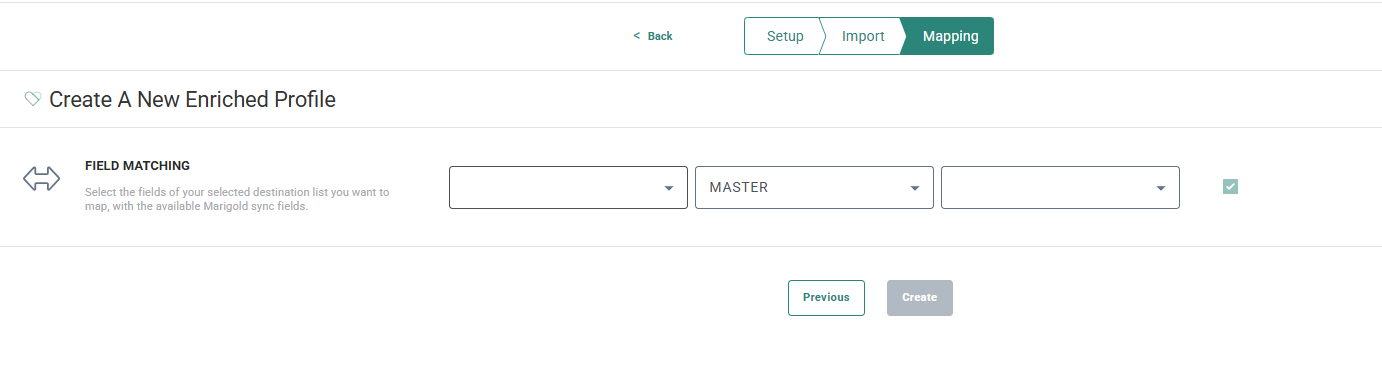
Note: You must at least map the unique identifier profileAltId in Loyalty and set it as key field.
4.1. Select first the Loyalty profileAltId field from the first drop-down.
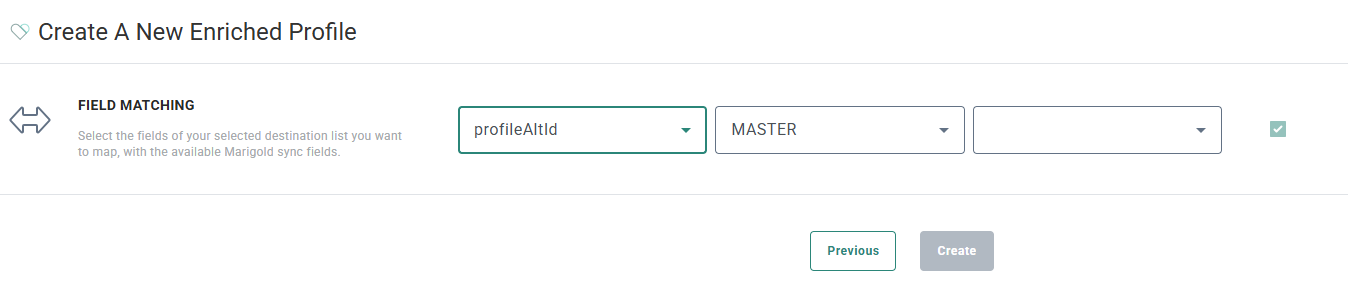
4.2. Next, select the Selligent Audience List or extended profile. This is the list where the imported data will be stored.
4.3. Next, select the field in the selected list where the data is stored.
Repeat the same steps for all the data fields that needs to be imported. Note that when selecting fields from the Loyalty profile, choose fields from the profile attributes.
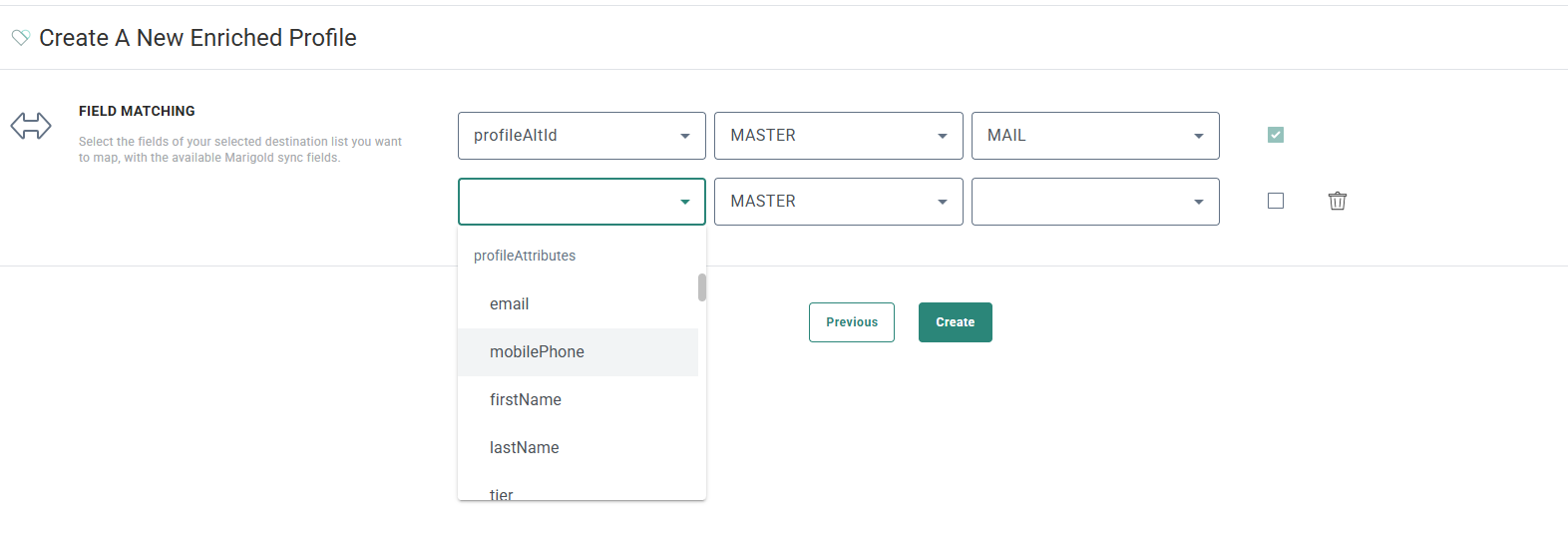
5. When done, Click Create. A Loyalty profile enrichment is created.
Note: The profile enrichment will show up in the usage of the selected Selligent list.
Editing an existing profile enrichment
In the Data Exchange chapter; on the Profile enrichment tab, you can access the profile enrichment created earlier.
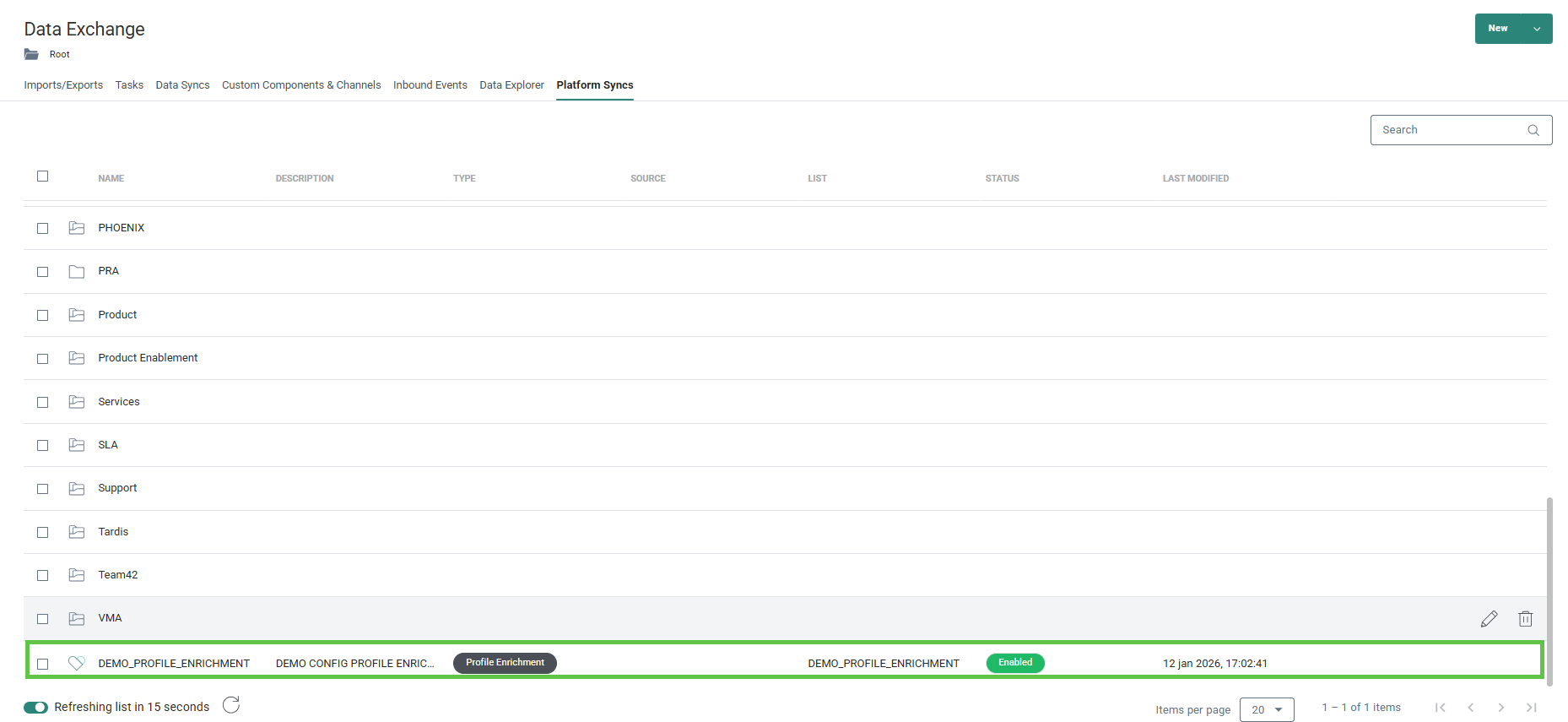
From here you can
- edit the profile enrichment (pencil icon)
- enable/disable the profile enrichment. (run/stop icon) The current status is shown in the status column.
- delete a profile enrichment (delete icon)
Click the Pencil icon to view the properties:
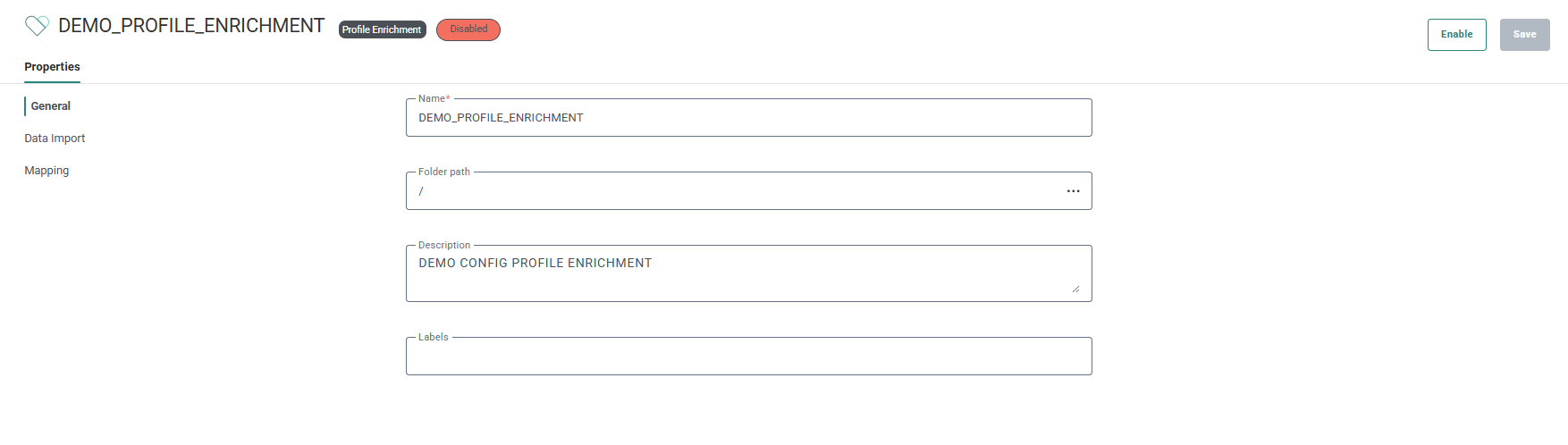
At the top, the sync type and current status are shown as chips next to the name.
An Enable/Disable button allows you to change the status of the profile enrichment from within the properties. When enabled, any change in the Loyalty profile will trigger an automatic update of the Selligent profile.
You can make changes to a disabled profile enrichment configuration. This includes changes to the general properties the data import options as well as the mapping. Use the Save button to store the changes.
Note: When changing the destination list in the Import options, the field mapping needs to be reviewed as well.
View the history of the data synchronization
1. To access the history log for a profile enrichment sync, go to the Data Exchange overview page and click the Edit icon for the record of your choice. TBD when available
2. Next, click the History tab:
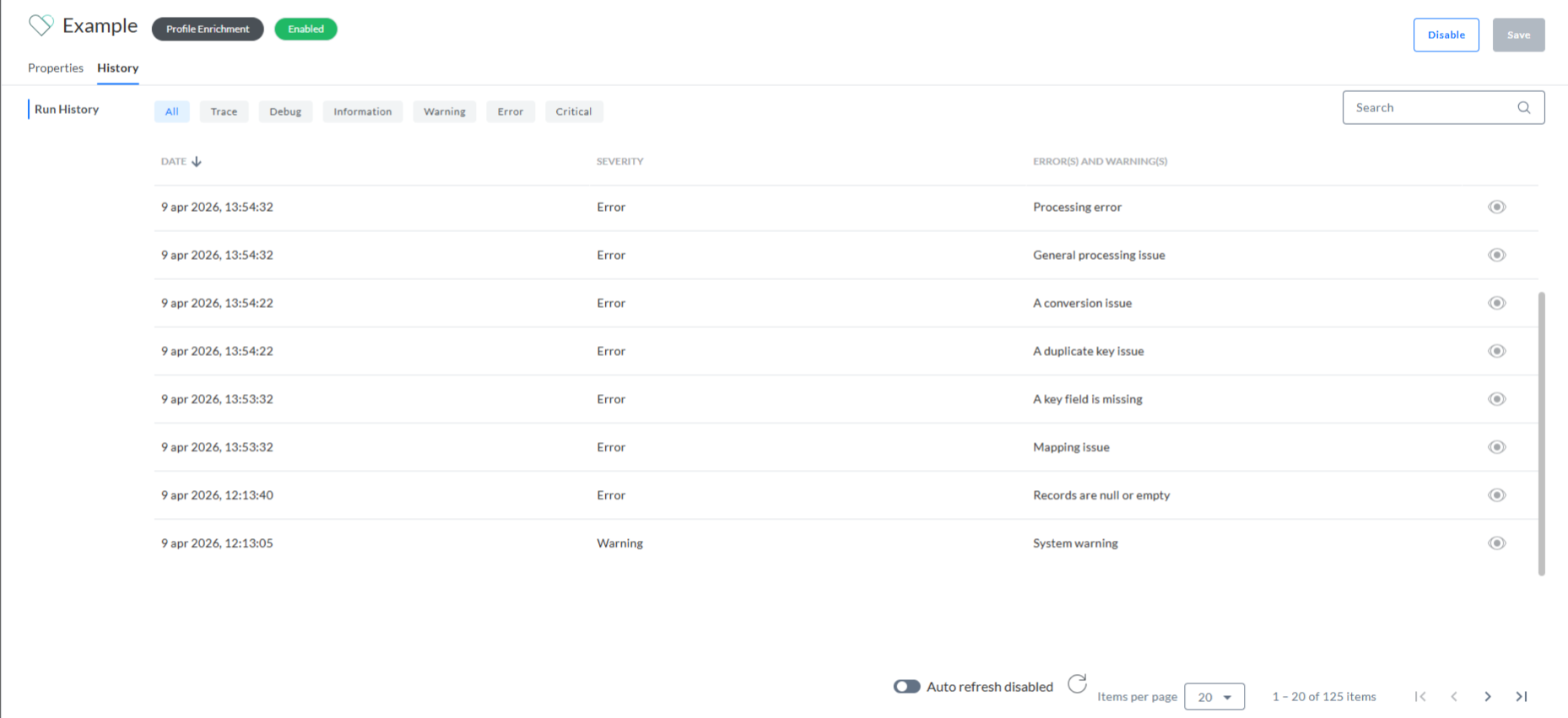
3. All past syncs will be listed here with a message and date of execution.
Messages can be filtered based on the type of message:
- Trace
- Debug
- Information
- Warning
- Error
- Critical
Examples of messages:
- Processing error — A generic error shown when no more specific error message applies.
- General processing issue — Generic processing message when no other processing error applies
- A conversion issue — Before importing, the system checks whether the incoming data can be inserted (for example, invalid length or data type). If it can’t, this error is returned.
- A duplicate key issue — When more than one profile corresponds to the lookup key.
- A key field is missing — The key field used for mapping doesn’t exist in the incoming data.
- Mapping issue — Generic message when there is a mapping issues that does not correspond to any of the specific mapping issues
- Records are null or empty — There is no data available to update or insert
- System warning — Generic system warning
Use the imported data for personalization and segmentation
Once the Loyalty data is stored into the Audience list or profile extension and can be leveraged as any other data in those lists:
Personalization - Personalize communications using the Loyalty information, for example by including the most recent Loyalty level and points in every communication.
Segmentation - Filter your audience using the Loyalty information, for example by targeting people who are in the Loyalty gold tier.