
Dictionaries are centralized repositories of translations for text passages, often used throughout the content to replace commonly-used text such as salutations (Mr, Ms, etc), greetings (Hi, Hello,etc), contract terms, and more.
They contain a set of labels (e.g.: GREETING) and corresponding translations for that label (e.g.: "Hello", "Tag", "Bonjour") for that Business unit's defined languages.
This means the same label can be used in messages with different languages where the correct translation will be presented. When labels are changed or updated (e.g.: amendments to terms and conditions), those changes will be automatically reflected in all new content using those labels.
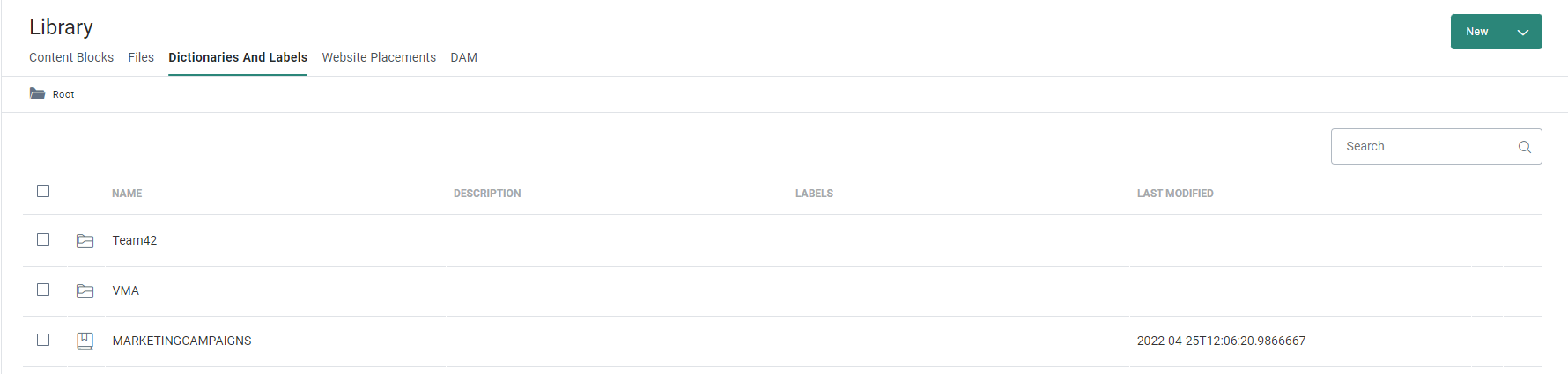
The Labels section in the Library presents an overview showing all existing dictionaries: name, description, date of the last modification and any labels/tags associated with that dictionary.
Dictionaries are stored in folders, following the same folder structure and management as other chapters. (More details on folder management can be found here.)
Dictionaries can be shared across multiple Business units if needed, presenting a unified set of translations across different brands and business units.
Note: When sharing dictionaries across Business units, all languages need to be aligned.
Note: The dictionary is only available for users with the corresponding access rights.
From the overview, dictionaries can be edited or deleted.
Note: When a dictionary is used in content you will get an overview of where the dictionary is currently used. Delete is not allowed for dictionaries in use. The same validation is performed for labels.
Create a dictionary
1. To create a new dictionary, select New and then select Dictionary in the toolbar at the top and set the properties for the dictionary:
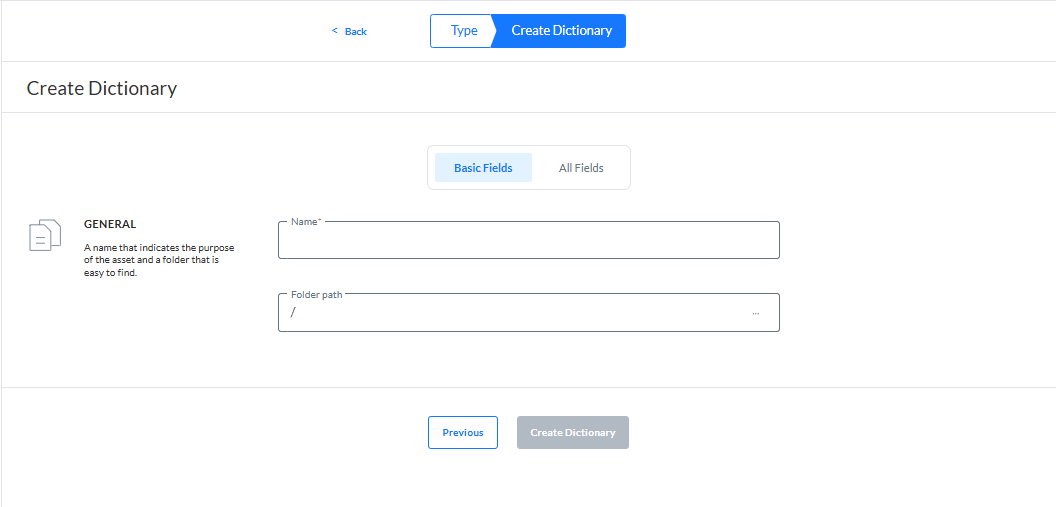
2. The properties are grouped by type of information. By default only the Basic fields are displayed. Switch to the All fields tab to display all other fields. On the left hand side of the properties, on-screen help is provided. This helps the user filling out the form with accurate and comprehensive information.
Basic Fields
- Name — The name of the dictionary. This name is used when a label in the dictionary is referenced in a message.
- Folder Path — This is the folder in which the dictionary is created. By default it takes the folder that is currently selected on the Start page at asset creation. You can change the path if required by clicking the folder field to select a different folder.
All Fields
- API-Name — The name used by the API.
- Description — A clear description of the dictionary.
- labels — The label(s) assigned to this asset. Select one or more labels from the drop-down. (These labels are configured in the Admin configuration.) Users with the proper Access permissions can also create new labels here by typing the new label value in the field. This is optional.
- Business units — A dictionary is by default created for the current Business unit but can be shared with other Business units. Select the Business units by clicking the + and selecting them from the drop-down.
3. Click Create dictionary to save this dictionary.
Create labels in a dictionary
Once a dictionary is created you can add the labels and their translations.
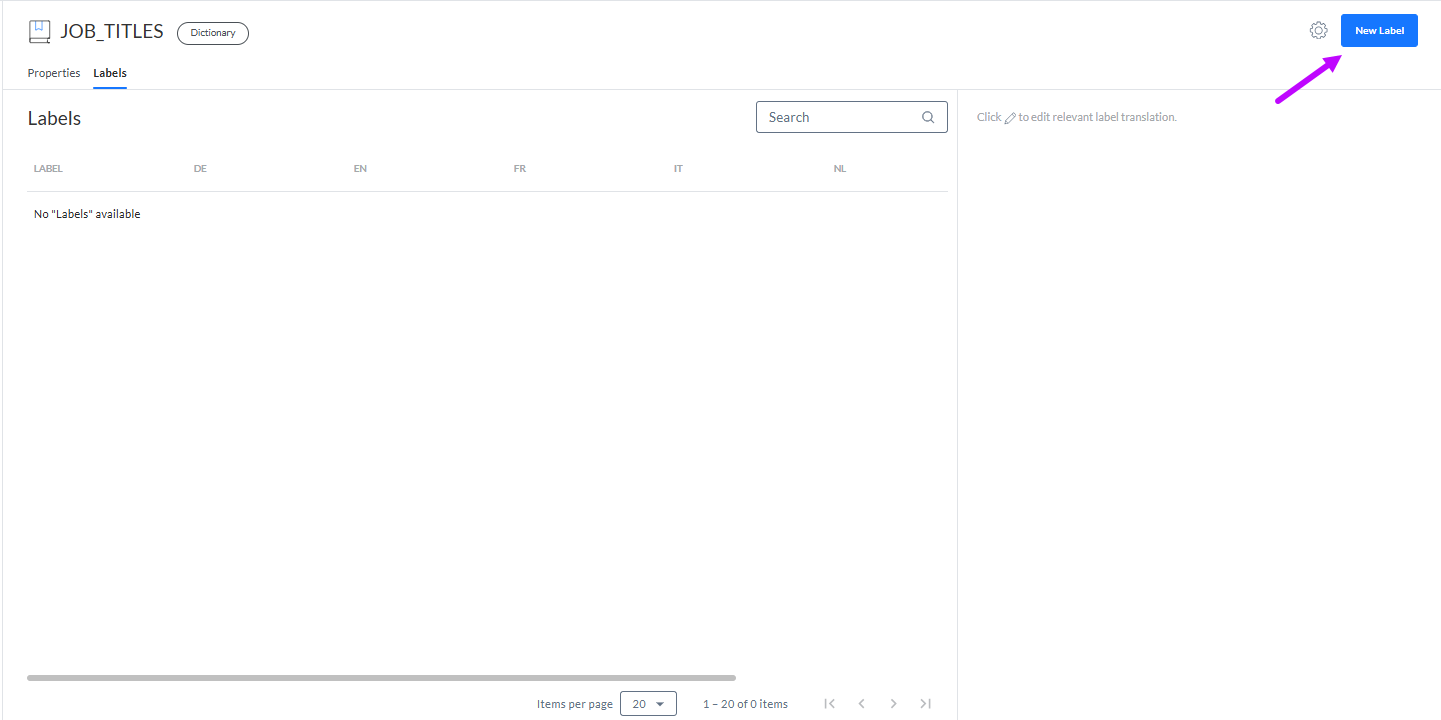
1. Select New label. A properties panel is displayed.
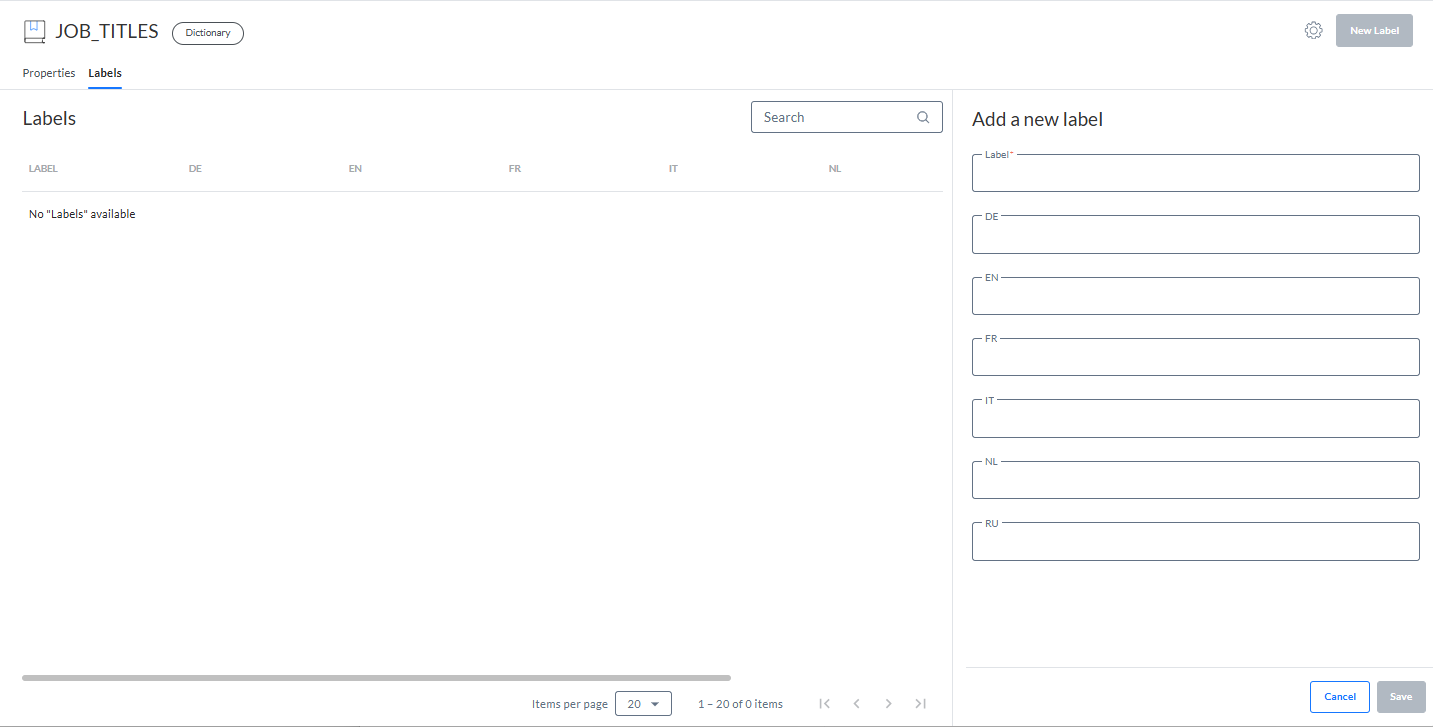
2. Enter a label or text in the Label field. This is your reference to the label, and can be an abbreviation or a full sentence but is limited to 50 characters without spaces (e.g.: OFFER, discount, BUY_NOW).
3. Next, enter a translation for each language. This must be a perfect sentence or full word to be displayed in the content, but is limited to 1024 characters (by default).
Note: HTML in the translation is interpreted, meaning you can for example use bold or underline for the translations.
Example: Your <b>Loyalty Points</b> are Star level.
You can also use expressions for these labels. By adding the expressions in the labels, they only have to be created once and updated at one location. When you enter the expression in the message itself, you would have to re-enter it in every message every time a change occurs. Using expressions saves time and guarantees consistency.
Note: When expressions are used in labels and these labels are used in a message, the user is warned that the actual label content is not validated.
A possible use case is when a phone number needs to be displayed in the message. Labels work with languages and depending on the language of the recipient, the corresponding translated label is shown. However, in this case, phone numbers do not only depend on the language but also the country the recipient is in. By using expressions, the phone number can be automatically adapted to the country of the recipient.
Technical note:
It is not possible to set the value of a label using an expression that retrieves another label.
Example: The expression [%label( 'DICTIONARY_NAME','LABEL_NAME' )%] cannot be used to set the value of a label in the same or a different dictionary.
It is not possible to use eventValue() and journeyLookupValue() expressions to set the value of a label.
Example: The expression [%eventValue('NAME_OF_CUSTOMEVENT_FIELD')%] used as the value for a label will never be evaluated and never return a result.
Note that the translation may contain embedded HTML but placeholders will not be interpolated.
Example: Label can be MR, and the translated values Sir (EN), Mijnheer (NL), etc.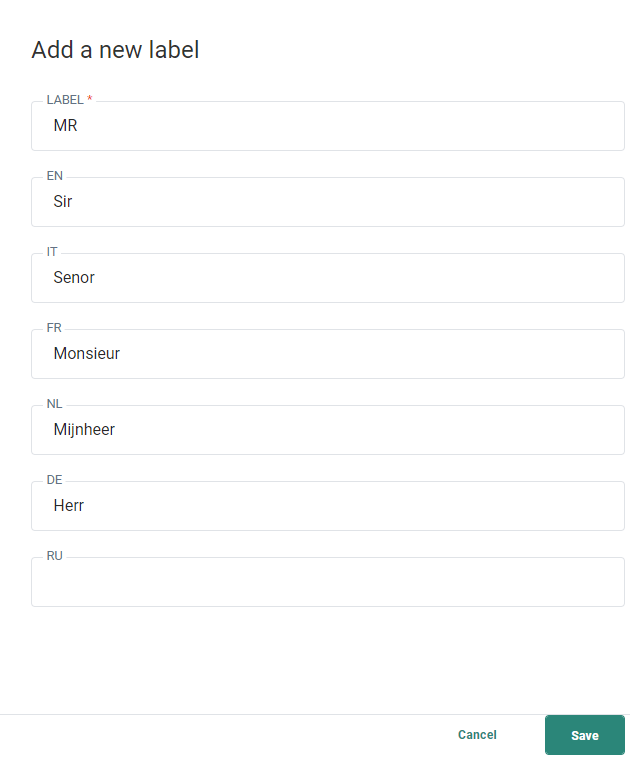
Example 2 : Use of expressions in labels.
Use the expression [%if(eq([MASTER.COUNTRY], 'UK'),'+44xxxxxxxxx','+1xxxxxxxxx')%] to ensure that the country of the recipient is taken into account when setting the value for the selected label in the message. If the language of the recipient is English and their country is UK, then a phone number starting with +44 will be set. Else, the American +1 phone prefix will be used.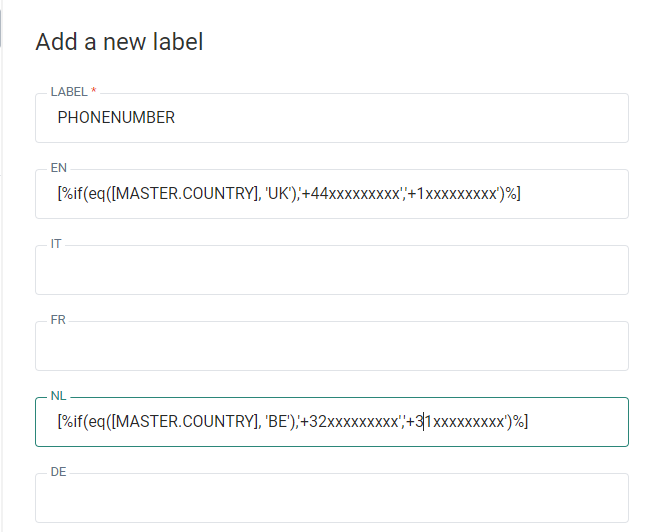
Note: The list of languages is based on the shared Business units selected for the dictionary. Languages are displayed with their language code.
4. Save the translation. The label is added to the overview.
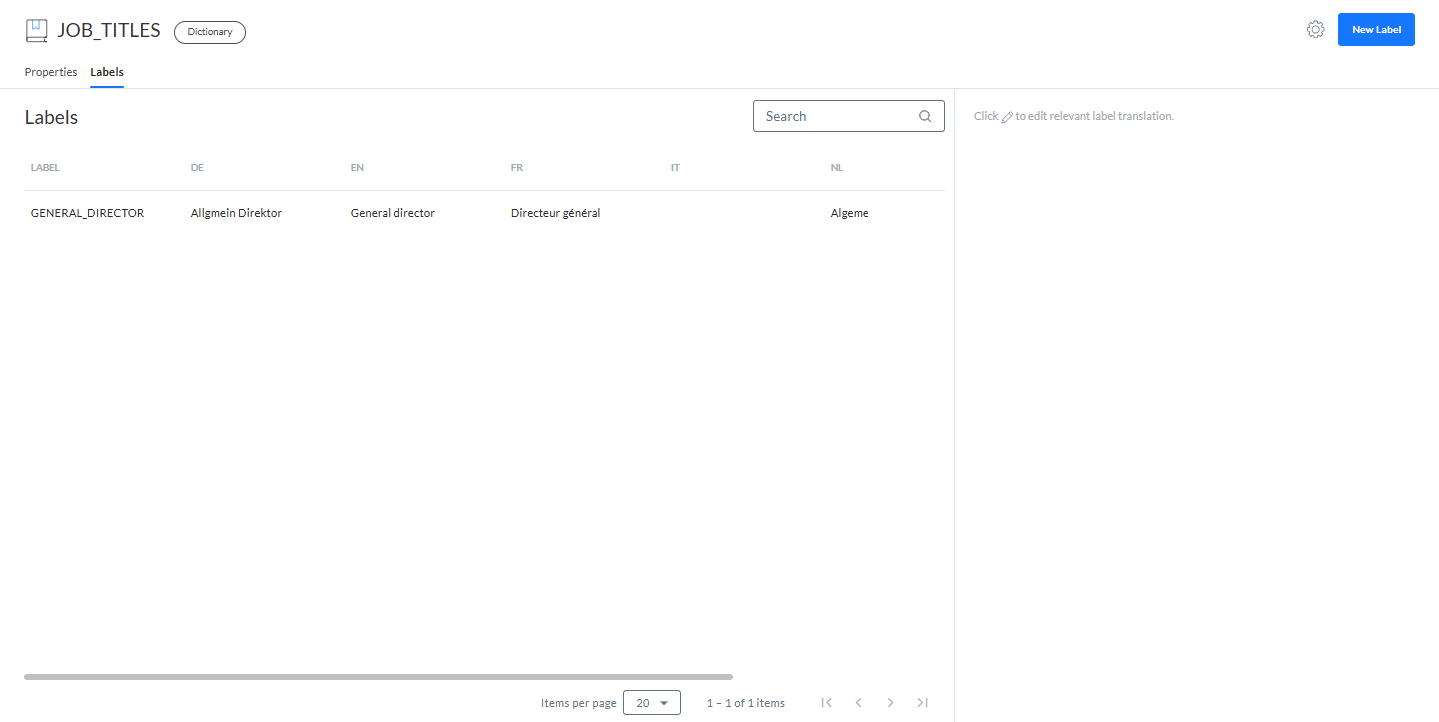
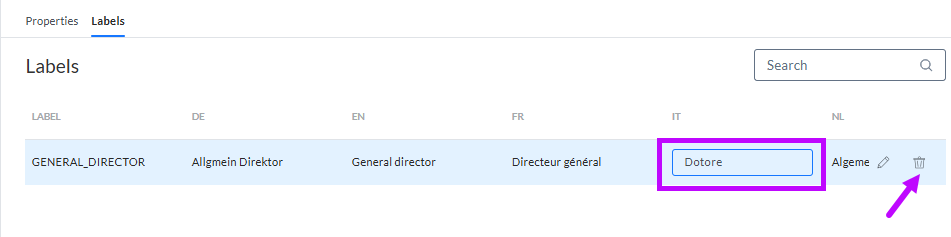
On the overview you can delete labels or edit them inline.
Labels can be exported from the Action menu at the top.
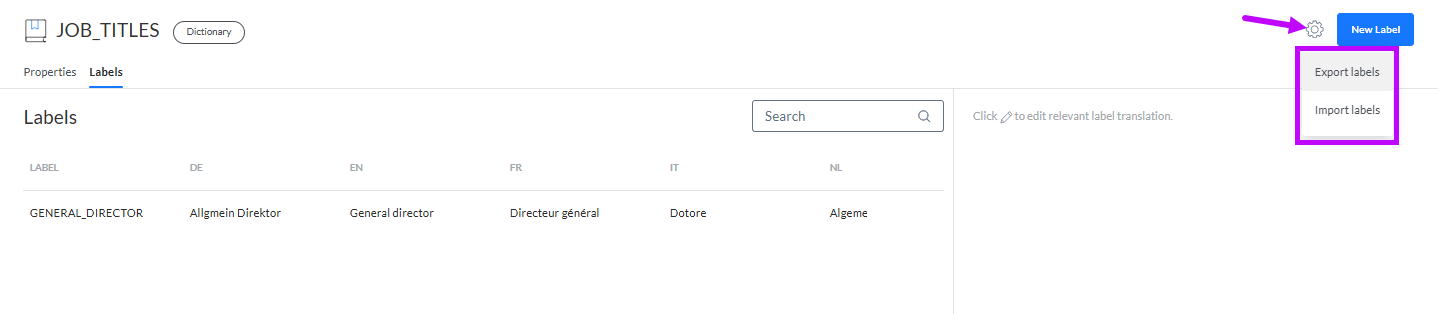
Labels are exported to a CSV file with one column for each language and one for the label. This allows you for example to send the labels to a translations office and afterward import the translated values.
Note: At import, all labels with exactly the same name in the dictionary as in the source CSV file will be updated. Labels that do not yet exist in the dictionary are created during the import process.
Important Note: The maximum size allowed to upload is 50 MB by default. This is configurable in the customer environment.
Use labels to personalize content
Labels can be used in content and journeys. The following function is used to insert the label:
[% label( 'DICTIONARY_NAME','LABEL_NAME' ) %]
You can type this function manually or you can use the Personalization Dialog and select a label in there. The Personalization Dialog displays a list of all available dictionaries with their labels. Selecting a label shows some functions on the right to format the label's presentation.
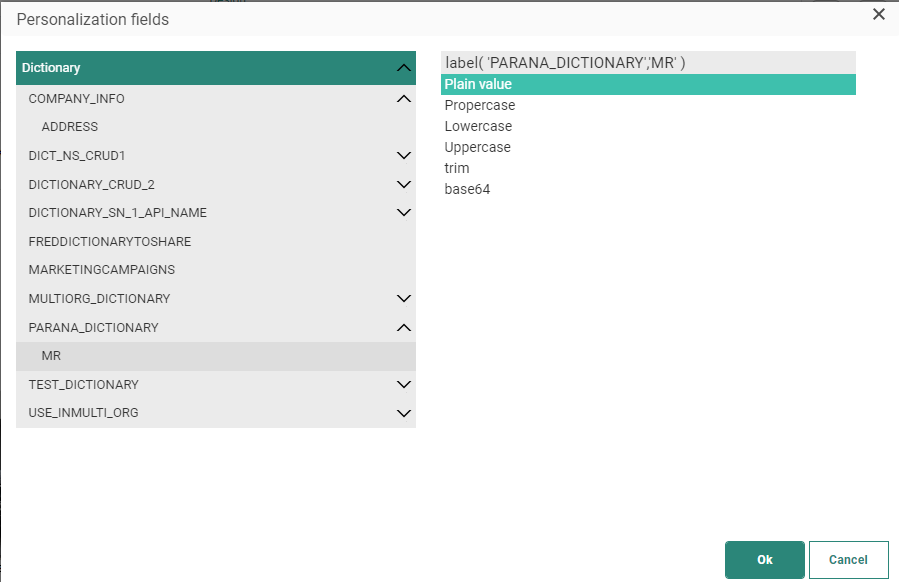
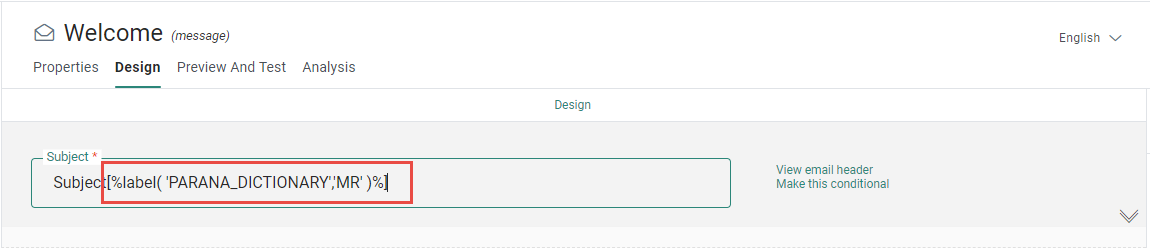
After selecting a label (plain value) from the Personalization Dialog, the label looks like this in your message design :
How translations are shown to contacts
The languages of the message determine what translations are selected from the dictionary, then display those labels according to the language rules defined by the message itself.
Example:
A label 'MR' has been created in the dictionary 'PARANA_DICTIONARY', with 4 translations — 'Sir' for EN, 'Mijnheer' for NL, 'Monsieur' for FR, 'Herr' for DE :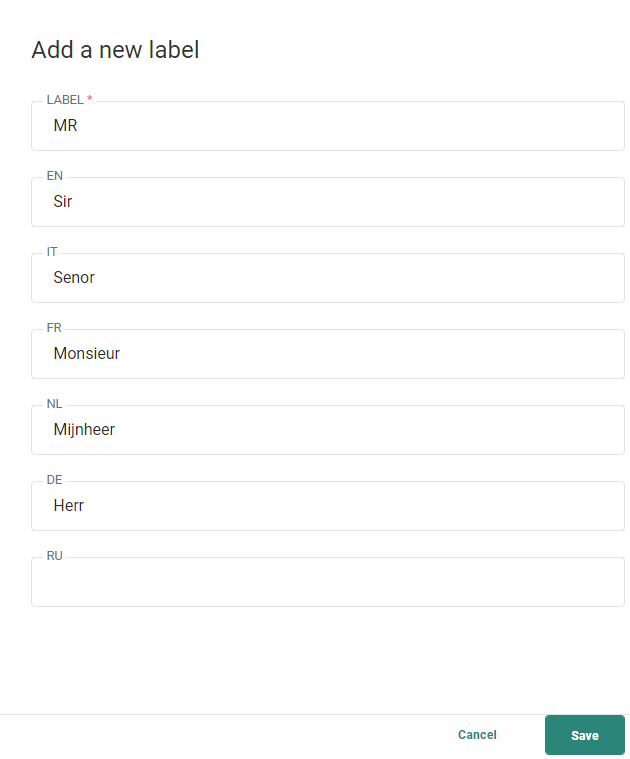
An email has content created in three languages: English (en-US), French (fr-FR) , Dutch (nl-BE) :
In the properties of the email, the following settings are defined :
- The fallback for contacts without a language is set to Dutch (NL).
- The fallback for contacts with no match on language is set to French (FR).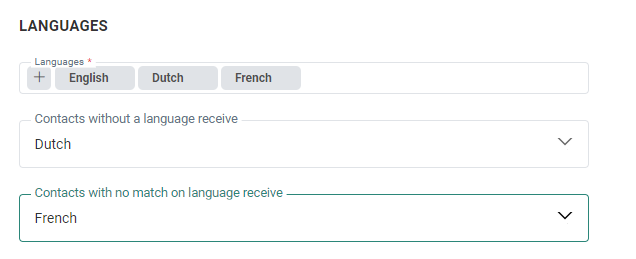
When [% label( 'PARANA_DICTIONARY','MR' ) %] is used in the message content, the following occurs :
1) Matching languages :
- Contacts with their language set to English will receive the English message and thus see the en-US label : "Sir".
- Contacts with their language set to French will receive the French message and thus see the FR label : "Monsieur".
- Contacts with their language set to Dutch will receive the Dutch message and thus see the NL label : "Mijnheer".
2) Unmatching languages :
- Contacts with their language set to Spanish will receive the French message (unmatched language falls back to French) and thus see the label : "Monsieur".
- Similarly, contacts with their language set to German will receive the French message (unmatched language, falls back to French ) and thus see the label : "Monsieur". Although the label is translated in German (DE), it won't be fetched, as there's no German language version provided for the message.
3) Contacts without a language defined :
- Contacts with no language specified will receive the Dutch message (empty language falls back to Dutch) and thus see the label : "Mijnheer".
Testing your translations
Testing translations in emails
Testing a translation is fairly straight forward when it is used in an email.
- Select the Preview tab
- Select a test-user from the selected Audience List and check the language of the user.
- Preview the message for that test-user and verify the translated value is in the correct language, following the rules explained above
Testing translations in pages
Testing a translation when used in a page is less straightforward. However, perform the following steps:
- Drop the page in a Custom Journey.
- Get the anonymous link that is generated for the journey. By default, this link will use 'the no language fallback' language.
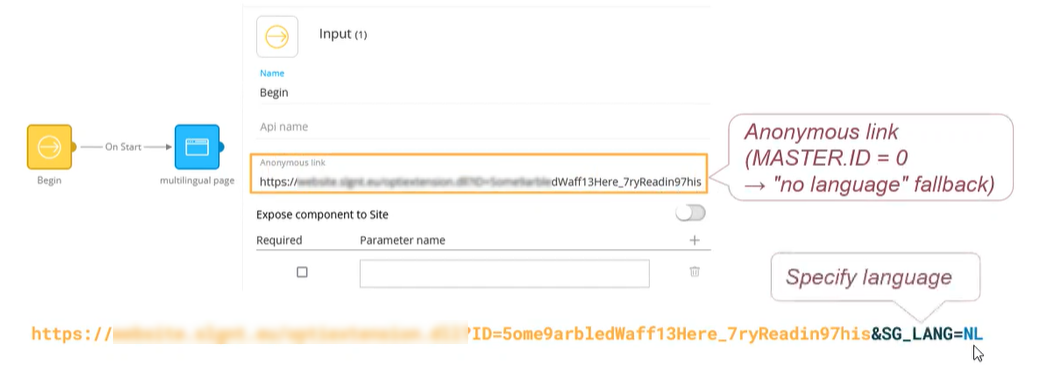
- If you want to test the translation for a different language than the fallback language, add the following parameters to the anonymous link: &SG_LANG=NL for dutch for example