
To create an Experience, a toolset is at hand, not only to allow you to start from a series of predefined templates, but also to allow modular sections to be added or removed from your own Experience.
Note: For in-depth documentation on the Grow toolset, check out the Grow Help Center.
Prerequisite
A permission is used that is set up in the Admin Configuration section of Selligent by Zeta, to allow users to access the Grow module.
Launch Grow
Launch the Grow module.
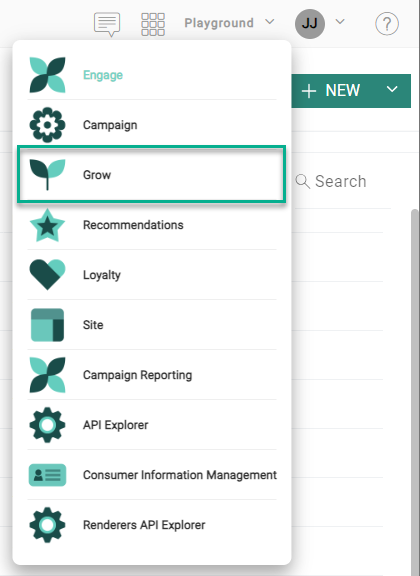
You'll be logged in automatically through single-sign on.
Note: The user account also needs to exist in Grow, with the same email address as the Selligent user, for the single-sign on process to work.
Consult this page on how to add a new SSO account in Grow.
Create an Experience
To create an Experience in Grow, have a look at these Experiences setup articles.
Publish an Experience
To publish an Experience in Grow, have a look at these publishing articles.
Note: Depending on your publishing format choice (embed or microsite), the way of using it in Selligent later on is different. Check out this topic that explains how to integrate and use Grow Experiences in Selligent.
Use the Experience in Selligent
Once the Experience is ready, it can be used in your Selligent email communications and pages, so contacts can receive and fill out the Experience, and you can start collecting zero-party data.
Consult this topic for the Experience usage within Selligent.