
Code Snippets
Save and manage any type of text-based content you want to have available to other users, from Zephyr statements to HTML.
Find the Code Snippets list page under the Content menu in Sailthru: Content > Code Snippets
What are Code Snippets?
Code Snippets are centralized, reusable code and content segments you can use throughout templates and email campaigns. Code Snippets only need to be edited once and the change will occur wherever you have used them.
The Code Snippets list page
The first page you land on from the Content menu is the Code Snippets list page. This page includes continuous-scrolling cards that contain all your code snippets.
Each card shows the title, last modified date, description, and up to 15 labels associated with a code snippet.
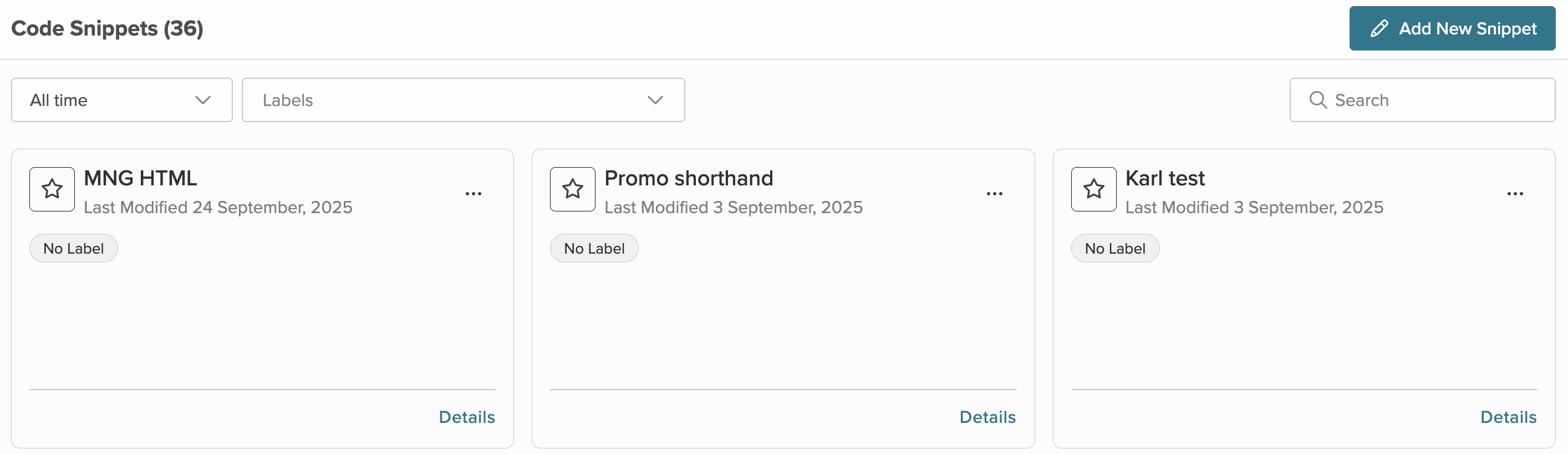
Each card contains a star icon. Favorite a card by selecting the icon. Favoriting a card keeps it at the top of the list, so you don't have to search for it every time you want to use it. Once you've used a card in a template, you'll see a list of locations when you open a card.
Note: While you can rename a Code Snippet, doing so will break any template in which it is used.
Find your cards
If you don't favorite a card, you can use one of the different search and filtering options to locate it instead of scrolling the list.
Filter
Filter cards by the creation period. Options include:
- All time
- Yesterday
- Last 7 days
- Last 30 days
Sort
Select the A-Z button to sort your cards by alphabetically by title.
Search
Enter a search term to find your code snippets. As you type into the search box, cards that don't match your search term are filtered out.
Labels
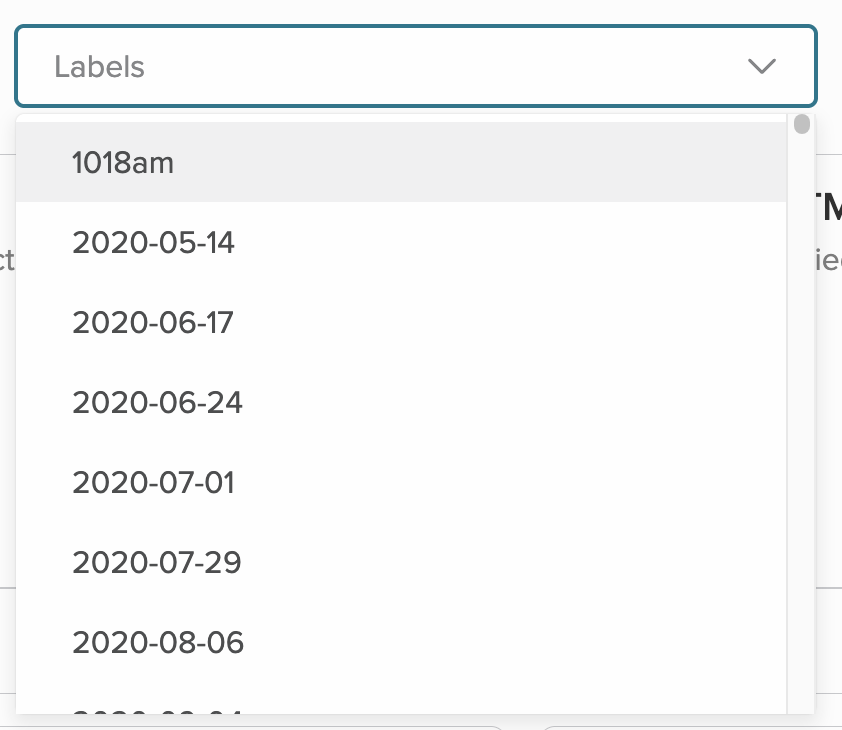
Enter a label into the search box to locate a specific label or scroll through the list to see all your labels. Labels are organized alphabetically.
Create a Code Snippet
Select Code Snippets from the Content menu.
Note: Code Snippets must have a unique name of 150 characters or less.
While you can rename an existing Code Snippet, doing so will break your templates.
- Select the Add a New Snippet button at the top right of the Code Snippets page. The Add Snippet modal opens.
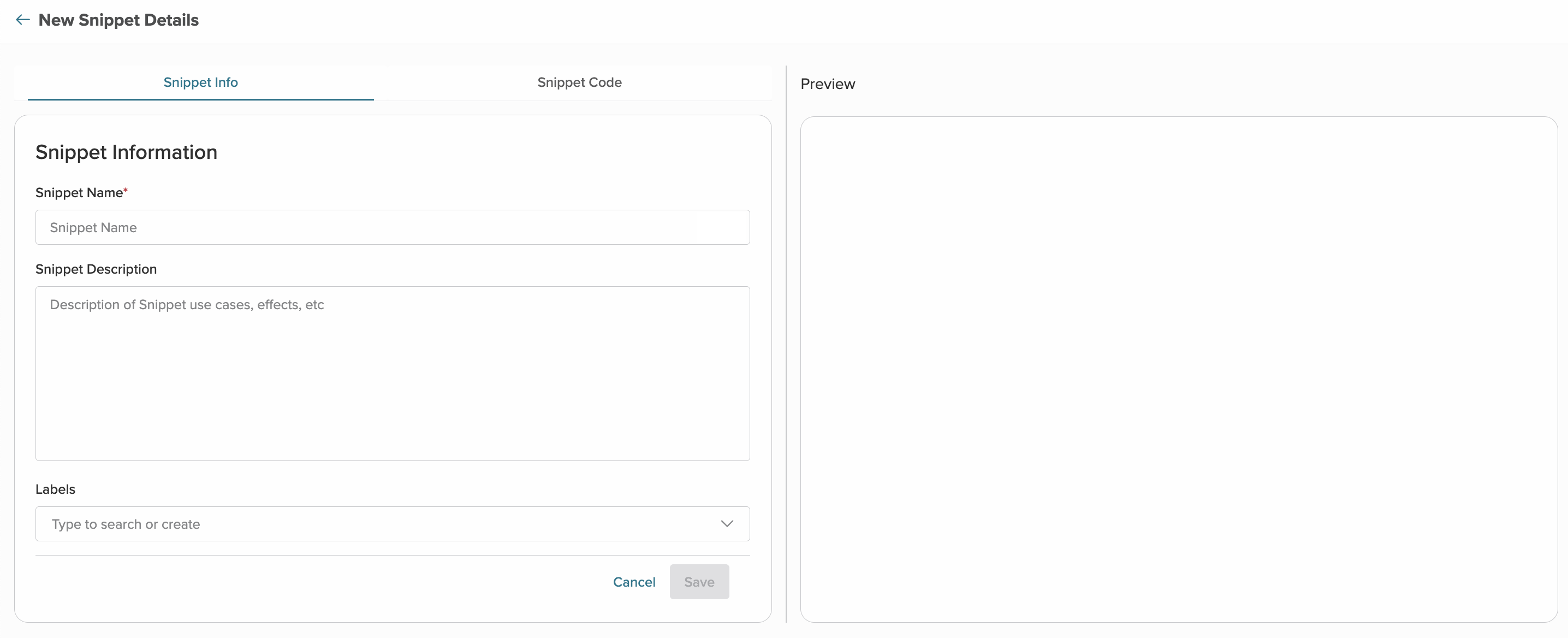
- Enter a unique Name of 150 characters or less, a Description, and any Labels. You can add up to 15 existing labels or you can create a new label for the Code Snippet.
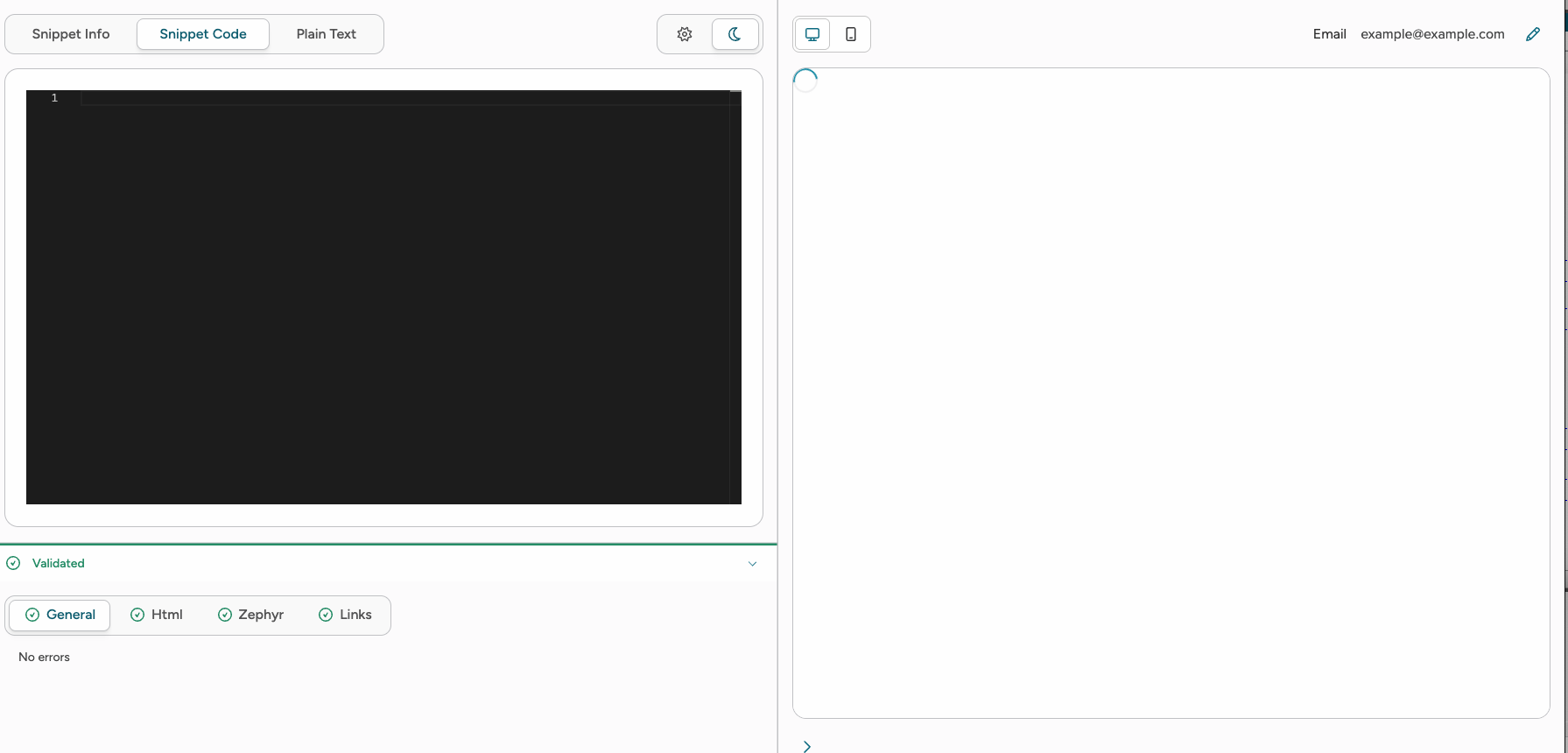
Type it into the text box and select Enter on your keyboard to add a new label. - In the Snippet Code tab, add the content you wish to save as a snippet. As you enter content, you'll see a preview in the right-hand pane and validation below.
- Select Save.
Delete a Code Snippet
Note: While you can delete a code snippet that's used in your templates, you will break your templates by doing so.
To delete a Code Snippet:
- Find the correct card on the Code Snippet list page.
- Hover over the three-dot menu in the top right corner of the card.
- Select Delete from the menu. The delete modal will show.
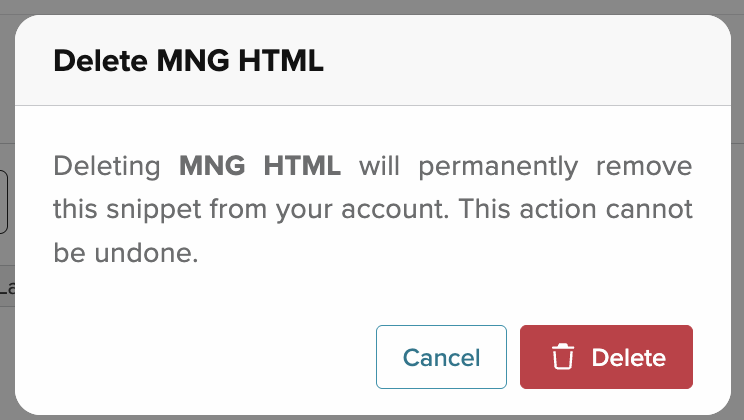
- Confirm deletion. If a snippet is used in a template, you'll see a list of affected templates.
Duplicate a Code Snippet
Note: Code Snippets must have unique names of 150 characters or less. You can't reuse the same name on multiple snippets.
To duplicate a code snippet:
- Find the correct card on the Code Snippet list page.
- Hover over the three-dot menu in the top right corner of the card.
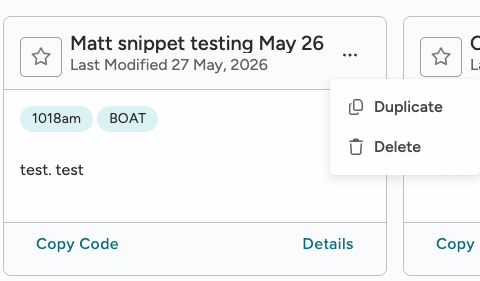
- Select Duplicate from the menu. Enter Snippet information in the Duplication modal:
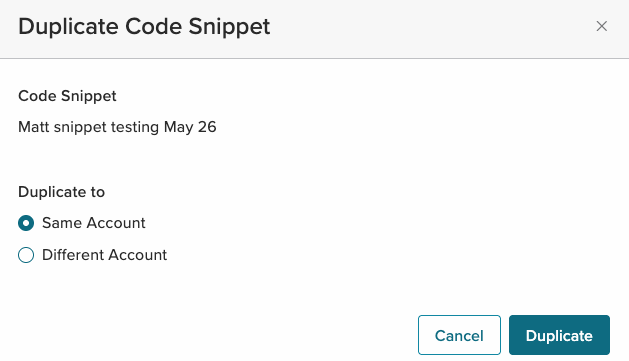
- Save your work. The card's name is appended with Copy of and the duplication date is added at the end of the name.
Snippet code editor
The code editor includes automatic validation of your work, as you work. This allows you to fix any issues in your code immediately.
Select the type of content to view errors.
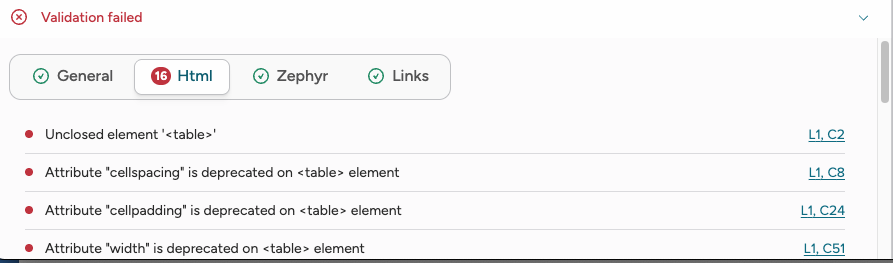
When you select the link next to the described error, the code view switches to that line and column. The editor further describes the error in a popup, with suggestions for corrections, if available.
Versioning
Code Snippets include support for versioning. Select the version history button next to the Save button to open your version history.
The version history contains the last 20 changes made. You can favorite up to 15 of these so they are not overwritten. This will leave you with 5 slots available in your history.
Use your Code Snippets
Code snippets can be used directly in a template by pasting the snippet into the body of your message where you want it to appear. More complex snippets, like ones that include a personalization function, need to be placed in the Advanced tab in your template settings. Learn more about Zephyr through the Zephyr documentation.
-
Visual templates show your snippet library so you can select one in the same screen.
-
HTML templates require you to copy the snippet code from the Snippets page and then paste it into the Advanced tab's Setup textbox.
In a Visual template
Insert a snippet into your message body or into Email Setup if you're using advanced Zephyr Pesonalization.
- Open an existing Visual template or create a new one.
- Add the snippet to your template:
- Add an HTML content block to your template where you want the include to appear.
- Paste the Zephyr into the block. For example, if you were using a snippet called footer, your code would resemble the following:Copy
{include "footer"}
Add a snippet to email setup in a Visual template
- Open an existing Visual template or create a new one.
- Select the Email Settings icon and then select the Advanced tab from the Settings window.
- Filter or search for your snippet in the right hand side of the page.
- When you find the correct snippet, place your cursor in the Email Setup textbox and click Use Snippet.
- The Snippet is added to your Setup section. You should see the following syntax:
{include "include-name"}
In the HTML Template Editor
Use directly in a template:
- Open an existing HTML template or create a new one.
- Add your snippet into your email template body by pasting the Zephyr code where you would like the snippet to be. It should resemble the following example:
{include "include-name"}
Limitations
Includes can't be nested. Include syntax is not dynamically evaluated, so an include can't be nested inside another include.