Real-Time Analytics
A technical marketer using the Moments solution, should have the ability to instantly view whether a signal has been triggered or a moment has been generated, for example for debugging purposes, in real-time.
Real-time analytics offers marketers this view, for each Moment specifically. Data is adapted to the type of Moment for which a report is being consulted, meaning when viewing a report for a Cart Abandon Moment will show data on the add item signals, remove item signal, clear cart signal etc, while a report for a Booking Abandon Moment will show data on signals for bookings being started, completed, or updated.
The reports can be accessed from the Moments overview page. Click the Report icon for the Moment for which you want to check the report:
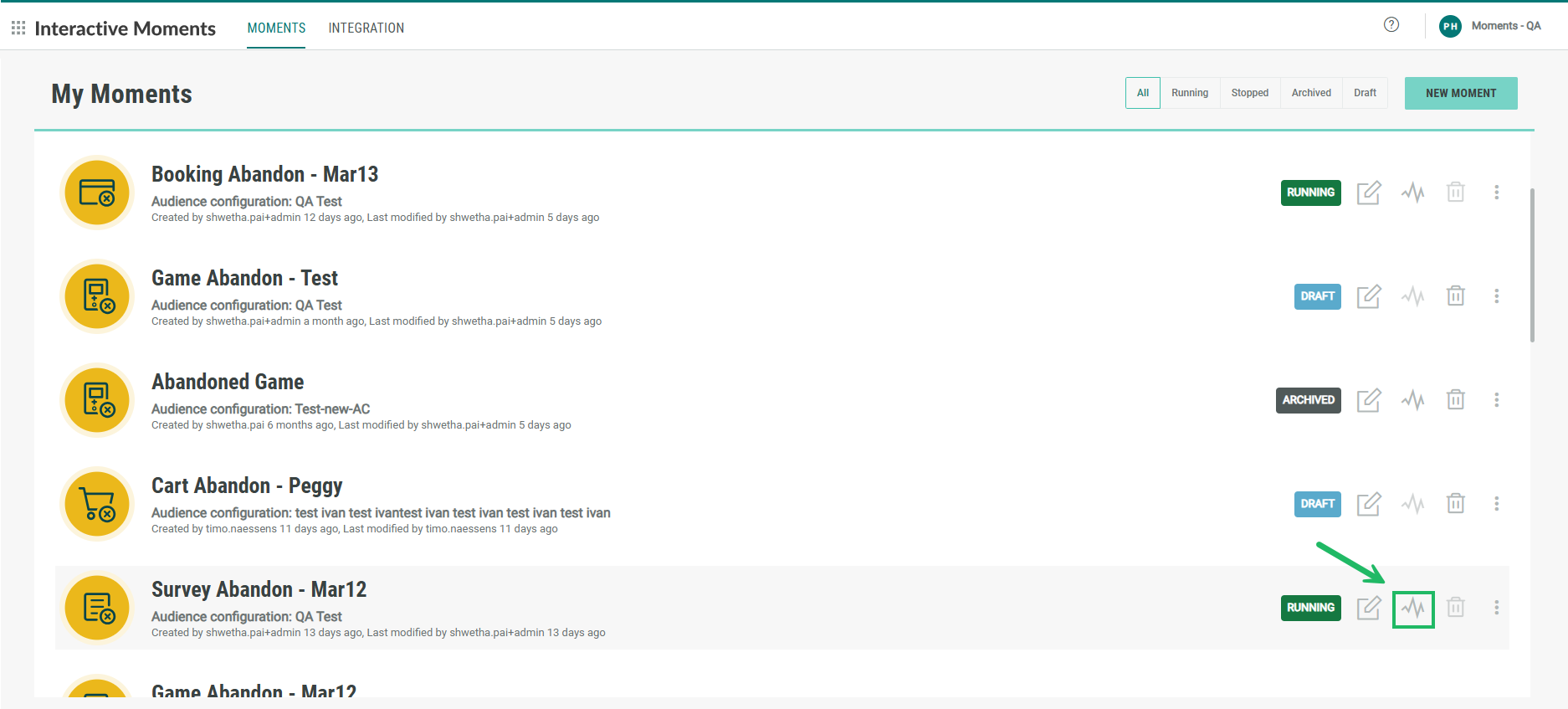
The following data is available:
Realtime
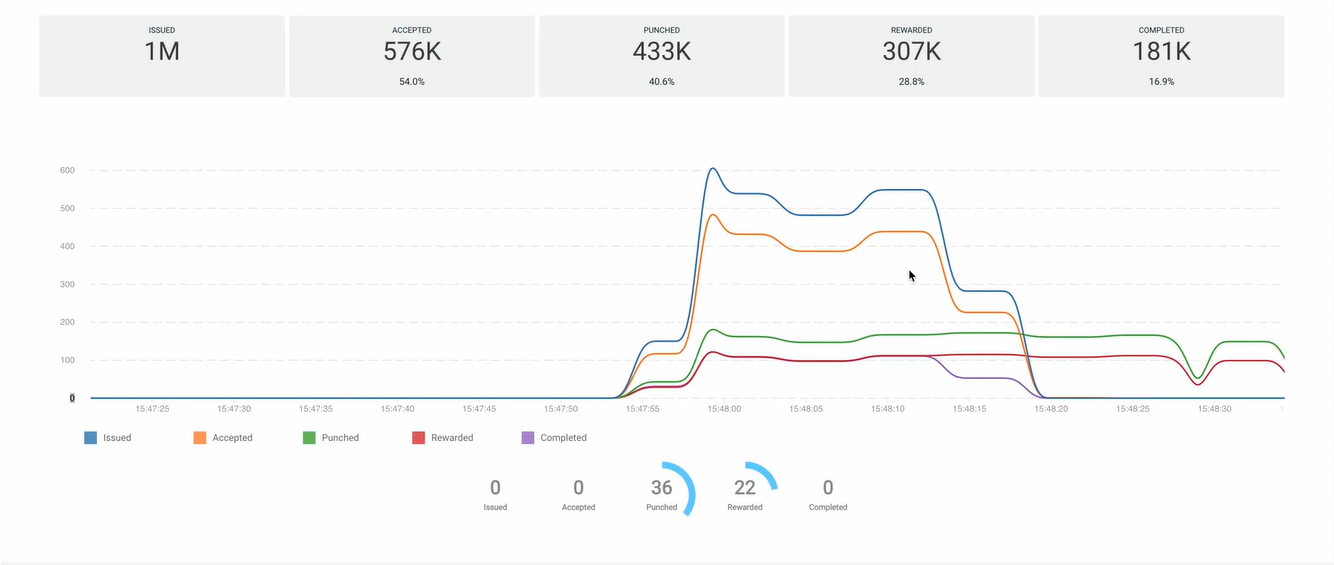
-
at the top, a global overview of the total number of signals generated for the selected Moment as well as the total number of Moments resulting from these signals.
-
a live graphical view on all incoming signals during the last minute, split up per type of signal. Signals can be filtered using the legend below the live stream.
-
a live graphical view on the number of Moments resulting from these signals, again for the last minute.
-
The numbers at the bottom are a live representation of the number of incoming signals at this specific moment in time and is refreshed constantly.
Trends over time
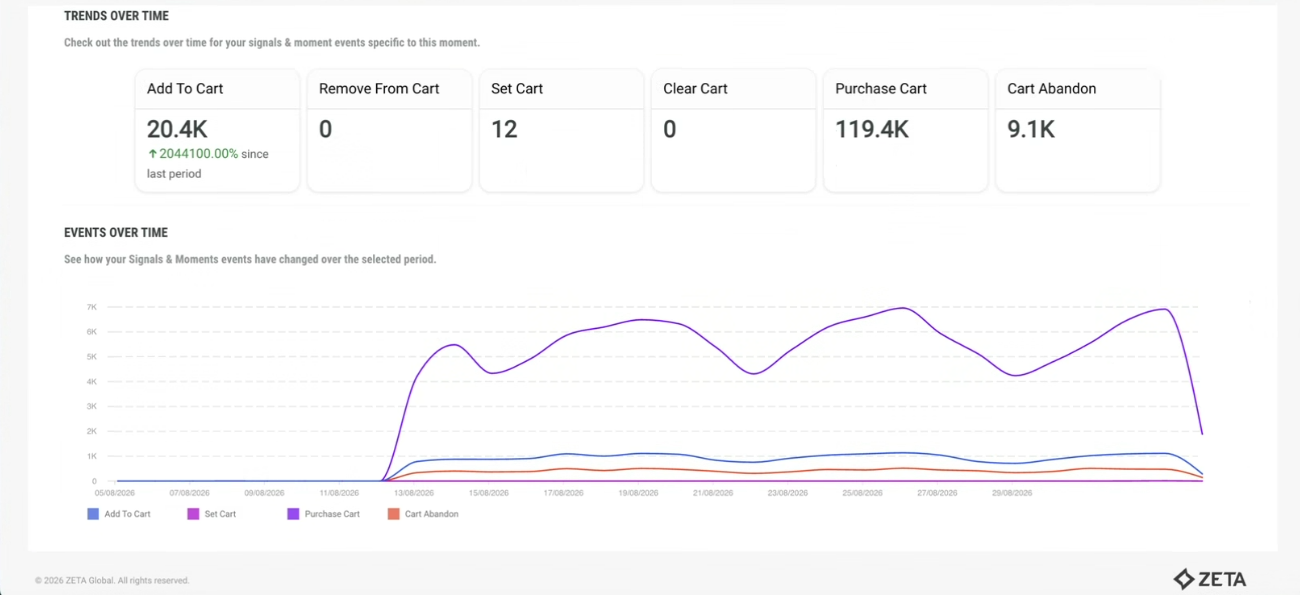
Trends over time gives you a view on how this specific Moment is doing over a selected time period. All the events that this Moment is listening to are listed.
Set the Date range

You can narrow the displayed analytics to a reporting period, such as the last quarter, the last year, the last 30 days, or a custom date range.
The following predefined periods are available:
- Last 30 days
- Last 3 months (default)
- Last 6 months
- Last year
- Last 2 years
When a filter is selected, the date field on the right reflects the exact dates for the selected filter.
You can also select a custom date range using the calendar controls.
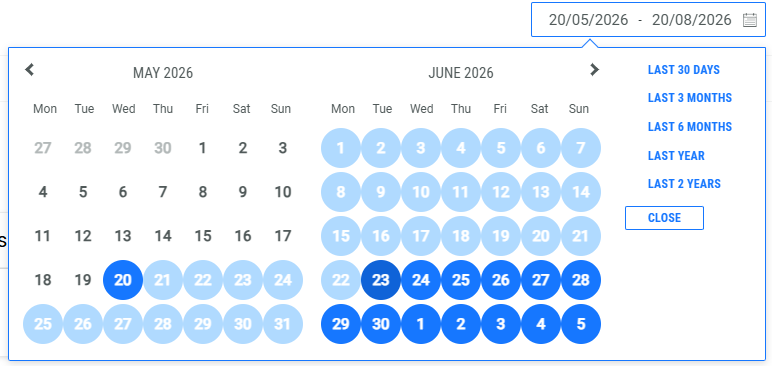
Changing the date range refreshes all metrics and visualizations on the active tab.
Tip: When comparing trends over time, use the same reporting period for consistent comparisons.
Trends over time
Use Trends over time to see the total number of events for each signal this Moment listens to. The numbers update automatically based on the time period you select.
For example, you can use this view to:
- Compare signal activity from the last quarter with the previous quarter.
- See how many add to cart events resulted in an abandoned cart during the selected time period.
Events over time
Use Events over time to see when each signal occurred during the selected time period. This helps you understand how signal activity changes over time and identify patterns in customer behavior.