

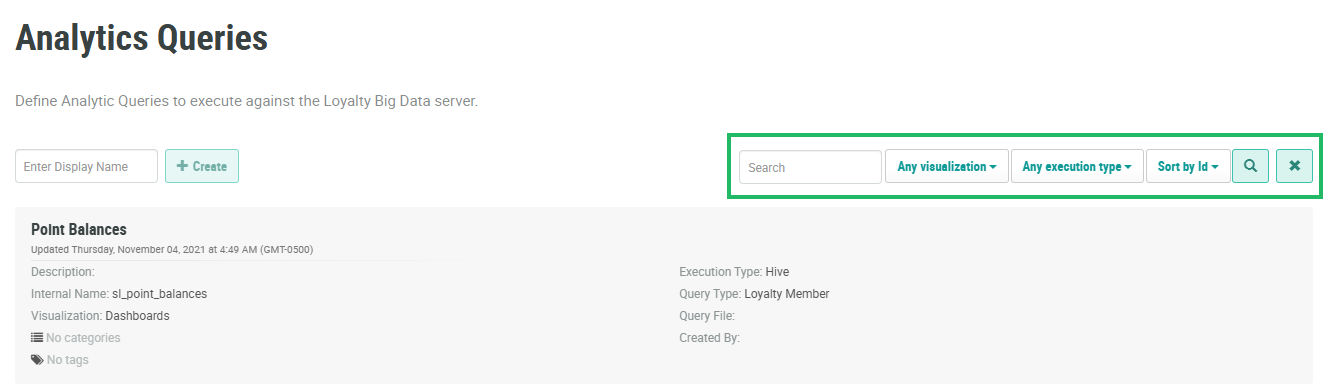
The search feature on the Analytics Queries screen allows you to search for a specified text string anywhere within a variety of fields, including the Query’s display name, internal name, and description. You can also filter the Analytics Queries screen to show only Queries with a specified visualization method or Execution Type.
To search for a Query:
-
Select Analytics from the top navigation bar, then select Settings > Queries from the side navigation menu. The Analytics Queries screen is displayed.
-
Optionally, in the Search field, enter the desired text string.
-
Optionally, from the Visualization drop-down menu, select a query visualization method. The default is Any Visualization.
-
Optionally, from the Execution Type drop-down menu, select an Execution Type. The default is Any Execution Type.
Note: The Phoenix Execution Type has been deprecated. The Hive w/o Trino Execution Type is intended to support the platform's migration from Hive to Trino syntax; this search option selects Hive Queries that do not yet have a corresponding Trino version.
-
Click the Search icon. The screen is refreshed to show only the Queries that meet your search criteria. If you entered multiple search criteria, the Query must meet ALL criteria.
-
To sort the search results, select the desired sort order from the Sort By drop-down menu. The default sort order is by: Query ID.
-
Optionally, to remove all search criteria and revert to the default criteria, click the Clear icon.
Once you have found the desired Query, click it to view the Query Details screen. See
