Platform Status
The Loyalty platform status page provides regular status updates in the event of a major system incident in your region. This article explains how to view the platform status, and how to subscribe to the notification system to receive regular status updates.
Click here to view the Loyalty platform status page.
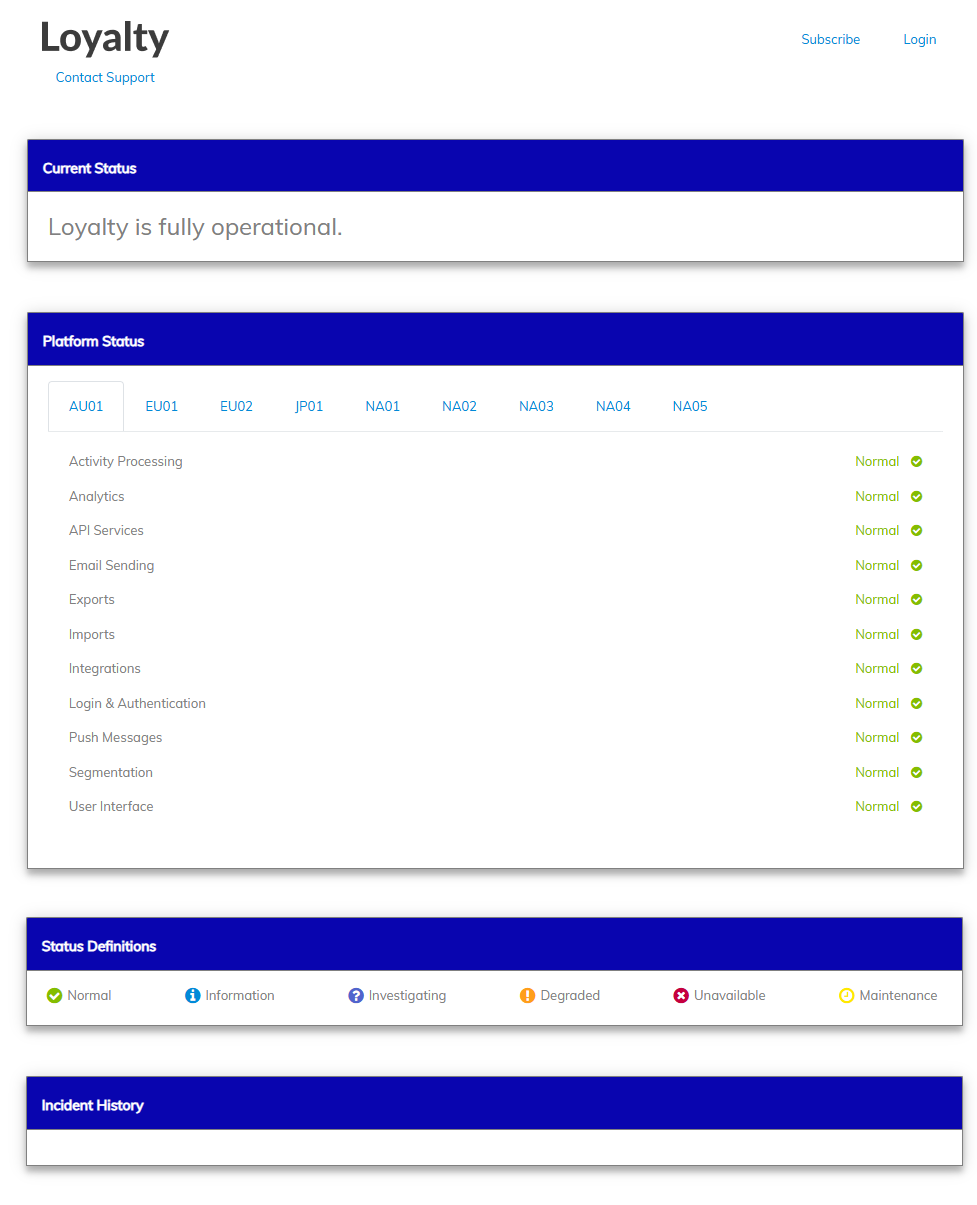
The overall Current Status of the platform is shown at the top of the screen, followed by the list of services and their current status. Below the list of services, the screen shows a list of Status Definitions, followed by an Incident History log showing previous incidents from the past 30 days.
If an incident is currently occurring, an additional section named Active Incident / Maintenance is displayed, providing additional details on that incident.
Subscribe for Status Updates
From the status page, you can subscribe to regular platform status update notifications via email, SMS text, or both. You can choose either site-wide or incident-specific notifications to keep up to date with the information you need.
Create a Site-wide Subscription
To subscribe to site-wide platform status updates:
-
Navigate to the Loyalty platform status page.
-
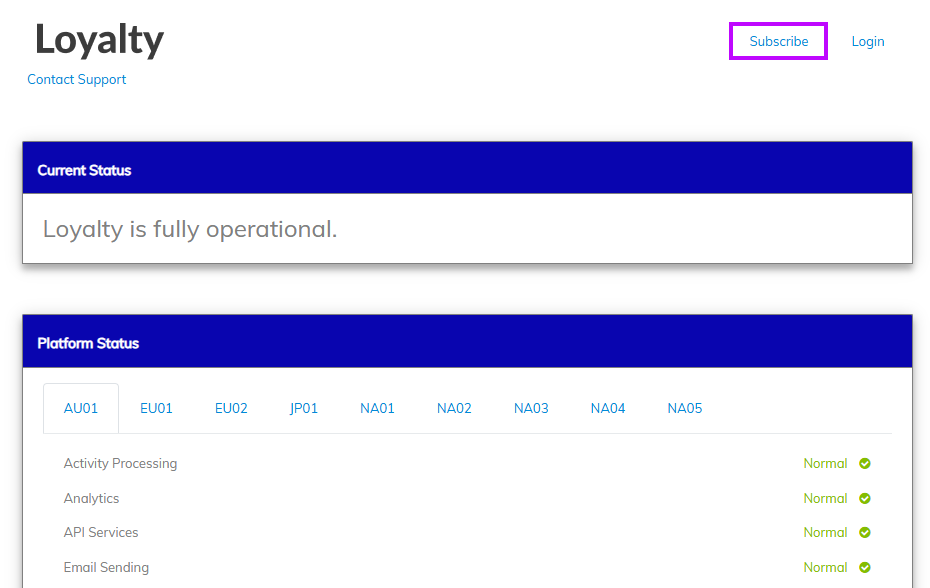
In the top-right corner of the screen, click Subscribe. The Subscribe to Status Page pop-up window is displayed.
-
Optionally, to receive email notifications, enter your email address in the Email Address field.
-
Optionally, to receive SMS text notifications, select your country, then enter your phone number in the Phone Number field. When you have selected the country, leave off the zero.
-
The Components field lets you pick one or more technical environments to which you want to subscribe. These technical environments represent different regions. Optionally, click a region to expand it to see the individual system components within that region. Check all the regions and / or components to which you want to subscribe.
Note: If you are unsure of the name of your technical environment, please contact your Zeta Global representative for assistance.
-
Optionally, check Create Subscriber Account to register in the system as a subscriber. This feature will save your selections and give you easy access to update your subscriptions in the future. If you don't register, you will still receive the updates to which you subscribed.
Note: The RSS link feature isn't yet supported.
-
Check the reCAPTCHA check box.
-
Click Subscribe. A success message is displayed.
If you entered an email address and checked Create Subscriber Account, the platform sends you an email message to confirm your email address. When you receive the validation email, click Confirm Email within the message. The Accept Invitation page is displayed, where you can finish creating your subscriber account by entering your email address, and creating a password. Click Submit when finished.
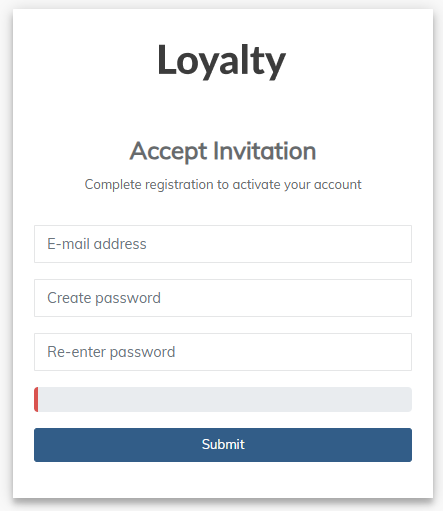
To log into your subscriber account, navigate to the platform status page, then click Login in the top-right corner of the screen. Once logged in, you can view and manage your subscription.
Create an Incident Subscription
To subscribe to updates related to a live incident:
-
Navigate to the Loyalty platform status page.
-
Within the Active Incident / Maintenance section, click the name of the incident to navigate to the incident page.
-
Click Subscribe to Incident.