
Edit User Account Properties
To edit the properties of an existing User Account:
-
Select Admin from the top navigation bar, then select Access > Console Users from the side navigation menu. The Console Users screen is displayed.
-
Optionally, search for and select the desired User Account (see Search for a User Account for more information on the available search options). The User Account Details screen is displayed with the Roles tab selected.
-
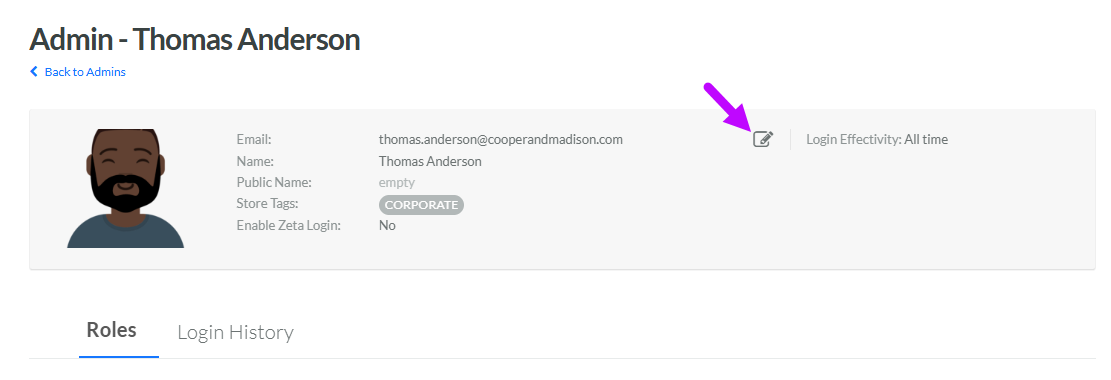
In the header area of the User Details screen, click the Edit icon. The Edit Console User pop-up window is displayed.
-
Optionally, in the Name field, enter or edit the user's name.
-
Optionally, in the Email field, enter or edit the user's email address.
-
Optionally, to reset the user's password, enter a new password in the Password field. Enter this password again in the Password Confirmation field.
-
Optionally, to enable the user's Multi-Factor Authentication (MFA) reminder on their next login attempt, select On Next Login from the Enable MFA Reminder drop-down menu.
-
Optionally, define the effectivity period for this User Account:
-
Always: This User Account never expires.
-
Scheduled: Enter a start date and end date, and select a time zone.
-
-
Optionally, if Local Store Marketing has been enabled in your Loyalty account, you can associate this User Account with Store Tags. From the Stores drop-down menu, select one or more Store Tags.
-
Optionally, if Business Units have been enabled in your Loyalty account, you can designate this User Account as a "Corporate" user. A Corporate User Account has the ability to select "All Business Units" as their Business Unit context. To designated this User Account as a Corporate user, check Corporate.
-
Optionally, in the Public Name field, enter or edit the user's public-facing name.
-
Optionally, to assign a thumbnail image to this item, click Choose File. Browse to and select the desired image file, then click Open.
-
Optionally, from the Language field, enter the user's preferred language.
-
Optionally, from the Time Zone drop-down menu, select the user's time zone.
-
Key binding is used to assign keyboard keys to certain actions or functions. Loyalty supports key binding for several common text editors. From the Key Binding Mode drop-down menu, select the desired text editor: Ace, Vim, Emacs, VSCode, or Sublime.
-
Zeta Login is a cloud-based identity management system that enables common authentication across various Zeta Global products. Optionally, to enable Zeta Login for this User Account, check Enable Zeta Login. For more information, see Getting Started with Zeta Login.
-
Click Save.
