
Edit Role Properties
To edit the properties of an existing Role:
-
Select Admin from the top navigation bar, then select Access > Roles from the side navigation menu. The Roles screen is displayed.
-
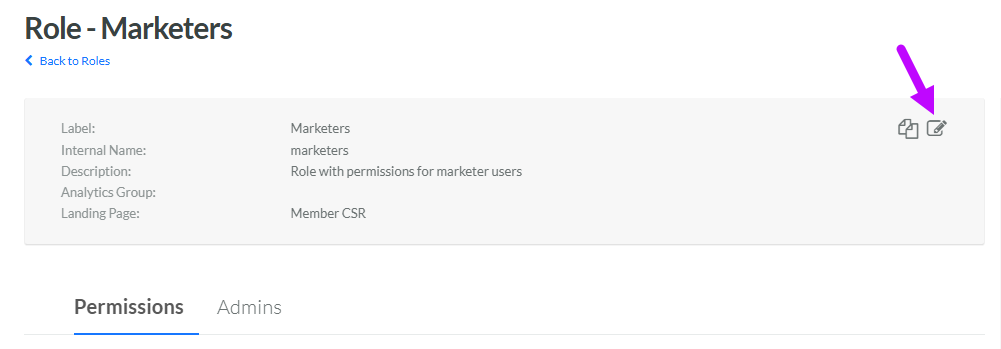
Optionally, search for and select the desired Role (see Search for a Role for more information on the available search options). The Role Details screen is displayed with the Permissions tab selected.
-
Within the header area, click the Edit icon. The Edit Role pop-up window is displayed.
-
Optionally, in the Label field, edit the Display Name for this Role.
-
The Internal Name is automatically populated based on the Display Name value. This field is not editable by default. To edit the Internal Name, check Edit Internal Name. A confirmation dialog box is displayed; click Ok. Edit the Internal Name value.
-
Optionally, in the Description field, enter a description of this item.
-
Optionally, from the Analytics Group drop-down menu, select one or more Analytics Groups to assign to this Role.
-
From the Landing Page drop-down menu, select the screen that is displayed when a user with this Role logs into the Loyalty platform. The options are either the Member CSR screen or the Deployments screen.
Note: Loyalty also supports a global default landing page that can be configured via a Program Setting (see Program Settings Category - Show Page Customization for more information). In the event that a Role-based configuration conflicts with the global configuration, the Role-based configuration takes precedence. If a user has been assigned to multiple Roles with different default landing pages, the configuration for the user's "Default Role" takes precedence.
-
Click Save.
