Create an OAuth Application
Before you can create an OAuth Application within Loyalty, you must know your Redirect URI (sometimes called the callback URL). A Redirect URI is a registered location in a client application where the authorization server redirects the user after completing an authorization request. If using the Authorization Code grant type, the redirect typically includes an authorization code that allows the client application to request an access token.
You also need to know the scope for the OAuth Application. The scope defines the specific permissions the client application is requesting to access. Loyalty supports two possible scopes: Member (for the Member API) or Admin (for the Program API). If you intend to use both APIs, you must set up two OAuth Applications, one for each; the same OAuth Application can't be used to access both APIs.
To create an OAuth Application:
-
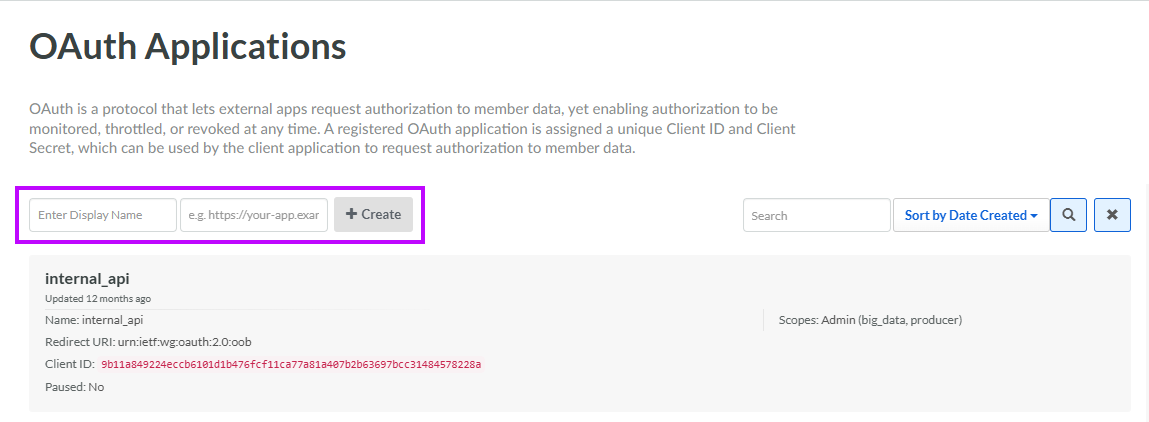
Select Admin from the top navigation bar, then select Access > OAuth Applications from the side navigation menu. The OAuth Applications screen is displayed.
-
In the Display Name field, enter the name of the new OAuth Application.
-
In the Redirect URI field, enter the Redirect URI.
-
Click Create. The Edit OAuth Application pop-up window is displayed.
-
The Display Name field is populated with the value you entered above; optionally edit this value.
-
The Internal Name is automatically populated based on the Display Name value. This field is not editable by default. To edit the Internal Name, check Edit Internal Name. A confirmation dialog box is displayed; click Ok. Edit the Internal Name value.
-
Optionally, in the Description field, enter a description of this item.
-
The Redirect URI field is populated with the value you entered above; optionally edit this value.
-
From the Scope drop-down menu, select the Loyalty API this OAuth Application will be used to access: Member (for the Member API) or Admin (for the Program API). Note that the RTP Scope option has been deprecated and is no longer supported.
-
From the Platform drop-down menu, select the client application platform: JavaScript, iOS, or Android.
-
Click Save.
When you create a new OAuth Application, the platform generates its Client ID and Client Secret. These values can be found on the OAuth Application Details screen. See View an OAuth Application for more information.