Add a Place to an OAuth Application
The Locations tab of the OAuth Application Details screen allows you to add store locations to the OAuth Application. The store locations must be defined in your Loyalty account as Places (see Getting Started with Places for more information), and the Places must be Published.
For each store location that you add to the OAuth Application, the platform generates a salt. In cryptography, a salt refers to random data combined with the original input value before it is hashed. The salt helps ensure that identical input values don't necessarily produce identical hashed values. The use of a unique salt for each store location allows multiple stores to use the same OAuth Application, but still keep their API calls distinct.
To add a Place to an OAuth Application:
-
Select Admin from the top navigation bar, then select Access > OAuth Applications from the side navigation menu. The OAuth Applications screen is displayed.
-
Search for and select the desired OAuth Application (see Search for an OAuth Application for more information on the available search options). The OAuth Application Details screen is displayed, with the Restrictions tab selected.
-
Select the Locations tab.
-
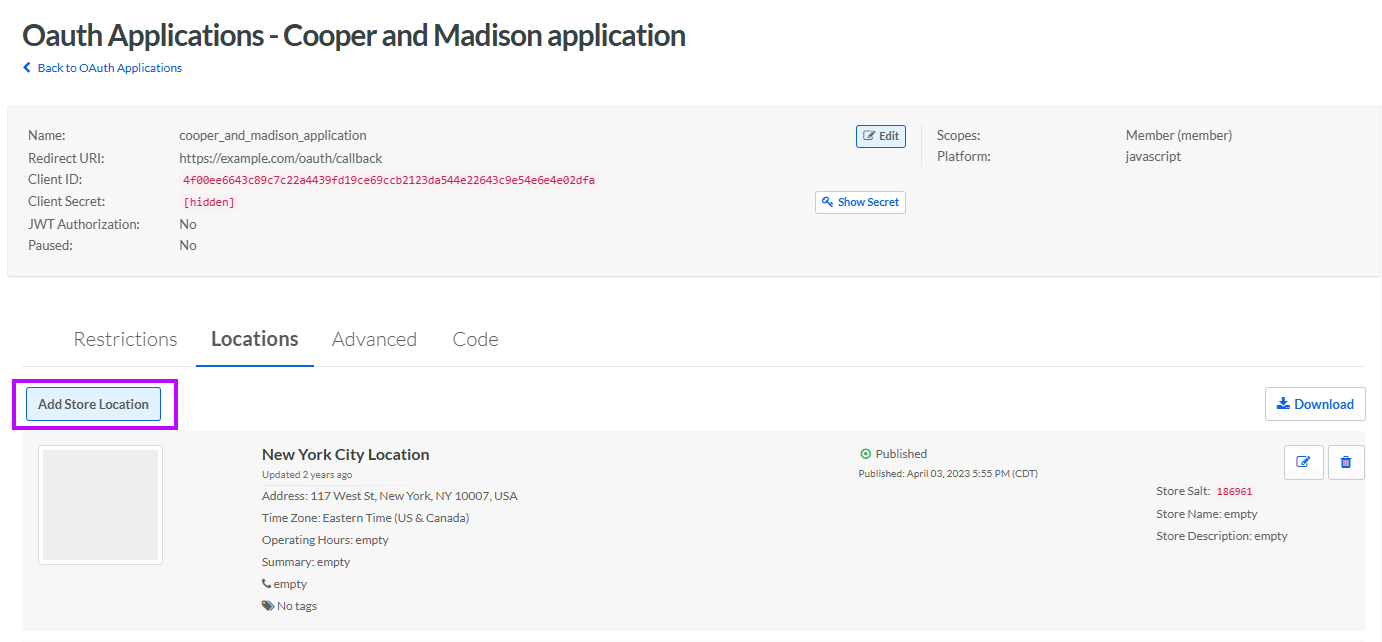
Click Add Store Location. The Add Store Location pop-up window is displayed.
-
From the Location drop-down menu, select the desired Place.
-
Click Save. The place is added to the Locations tab.
-
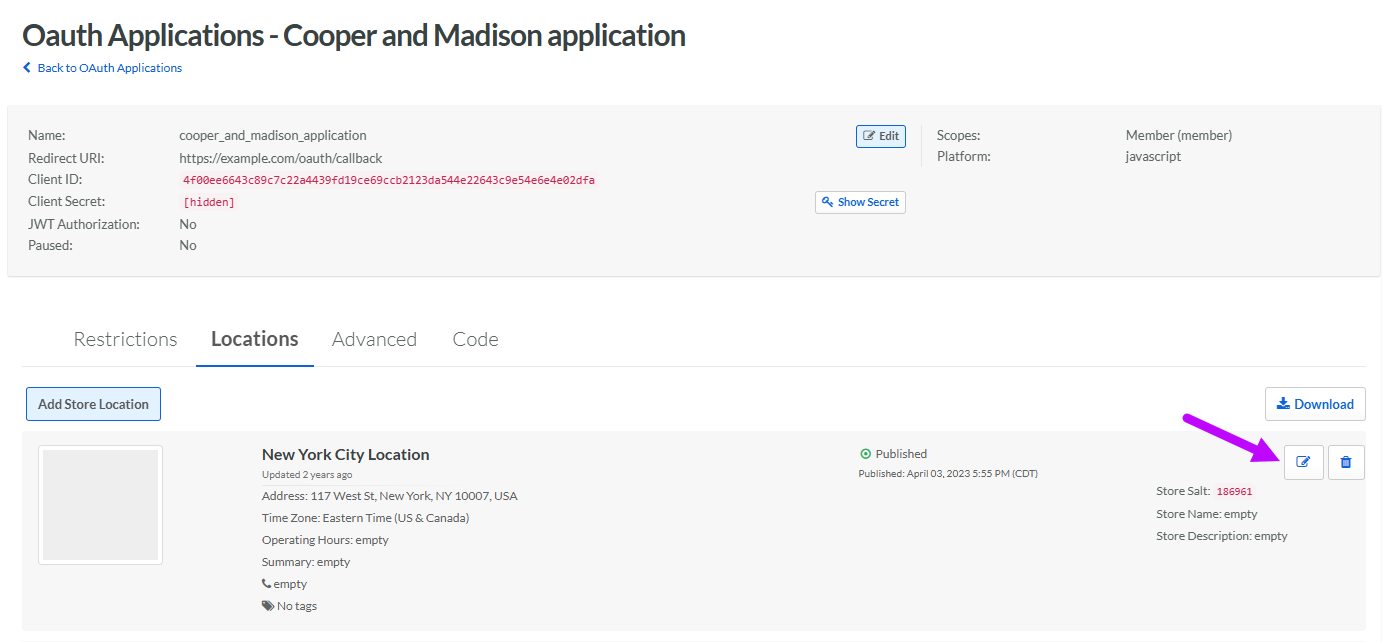
Optionally, the platform allows you to define a name and description for the Place. Note that these values are unique to the Place within this OAuth Application; these values are not saved as part of the Place itself. To add a name and description, click the Edit icon next to the Place on the Locations tab. The Edit Store Location pop-up window is displayed.
-
In the Store Name field, enter a name.
-
In the Description field, enter a description.
-
Click Save.
Download Place Information
The Loyalty platform allows you to download a file containing the authentication credentials for every Place that has been added to an OAuth Application. This file contains the following columns:
-
Client ID
-
Client Secret
-
Store Salt
-
Location Name
To download the Place information from an OAuth Application:
-
Select Admin from the top navigation bar, then select Access > OAuth Applications from the side navigation menu. The OAuth Applications screen is displayed.
-
Search for and select the desired OAuth Application (see Search for an OAuth Application for more information on the available search options). The OAuth Application Details screen is displayed, with the Restrictions tab selected.
-
Select the Locations tab.
-
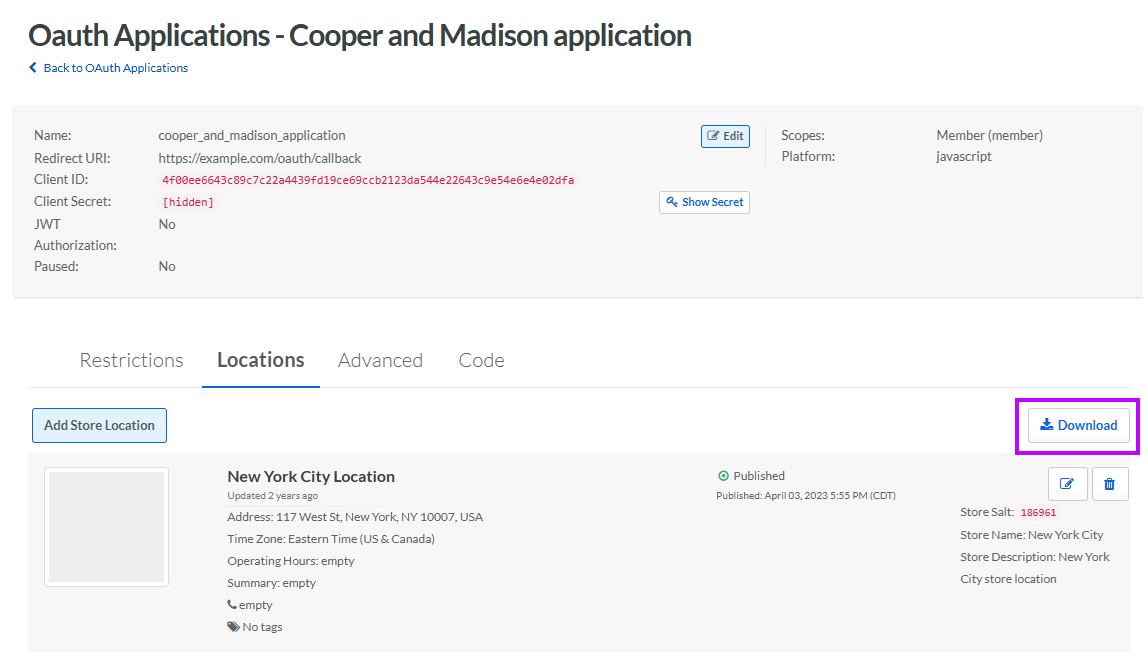
Click Download. The platform creates the file and downloads it to your local PC.