
Search for a Scheduled Job
The Scheduled Jobs screen provides two different views of your existing Scheduled Jobs: List View and Calendar View.
View Scheduled Jobs in List View
List View provides a simple listing of the Scheduled Jobs defined in your Loyalty account, similar to most other screens in the platform.
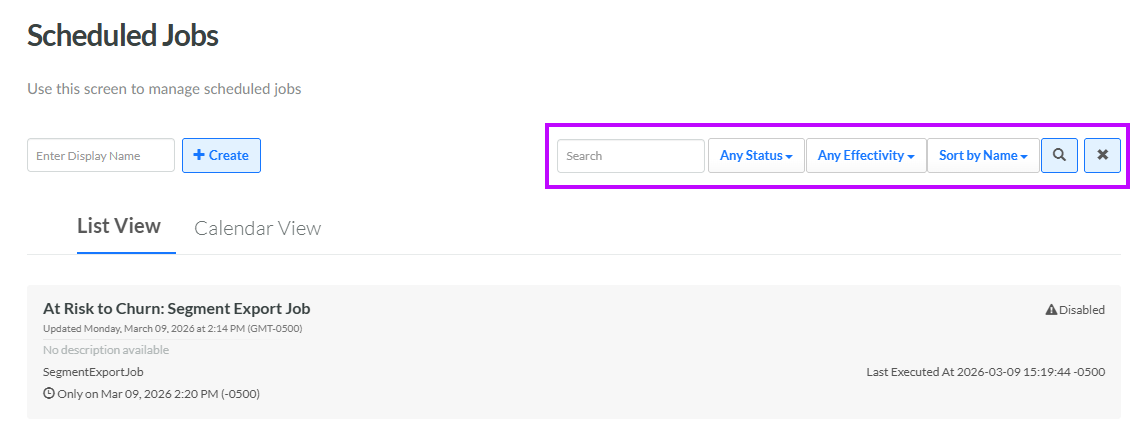
While in List View, the search feature on the Scheduled Jobs screen allows you to search for a specified text string anywhere within the Scheduled Job's display name, internal name, or description. You can also filter the Scheduled Jobs screen to show only Scheduled Jobs with a specified status or effectivity range.
To search for a Scheduled Job:
-
Select Admin from the top navigation bar, then select Jobs > Scheduled Jobs from the side navigation menu. The Scheduled Jobs screen is displayed. By default, List View is selected.
-
Optionally, in the Search field, enter the desired text string.
-
Optionally, from the Status drop-down menu, select a status value: Enabled or Disabled. The default is Any Status.
-
Optionally, from the Effectivity drop-down menu, select an effectivity range: Always effective, Effective in the future, or Effective now. The default is Any effectivity.
-
Click the Search icon. The screen is refreshed to show only the Scheduled Jobs that meet your search criteria. If you entered multiple search criteria, the Scheduled Job must meet ALL criteria.
-
To sort the search results, select the desired sort order from the Sort By drop-down menu. The default sort order is by: Date Created.
-
Optionally, to remove all search criteria and revert to the default criteria, click the Clear icon.
Once you have found the desired Scheduled Job, click it to view the Scheduled Job Details screen. See View a Scheduled Job for more information.
View Scheduled Jobs in Calendar View
Calendar View provides a monthly snapshot of all the Scheduled Jobs defined in your Loyalty account.
-
Select Admin from the top navigation bar, then select Jobs > Scheduled Jobs from the side navigation menu. The Scheduled Jobs screen is displayed. By default, List View is selected.
-
Select the Calendar View tab. For each day in the current month, the platform lists the internal names of each Job that will execute on that day.
-
Optionally use the left-arrow and right-arrow buttons to navigate to the previous month or the next month. Click Today to return to the current month.
Note: The platform does not provide any filter or search tools when viewing Scheduled Jobs in Calendar View.
Once you have found the desired Scheduled Job, click its name within the calendar to view the Scheduled Job Details screen. See View a Scheduled Job for more information
