
Download a Scheduled Job Processed File
Depending on the Action type of a Scheduled Job, the Job may import a file (or files) for processing. For example, the Batch Merge Accounts Action type is used to pick up a file off a server containing Member Profiles that need to be merged.
For these types of Scheduled Jobs, you can download the original processed file (or files) from the Instances tab for auditing or troubleshooting purposes.
-
Select Admin from the top navigation bar, then select Jobs > Scheduled Jobs from the side navigation menu. The Scheduled Jobs screen is displayed. By default, List View is selected.
-
Search for and select the desired Scheduled Job (see Search for a Scheduled Job for more information on the available search options). The Scheduled Job Details screen is displayed, with the Definition tab selected by default.
-
Select the Instances tab.
-
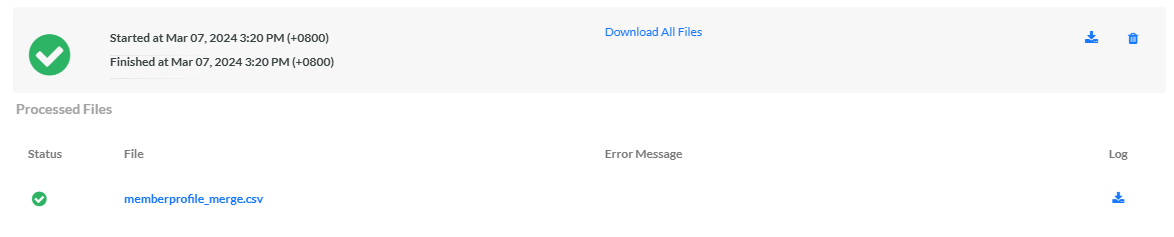
Click the desired Job execution to expand it. The platform displays all the files processed in this Job execution.
-
Next to the desired file, click the Download icon. The platform downloads this file to your local PC.
Note: If a Job execution processed multiple files, you can download them together by clicking Download All Files.
