
Define a Parameter
Parameters act like coding variables that can be used in a Query. To define a parameter:
-
Select Analytics from the top navigation bar, then select Settings > Queries from the side navigation menu. The Analytics Queries screen is displayed.
-
Optionally, search for and select the desired Query (see
-
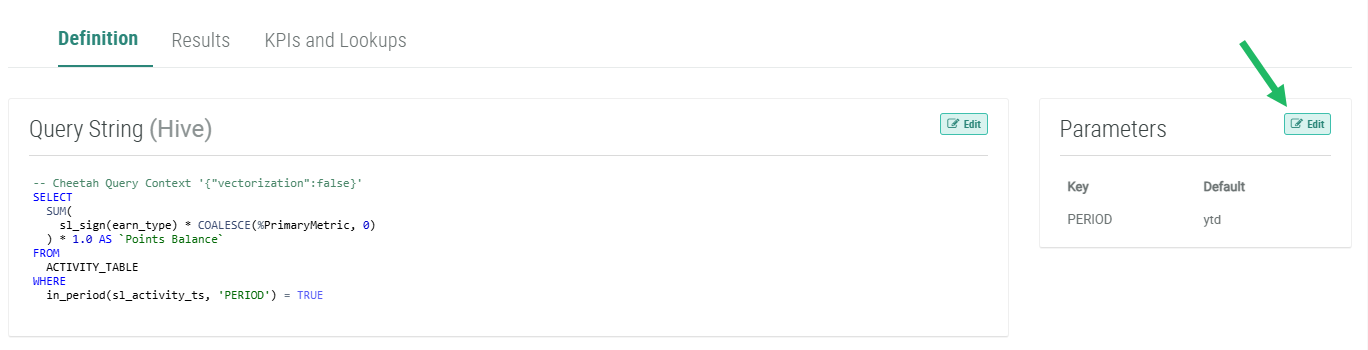
Within the Parameters section, click Edit. The Edit Bigdata Query pop-up window is displayed.
-
Click Add Parameter. The platform adds a new row for defining the parameter.
-
In the Key field, enter the key for this parameter.
-
In the Default field, enter the default value for this parameter.
-
In the Display Name field, enter a name for this new parameter.
-
Optionally, in the Description field, enter a description of this item.
-
From the Data Type drop-down menu, select the Data Type for this parameter.
-
Repeat the above steps as needed to define additional parameters.
-
Optionally, to remove a parameter, click the Delete icon next to it.
-
Click Save.
