
Create a Query
Loyalty allows you to create a new Analytics Query either by creating it from scratch, or by copying an existing Query to use as the basis of the new Query.
Create a Query
To create a Query from scratch:
-
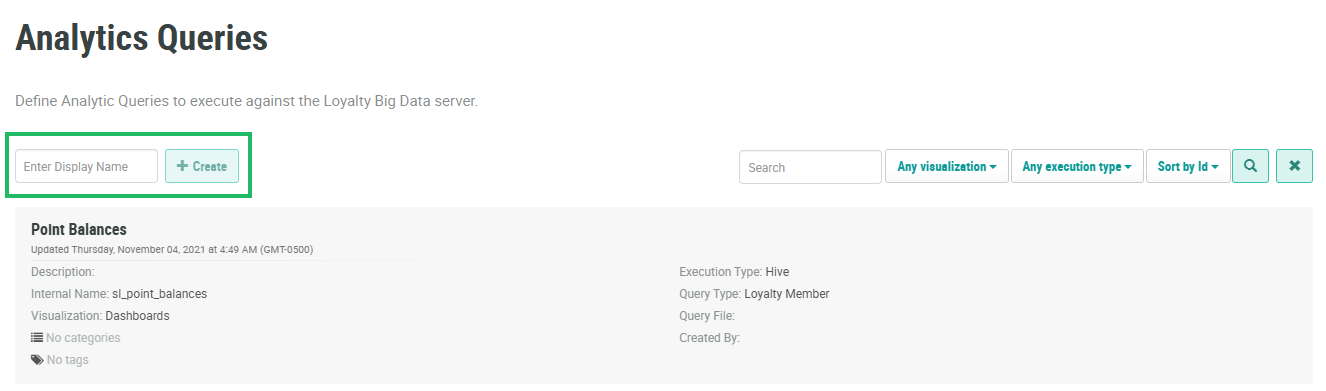
Select Analytics from the top navigation bar, then select Settings > Queries from the side navigation menu. The Analytics Queries screen is displayed.
-
In the Display Name field, enter the name of the new Query.
-
Click Create. The Edit Bigdata Query pop-up window is displayed.
-
The Display Name field is populated with the value you entered above; optionally edit this value.
-
The Internal Name is automatically populated based on the Display Name value. This field is not editable by default. To edit the Internal Name, check Edit Internal Name. A confirmation dialog box is displayed; click Ok. Edit the Internal Name value.
-
Optionally, in the Description field, enter a description of this item.
-
The Visualization drop-down menu is used to select where in the Loyalty platform this Query can be used. Typically, this option should be configured by your Zeta team.
-
From the Execution Type drop-down menu, select either Trino, Hive, SQL, or Spark.
Note: The Trino Execution Type is being rolled out to Loyalty clients on a region-by-region basis. Once Trino has been enabled in your region, the best practice recommendation is to use the Trino Execution Type, as the Hive Execution Type is being deprecated. The SQL and Spark Execution Types should be used only with the assistance of your Zeta team.
-
From the Query Type drop-down menu, select either Loyalty Member or Loyalty Activity.
-
The Query File option lets you upload a file containing the results that you want to use for this Query. Click Choose File. Browse to and select the desired file, then click Open.. Check Enabled to use the contents of this file as the Query results. To instead ignore this Query File and use the actual results of the Query execution, check Disabled.
-
Query Categories are used to organize Queries within the platform. Optionally, to assign this Query to one or more Query Categories, select them from the Categories drop-down menu.
-
Tags are used to help organize objects within the platform. Queries can be searched by Tag from the Analytics Queries screen. To reuse an existing Tag, begin typing all or part of the Tag name, and select it. You can also type in a new Tag value.
-
Click Save.
Copy a Query
To copy a Query:
-
Select Analytics from the top navigation bar, then select Settings > Queries from the side navigation menu. The Analytics Queries screen is displayed.
-
Optionally, search for and select the desired Query (see
-
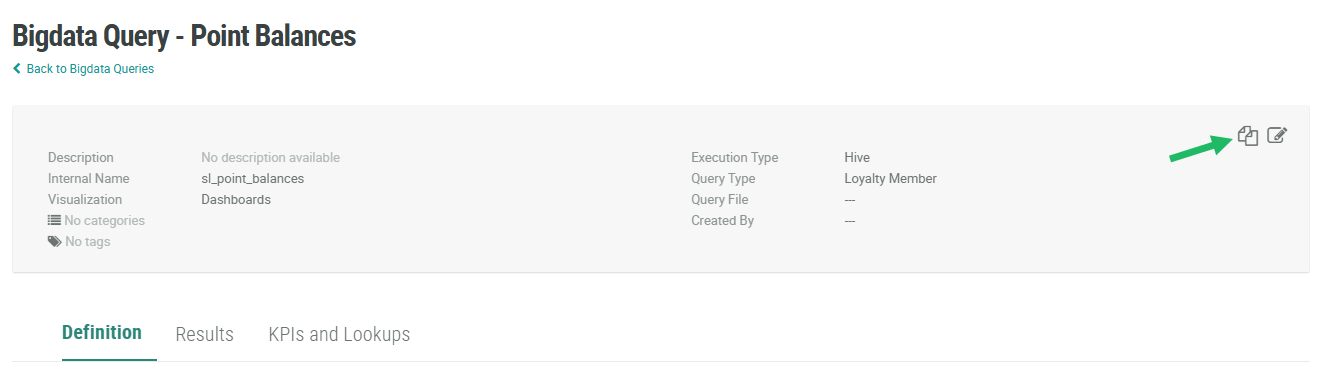
In the top-right corner of the screen, click the Copy icon.
-
The platform creates a copy of the Query, and the Query Details screen is displayed. The default name of the new Query is the name of the base Query followed by a counter, such as "(1)."
Additional Information
For additional information on how to configure the new Query, see the following Help Center articles:
