
Search for a Placement
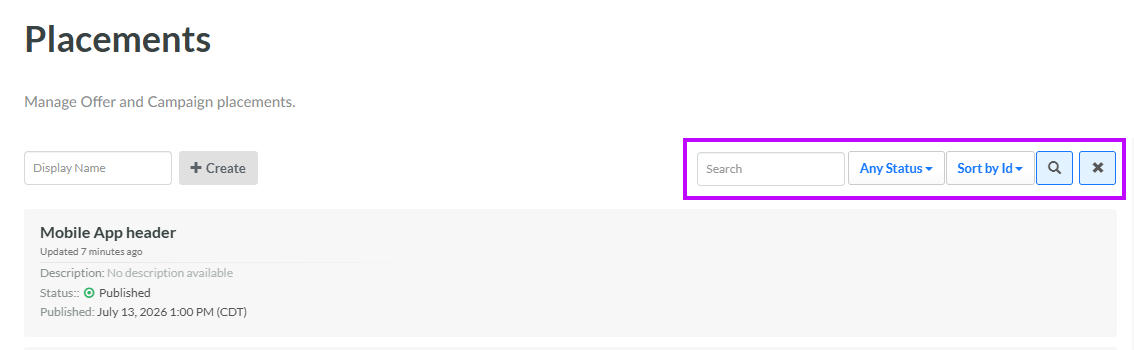
The search feature on the Placements screen allows you to search for a specified text string anywhere within the Placement's Display Name or Internal Name.
To search for a Placement:
-
Select Campaigns from the top navigation bar, then select Settings > Placements from the side navigation menu. The Placements screen is displayed.
-
Optionally, in the Search field, enter the desired text string.
-
Optionally, from the Status drop-down menu, select a status value: Archived, Draft, or Published. The default is Any Status.
-
Click the Search icon. The screen is refreshed to show only the Placements that meet your search criteria. If you entered multiple search criteria, the Placement must meet ALL criteria.
-
To sort the search results, select the desired sort order from the Sort By drop-down menu. The default sort order is by: Placement ID.
-
Optionally, to remove all search criteria and revert to the default criteria, click the Clear icon.
Once you have found the desired Placement, click it to view the Placement Details screen. See View a Placement for more information.
