
Configure Optimal Discount Levels
The AI-Powered Offers feature in Loyalty uses the Margin Optimization Machine Learning (ML) model to predict the optimal discount level for each Member. The model slots Members into one of four discount levels (Low, Medium, High, or Max) based on their purchase history and Offer redemption history.
In addition, during the ingestion of event details, the model identifies newly scored Members, and randomly assigns ten percent of them to a Control Group, which can then be used for testing purposes.
Within the Offer setup, you can configure the exact discounts for each of these levels and the Control Group.
For more information on this feature, please see
Note: This feature is available only within
To configure the optimal discount levels for an Offer:
-
Select Campaigns from the top navigation bar, then select Offers > Offers from the side navigation menu. The Offers screen is displayed.
-
Search for and select the desired Offer (see Search for an Offer for more information on the available search options). The Offer Details screen is displayed, with the Definition tab selected by default.
-
Click the Coupon and Qualifying Rules section to expand it.
-
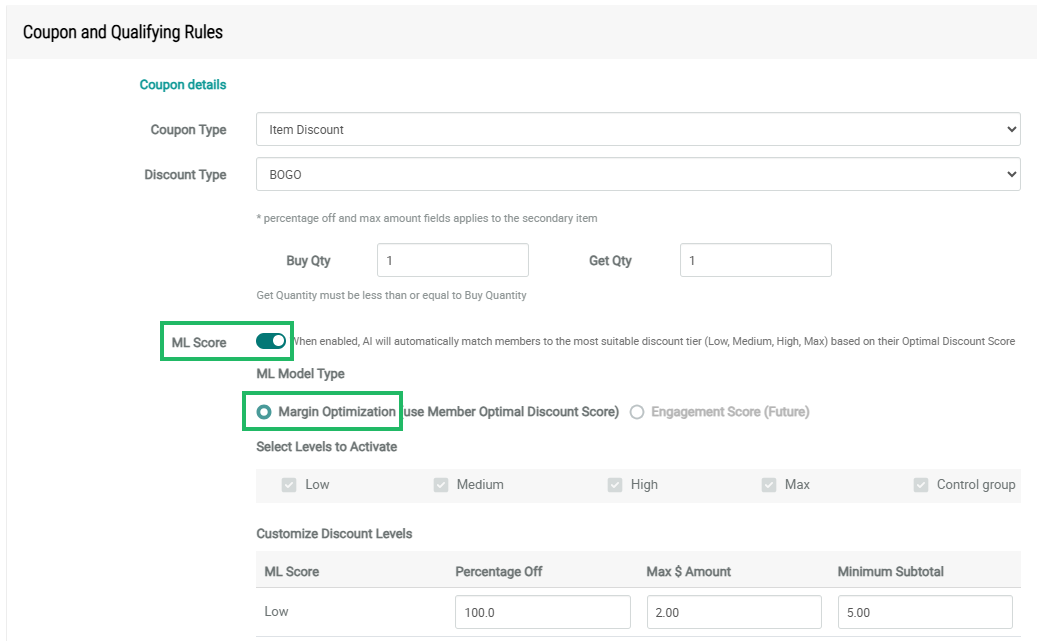
Toggle ML Score to On. Select Margin Optimization.
-
Using the check boxes, select which discount levels you want to target in this Offer - Low, Medium, High, Max, and / or Control Group.
Note: To see the distribution of Members across the selected discount levels, select the Eligibility tab. See
-
The platform displays a spreadsheet style grid, with a row for each discount level you selected above. The columns in this grid will vary depending on the Discount Type selected for this Offer.
-
Amount: For each selected discount level, enter the following information:
-
Max $ Amount: Enter the maximum allowable amount of the discount (in dollars).
-
Minimum Subtotal: Optionally, enter the minimum purchase amount that a Member must spend in order to qualify to use this Coupon Offer. If you leave this field blank, then the platform will not impose a minimum subtotal threshold.
-
-
Percentage: For each selected discount level, enter the following information:
-
Percentage Off: Enter the discount percentage.
-
Max $ Amount: Enter the maximum allowable amount of the discount (in dollars).
-
Minimum Subtotal: Optionally, enter the minimum purchase amount that a Member must spend in order to qualify to use this Coupon Offer. If you leave this field blank, then the platform will not impose a minimum subtotal threshold.
-
-
BOGO: For each selected discount level, enter the following information:
-
Percentage Off: Enter the percentage discount for the discounted item(s). For example, if you want to offer a "Buy One, Get One Half Price" promotion, you would enter 50 in this field, to indicate 50%-off of the discounted item. The default value is 100 (that is, free).
-
Max $ Amount: Enter the maximum allowable amount of the discount (in dollars).
-
Minimum Subtotal: Optionally, enter the minimum purchase amount that a Member must spend in order to qualify to use this Coupon Offer. If you leave this field blank, then the platform will not impose a minimum subtotal threshold.
-
-
-
Click Save.
You can configure the rest of the Offer details as described in
