
Rearrange the Offers in an Offer Campaign
An Offer Campaign comprises one or more Offers arranged into a prioritized sequence. This sequence controls which Offers are displayed first, second, third, and so on when a Member views the Offers on your website or mobile app.
Depending on the selected targeting method for an Offer Campaign, you may be able to manually rearrange the selected Offers in the Offer Campaign. This option is available only if the selected targeting method is Manual or Rules. See Target the Offers in a Campaign for more information on these targeting methods.
Note: If you selected Random as the targeting method, you will not be able to manually rearrange the Offers. With this targeting method, the platform is randomly arranging the Offers, so you can't manually arrange them.
To rearrange the Offers in an Offer Campaign:
-
Select Campaigns from the top navigation bar, then select Campaigns > Campaigns from the side navigation menu. The Offer Campaigns screen is displayed.
-
Search for and select the desired Offer Campaign (see Search for an Offer Campaign for more information on the available search options). The Offer Campaign Details screen is displayed, with the Objective tab selected by default.
-
Select the Offers tab.
-
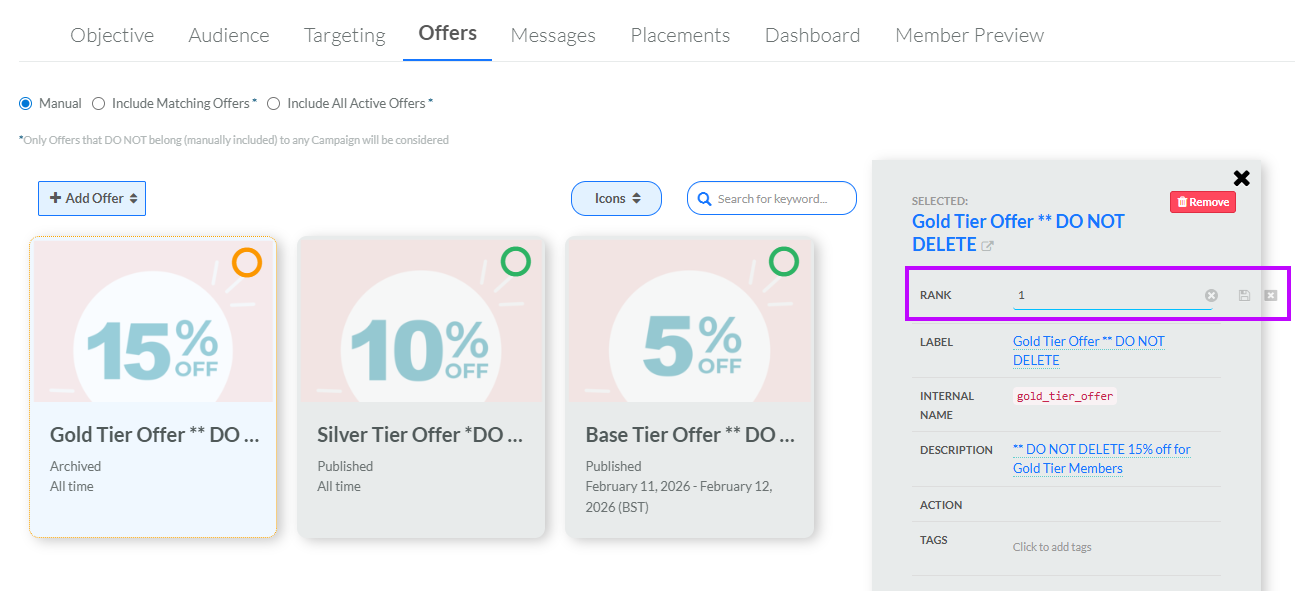
By default, Icon View is selected as the view mode. This option displays all the included Offers as "cards" that can be manually rearranged. The first Offer in the priority is located in the top-left corner, with the sequence moving from left-to-right across a row, and then down to the next row. The platform provides the following methods for manually moving an Offer to a new position in the sequence:
-
Drag-and-Drop: Click-and-hold on an Offer card, drag it to its desired new location in the sequence, and drop it. Note that this option is available only in Icon View.
-
Edit Offer Rank: Each Offer in the Campaign has a Rank value that controls its position in the sequence. To manually edit an Offer's Rank value, click an Offer to select it. The platform displays the Offer Details panel to the right. Within this panel, click into the Rank field to make it editable. Enter the desired Rank, then click the Save icon. The platform updates the position of this Offer with the display.
-
-
Repeat the above step as needed to move other Offers into their desired prioritized sequence.
