
Define Offer Campaign Objectives
Marketers use Offer Campaigns to influence Member behavior, such as incentivizing purchases or enrollments. Loyalty lets you define the marketing objective (referred to as the Campaign Objective) of the Offer Campaign. The Campaign Objective comprises a Success Metric such as “Members make a Purchase” and an Objective Target such as "at least 1000 Members." The platform automatically measures and displays progress towards the Campaign Objective on the Campaign Dashboard.
For example, let's say you are executing an Offer Campaign where you intend to reach out to 100,000 Members who haven't made a purchase in the last six months, and use a series of Offers to entice at least 10% of them to make a purchase. In this example, the Success Metric is "make at least one Purchase," and the Objective Target is 10,000 people (10% of the total 100,000 in the audience). Every Member in the audience who makes a purchase is counted as a "success" and is tracked on the Campaign Dashboard toward the Objective Target.
You can optionally also enter values and costs to quantify and better understand the benefits of the Offer Campaign. The platform will use these metrics to derive a Total Estimated Value of the entire Offer Campaign.
To define the Offer Campaign objectives:
-
Select Campaigns from the top navigation bar, then select Campaigns > Campaigns from the side navigation menu. The Offer Campaigns screen is displayed.
-
Search for and select the desired Offer Campaign (see Search for an Offer Campaign for more information on the available search options). The Offer Campaign Details screen is displayed, with the Objective tab selected by default.
Note: The Summary box along the right-hand side of the Objective tab provides a convenient summary of high-level information about the Offer Campaign.
-
In the Objective Description, optionally enter the objective of the Offer Campaign in terms of how it will improve your business, and how you define success.
The Measure Success section allows you to select an Activity or Metric that represents the success criteria for this Offer Campaign, such as a number of enrollments or purchases, for example.
-
From the Criteria drop-down menu, select either an Activity Type or a Metric. This selection represents the Success Metric for this Offer Campaign.
-
In the Target field, enter either a number of Members, or the percentage of the Offer Campaign audience, that you want to complete the selected Activity, or earn the selected Metric, for the Campaign to be deemed a success. If you entered a number of Members, from the drop-down menu, select Members. If you entered a percentage, from the drop-down menu, select % of Audience. This selection represents the Objective Target for this Offer Campaign.
Note: To assist with defining the success criteria, the platform provides a comparison tool that looks at the results and targets of another Offer Campaign. Click the "Help me set this" link to use this tool. See Compare with Another Offer Campaign below for more details on using this comparison tool.
The Measure Value section allows you to enter the financial information for this Offer Campaign, and to then generate a Total Estimated Value for the entire Offer Campaign.
-
In the Value per Member field, enter the estimated value generated for each "success" in the Campaign.
-
In the Cost Per Member field, enter the per Member cost associated with marketing to each Member.
-
In the Fixed Costs fields, enter any additional fixed costs associated with the Offer Campaign.
Once you define the Offer Campaign audience (see Define the Offer Campaign Audience for more information on that process), the platform uses the above metrics to calculate the Estimated Total Value for the Offer Campaign. At any point, click the Refresh icon within this section to re-calculate the Estimated Total Value.
Compare with Another Offer Campaign
The Objective tab of the Offer Campaign details screen provides a comparison tool that lets you look at, and optionally copy, assets in another Offer Campaign.
To compare the current Offer Campaign with another Offer Campaign:
-
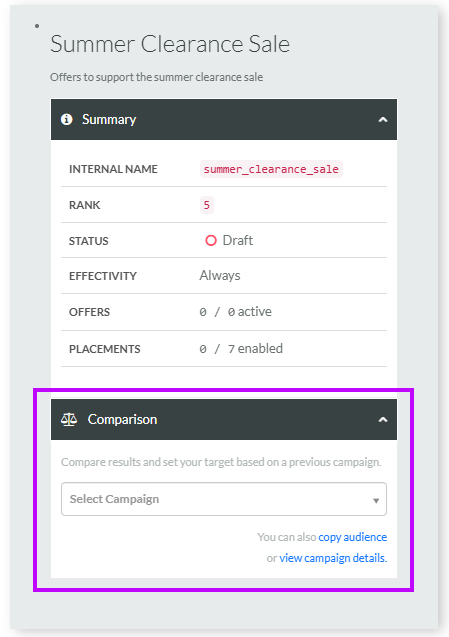
Within the Summary box along the right-hand side of the Objective tab, click the Comparison section to expand it.
-
From the Select Campaign drop-down menu, select the desired Offer Campaign to which you want to compare. The platform displays the following metrics about the selected Offer Campaign:
-
Audience: The total audience size of the comparison Offer Campaign.
-
Criteria: The Success Metric of the comparison Offer Campaign.
-
Target: The Objective Target of the comparison Offer Campaign.
-
Actual: The current progress toward the Objective Target.
-
