
View an Offer Campaign Category
To view or edit the properties of an Offer Campaign Category:
-
Select Campaigns from the top navigation bar, then select Settings > Categories > Campaign from the side navigation menu. The Offer Campaign Categories screen is displayed.
-
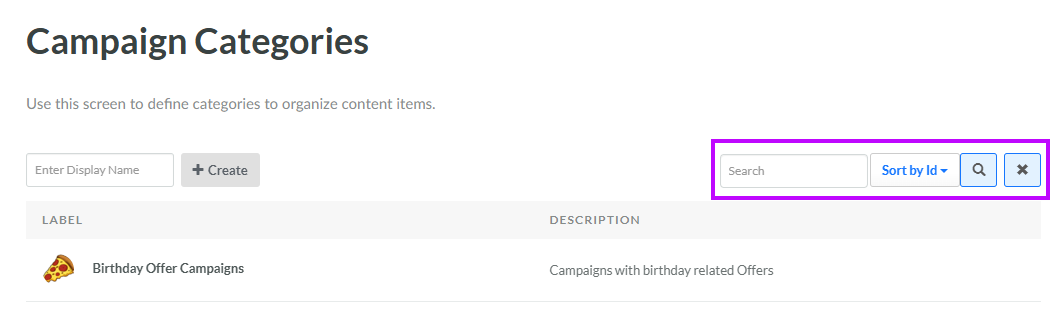
Optionally, enter a search string in the Search field. You can search for Offer Campaign Categories based on their Display Name or Internal Name. Click the Search icon. The screen is refreshed to show only the Offer Campaign Categories that meet your search criteria.
-
To sort the search results, select the desired sort order from the Sort By drop-down menu. The default sort order is by: Category ID.
-
Click the name of the desired Offer Campaign Category. The Edit Offer Campaign Category pop-up window is displayed.
-
Optionally, make any changes to the Offer Campaign Category properties. For more information on these properties, see Create an Offer Campaign Category.
-
Click Save.
