
Search for a Device
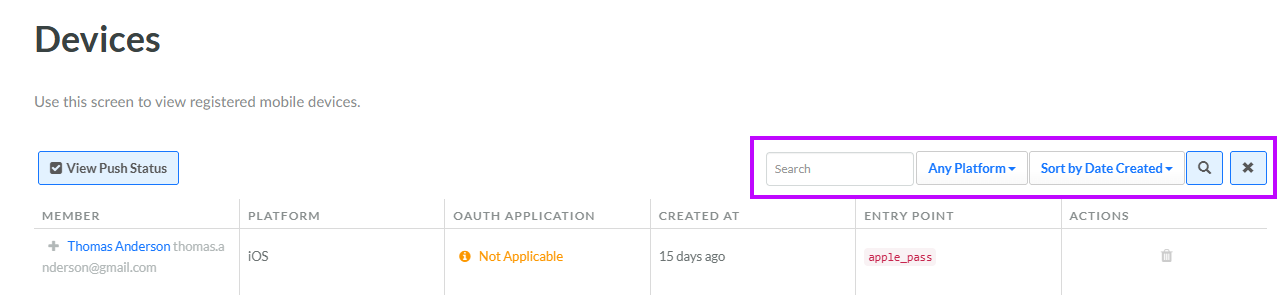
The search feature on the Devices screen allows you to search for a specified text string anywhere within the Member's name or email address, the Device ID, or the device platform. You can also filter the Devices that appear on the screen based on their platform.
To search for a Device:
-
Select Admin from the top navigation bar, then select Access > Devices from the side navigation menu. The Devices screen is displayed.
-
Optionally, in the Search field, enter the desired text string.
-
Optionally, from the Platform drop-down menu, select a Platform: Android or iOS. The default is Any Platform.
-
Click the Search icon. The screen is refreshed to show only the Devices that meet your search criteria. If you entered multiple search criteria, the Device must meet ALL criteria.
-
To sort the search results, select the desired sort order from the Sort By drop-down menu. The default sort order is by: Date Created.
-
Optionally, to remove all search criteria and revert to the default criteria, click the Clear icon.
For each Device registered in the platform, the Devices screen shows the following information:
-
Member. The full name and email address of the member who owns the Device. You can click the Member's name to view the Member Details screen. You can also click the Expand icon next to the Member's name to see additional details, including the unique identifier for the device, or the unique identifier for the Wallet Pass.
-
Platform. The device platform.
-
OAuth Application: The OAuth application used (if applicable).
-
Created At: When the device became known to the Loyalty platform, such as "7 months ago." You can hover your mouse cursor over this value to see a tooltip with the exact date and time.
-
Entry Point: How the device was registered, such as "apple_pass" if the Member installed the Apple Wallet Pass.
