
Member Details Tab Overview - Redemptions
Rewards are used in the platform as a way of encouraging your Members to participate in your loyalty program. The platform supports a range of Reward types, which your Members can earn, typically by redeeming a certain number of Metrics, or by completing specific achievements or goals.
The Redemptions tab of the Member Details screen displays information about all the Redemptions associated with the currently selected Member.
Note: Rewards that were granted for free to the Member as an Award are displayed on the Awards tab.
To search for a Redemption on the Member Details screen:
-
Select Members from the top navigation bar, then select Members > Members from the side navigation menu. The Members screen is displayed.
-
On the Members screen, search for and select the desired Member (see Search for a Member for more information). The Member Details screen is displayed with the Metrics tab selected by default.
-
Select the Redemptions tab.
-
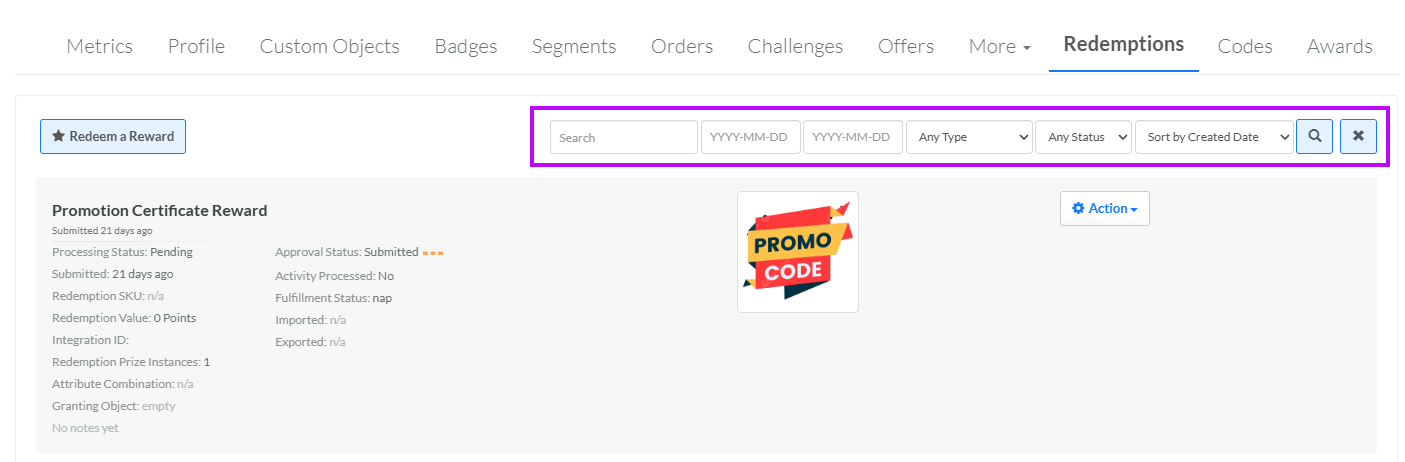
Optionally, in the Search field, enter the desired text string.
-
Optionally, use the two date fields to define a range for "created date."
-
Optionally, from the Type drop-down menu, select a Reward type. The default is Any Type.
-
Optionally, from the Status drop-down menu, select a Redemption status. The default is Any Status.
-
Click the Search icon. The screen is refreshed to show only the Redemptions that meet your search criteria. If you entered multiple search criteria, the Redemption must meet ALL criteria.
-
To sort the search results, select the desired sort order from the Sort By drop-down menu. The default sort order is by: Date Created.
-
Optionally, to remove all search criteria and revert to the default criteria, click the Clear icon.
For additional information about a specific Redemption, click the Reward's name to navigate to the Redemption Details screen. See View Redemption Details for more information.
From this tab, you can manually post a Redemption to a News Feed. For details on this process, see Post a Redemption to a News Feed.
From this tab, you can also manually redeem a Reward for this Member. For details on this process, see Redeem a Reward.
From this tab, you can also change the status of a Redemption. For details on this process, see Change Redemption Status.
From this tab, you can also delete a Redemption. For details on this process, see Delete a Redemption.
From this tab, you can also email a Redemption notification to a Member. For details on this process, see Notify Member of a Redemption.
If you use the optional Redemption approval workflow, you can review a Redemption, and either approve it or reject it. For details on this process, see Approve or Reject a Redemption.
If you use the optional Redemption fulfillment workflow, you can change a Redemption's fulfillment status. For details on this process, see Change Fulfillment Status.
For Certificate-type Rewards, the platform lets you reissue a new Reward Certificate Code to the Member who redeemed the Reward. For details on this process, see Reissue a Reward Certificate Code.
