
Member Details Tab Overview - Offers
Offers are designed to let you present promotions, discounts, special deals, and advertisements to your Members. The platform supports several different actions that can occur as a result of the Offer, such as providing a single-use certificate code, redirecting the Member to a website, displaying a barcode, or granting a discount on a purchase.
When a Member claims an Offer, or when an Offer is automatically assigned to a Member (such as via a Triggered Action or a Reward), the platform creates a new asset called an Offer Response, which is linked to that Member’s Profile. The Offer Response is used to indicate to the Point of Sale system that the Member has an Offer they can use in their purchase. The Offer Response contains the details and metadata of the Offer, its current status, and expiration (if it has one).
The Offers tab of the Member Details screen displays information about all the Offer Responses associated with the currently selected Member.
To search for an Offer Response on the Member Details screen:
-
Select Members from the top navigation bar, then select Members > Members from the side navigation menu. The Members screen is displayed.
-
On the Members screen, search for and select the desired Member (see Search for a Member for more information). The Member Details screen is displayed with the Metrics tab selected by default.
-
Select the Offers tab.
-
Optionally, in the Search field, enter the desired text string.
-
Optionally, use the two date fields to define a range for "created date."
-
Optionally, from the Status drop-down menu, select an Offer Response status. The default is Any Status.
-
Click the Search icon. The screen is refreshed to show only the Offer Responses that meet your search criteria. If you entered multiple search criteria, the Offer Response must meet ALL criteria.
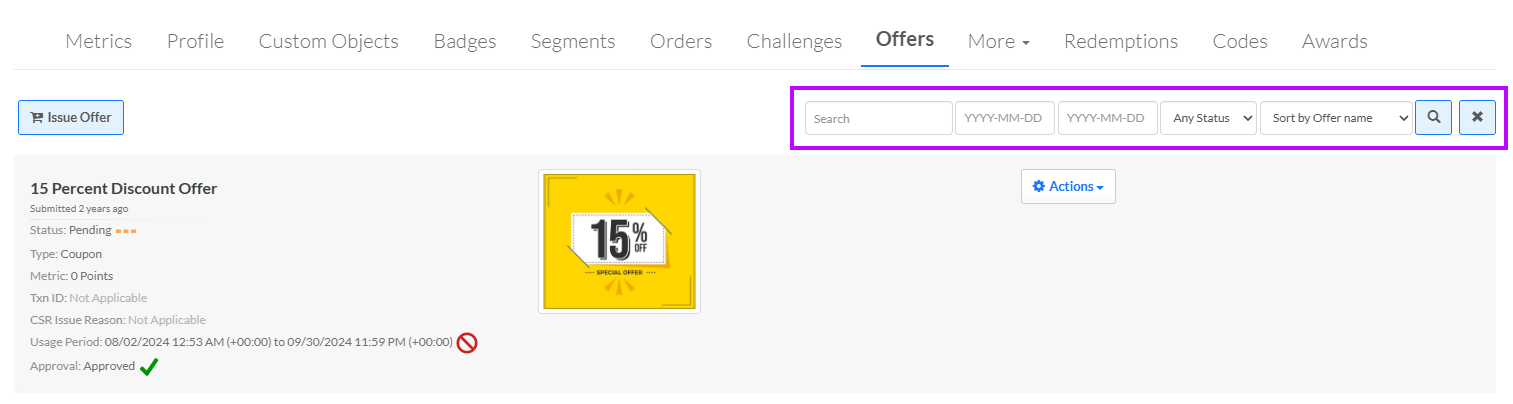
-
To sort the search results, select the desired sort order from the Sort By drop-down menu. The default sort order is by: Date Created.
-
Optionally, to remove all search criteria and revert to the default criteria, click the Clear icon.
For additional information about a specific Offer, click the Offer's name to navigate to the Offer Details screen. See View an Offer for more information.
From this tab, you can manually post an Offer Response to a News Feed. For details on this process, see Post an Offer Response to a News Feed.
From this tab, you can also manually issue an Offer to this Member. For details on this process, see Issue an Offer.
From this tab, you can also change the status of an Offer. For details on this process, see Change Offer Response Status.
