
Member Details Tab Overview - Documents
The Documents tab of the Member Details screen allows you to add documents and other files to a Member Profile.
To search for a Document on the Member Details screen:
-
Select Members from the top navigation bar, then select Members > Members from the side navigation menu. The Members screen is displayed.
-
On the Members screen, search for and select the desired Member (see Search for a Member for more information). The Member Details screen is displayed with the Metrics tab selected by default.
-
Select the Documents tab.
-
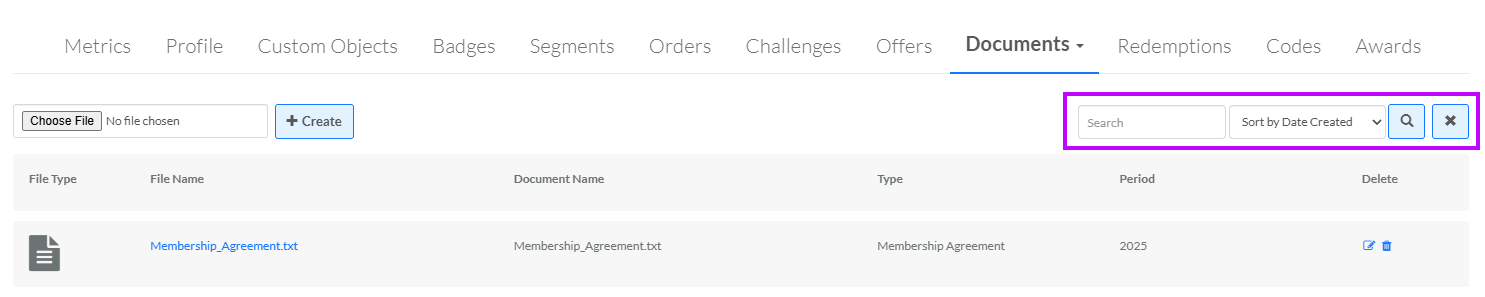
Optionally, in the Search field, enter the desired text string.
-
Click the Search icon. The screen is refreshed to show only the Documents that meet your search criteria. If you entered multiple search criteria, the Document must meet ALL criteria.
-
To sort the search results, select the desired sort order from the Sort By drop-down menu. The default sort order is by: Created Date.
-
Optionally, to remove all search criteria and revert to the default criteria, click the Clear icon.
From this tab, you can upload a new Document. For details on this process, see Upload a Document.
From this tab, you can also edit the properties (not the content) of an existing Document. For details on this process, see Edit a Document.
From this tab, you can also download an existing Document. For details on this process, see Download a Document.
From this tab, you can also delete an existing Document. For details on this process, see Delete a Document.
