
Member Details Tab Overview - Challenges
Challenges are intended to entice your Members to engage with your loyalty program by challenging them to perform some action or activity on behalf of your brand, usually in exchange for some reward or benefit. For more information, see Getting Started with Challenges.
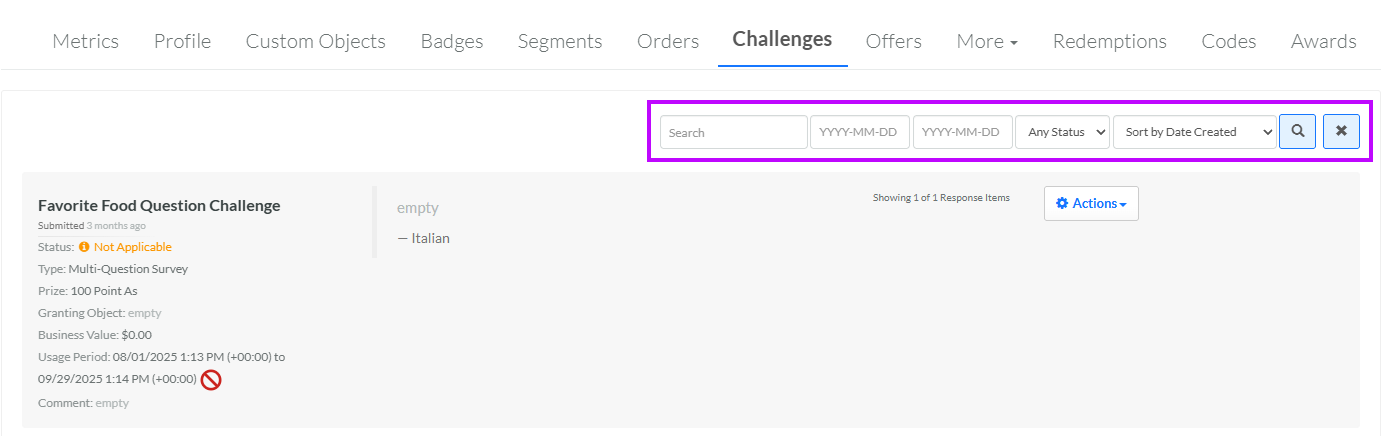
The Challenges tab of the Member Details screen displays all the Challenge Responses that have been created for this Member when they completed a Challenge. From this tab, you can search for a Challenge Response based on the Challenge Display Name or Internal Name. You can also filter the tab to show only Challenge Responses created within a date range, or with a specified status.
To search for a Challenge Response on the Member Details screen:
-
Select Members from the top navigation bar, then select Members > Members from the side navigation menu. The Members screen is displayed.
-
On the Members screen, search for and select the desired Member (see Search for a Member for more information). The Member Details screen is displayed with the Metrics tab selected by default.
-
Select the Challenges tab.
-
Optionally, in the Search field, enter the desired text string.
-
Optionally, use the two date fields to define a range for "created date."
-
Optionally, from the Status drop-down menu, select a Challenge Response status. The default is Any Status.
-
Click the Search icon. The screen is refreshed to show only the Challenge Responses that meet your search criteria. If you entered multiple search criteria, the Challenge Response must meet ALL criteria.
-
To sort the search results, select the desired sort order from the Sort By drop-down menu. The default sort order is by: Date Created.
-
Optionally, to remove all search criteria and revert to the default criteria, click the Clear icon.
From this tab, you can manually post a Challenge Response to a News Feed. For details on this process, see Post a Challenge Response to a News Feed.
From this tab, you can also flag a problematic Challenge Response. For details on this process, see Flag a Challenge Response.
From this tab, you can also manually approve or reject a Challenge Response. For details on this process, see Change Challenge Response Status.
Depending on the Challenge type, from this tab, you can save the Member's Challenge Response to the Gallery. For details on this process, see Post a Challenge Response to the Gallery.
