
Member Details Tab Overview - Awards
An Award refers to a Reward that was granted to a Member for “free,” without the Member having to spend their Metrics to redeem it.
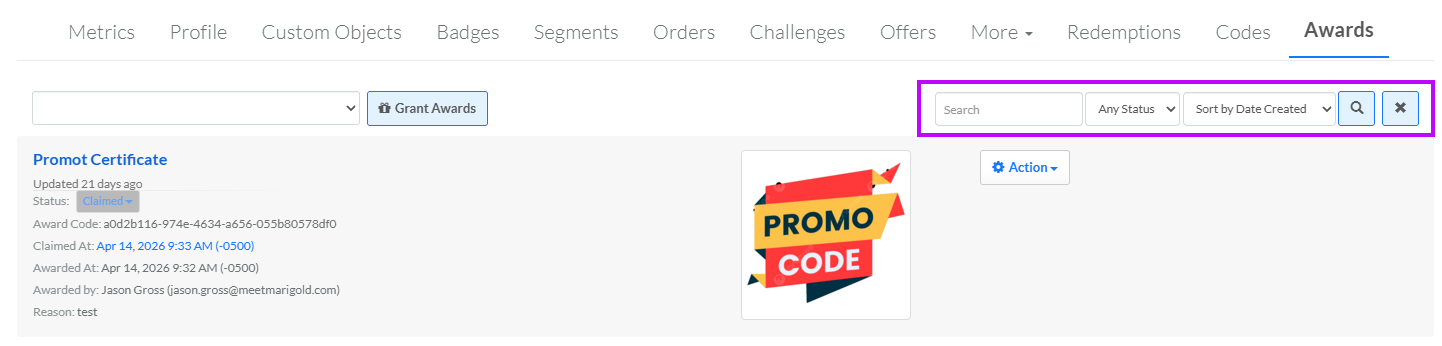
The Awards tab of the Member Details screen displays all the Rewards granted to this Member as an Award. Rewards that a Member earned (or that were manually issued to the Member) are instead displayed on the Redemptions tab.
To search for an Award on the Member Details screen:
-
Select Members from the top navigation bar, then select Members > Members from the side navigation menu. The Members screen is displayed.
-
On the Members screen, search for and select the desired Member (see Search for a Member for more information). The Member Details screen is displayed with the Metrics tab selected by default.
-
Select the Awards tab.
-
Optionally, in the Search field, enter the desired text string.
-
Optionally, from the drop-down menu, select an Award status: Pending, Awarded, Claimed, or Canceled. The default is Any Status.
-
Click the Search icon. The screen is refreshed to show only the Awards that meet your search criteria. If you entered multiple search criteria, the Award must meet ALL criteria.
-
To sort the search results, select the desired sort order from the Sort By drop-down menu. The default sort order is by: Created Date.
-
Optionally, to remove all search criteria and revert to the default criteria, click the Clear icon.
For additional details, click a Reward's name. The Reward Details screen is displayed. See View a Reward for more information.
From this tab, you can grant an Award. For details on this process, see Grant an Award.
From this tab, you can also edit an Award, as long as it hasn't been claimed yet. For details on this process, see Edit an Award.
From this tab, you can also delete an Award. For details on this process, see Delete an Award.
From this tab, you can also change the status of an Award. For details on this process, see Change Award Status.
