
Reset Member Password
Many websites offer a “forgot password” option for Members to recover their password. You can also manually reset a Member's password from the Member Details screen.
To reset a Member's password from the Member Details screen:
-
Select Members from the top navigation bar, then select Members > Members from the side navigation menu. The Members screen is displayed.
-
On the Members screen, search for and select the desired Member (see Search for a Member for more information). The Member Details screen is displayed with the Metrics tab selected by default.
-
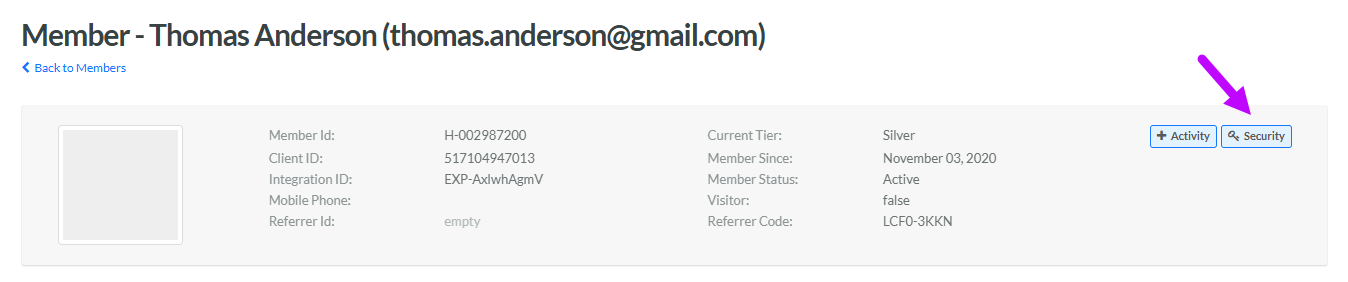
Within the header section of the screen, click Security. The Security pop-up window is displayed with the Password tab selected by default.
-
In the Password field, enter a new password for this Member. Passwords must conform to the following rules:
-
At least 12 characters in length
-
Contain at least one uppercase letter
-
Contain at least one number
-
Contain at least one special character
-
-
In the Password Confirmation field, enter the new password again.
-
Optionally, check Require Change of Password on Next Login to email a temporary password to the Member. The Member will be prompted to enter their own password after entering this temporary password.
-
Optionally, check Auto Generate Password to use a system-generated password instead of entering a password above.
-
Click Save. The platform sends an email to the Member, saying that their password has been changed.
