
Grant an Award
An Award refers to a Reward granted to a Member, without the Member having to deduct any of their Metrics. An Award is essentially a "free" Reward, as opposed to a Redemption, which is a Reward that a Member earns and purchases with the appropriate number of Metrics.
From the Member Details screen, you can grant an Award to the currently selected Member.
The Reward must have a status of Published before you can manually grant it as an Award to a Member. See Publish a Reward for more information.
To grant an Award to a Member from the Member Details screen:
-
Select Members from the top navigation bar, then select Members > Members from the side navigation menu. The Members screen is displayed.
-
On the Members screen, search for and select the desired Member (see Search for a Member for more information). The Member Details screen is displayed with the Metrics tab selected by default.
-
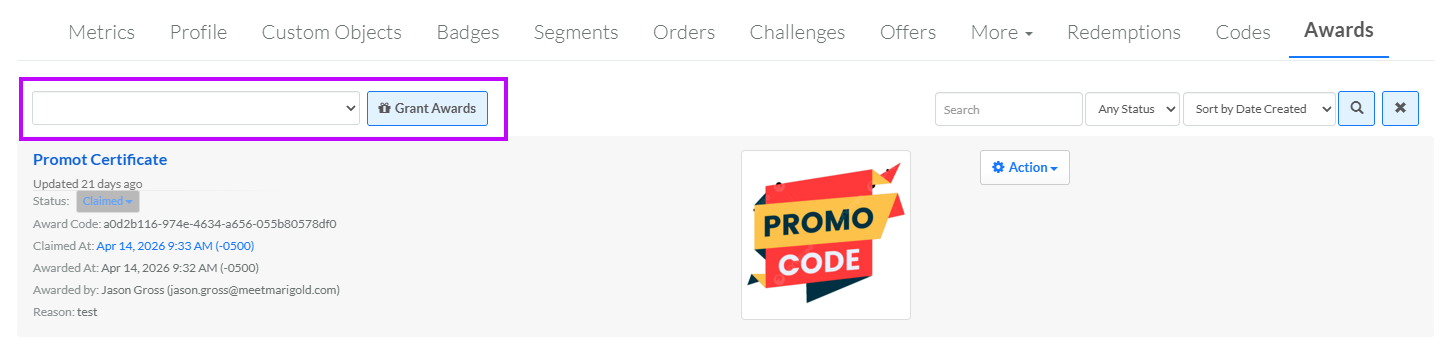
Select the Awards tab.
-
From the drop-down menu, select the Reward that you want to grant as an Award. This menu is populated with all the Published Rewards in your account.
-
Click Grant Awards. The Edit Award pop-up window is displayed.
-
The Reward drop-down menu is populated with the Reward you selected above. Optionally select a different Reward.
-
Optionally, check Auto Claim Upon Award. If checked, the Award will automatically move to a status of Claimed.
-
Optionally, in the Reason text field, enter the reason for granting this Member the Award.
-
Select the desired Effectivity option:
-
Always: The Award is always available and does not expire.
-
Schedule: The Award is available only within a certain date range. Enter the start and end date / times, and select a time zone.
-
-
Click Save.
