
Edit a Document
To edit the properties (not the content) of an existing Document:
-
Select Members from the top navigation bar, then select Members > Members from the side navigation menu. The Members screen is displayed.
-
On the Members screen, search for and select the desired Member (see Search for a Member for more information). The Member Details screen is displayed with the Metrics tab selected by default.
-
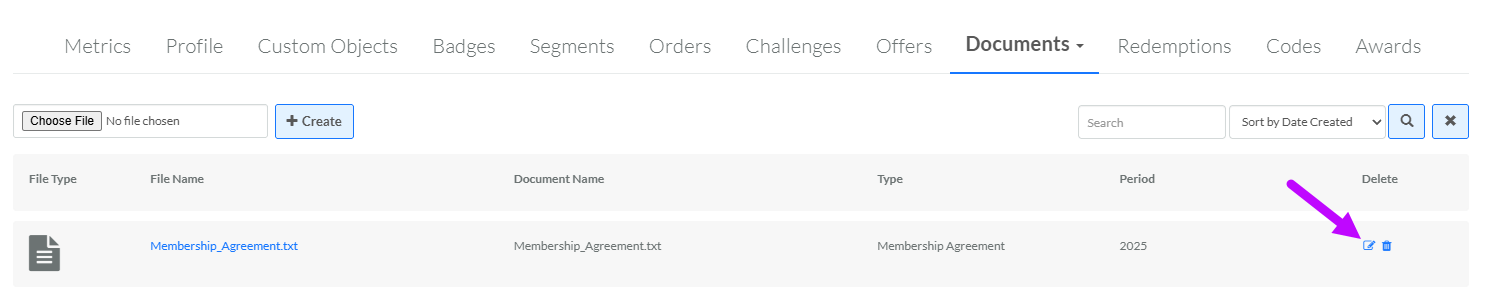
Select the Documents tab.
-
Optionally, search for the desired Document. See Member Details Tab Overview - Documents for more information on the available search options.
-
Next to the desired Document, click the Edit icon. The Edit Member Document pop-up window is displayed.
-
Optionally, edit the Document Name. This field is disabled by default. To edit the Document Name, check Edit Internal Name to make the field editable. A confirmation dialog box is displayed; click OK. The Document Name must be unique and can not include any special characters or spaces; only numbers, letters, and underscores are allowed.
-
Optionally, in the Type field, either select a previously-used Document type, or enter a new Document type.
-
Optionally, in the Period field, either select a previously-used time period, or enter a new time period. For example, if you are uploading an annual membership agreement, enter the year the agreement covers.
-
Click Save.
