
Deactivate or Reactivate a Member Profile
If a Member cancels their membership in your loyalty program, you can deactivate their Profile. Deactivating a Member Profile allows you to make the Profile inactive, but still retain the Profile data and all of its associated Activity history. If a Member later re-enrolls in your loyalty program, you can reactivate their Profile.
Note: You may need to fully delete a Member Profile if, for example, a Member calls and requests that their data be deleted in accordance with data compliance requirements. See Delete a Member Profile for more information on that process.
Deactivate a Member Profile
To deactivate a Member Profile:
-
Select Members from the top navigation bar, then select Members > Members from the side navigation menu. The Members screen is displayed.
-
On the Members screen, search for and select the desired Member (see Search for a Member for more information). The Member Details screen is displayed with the Metrics tab selected by default.
-
Select the Profile tab.
-
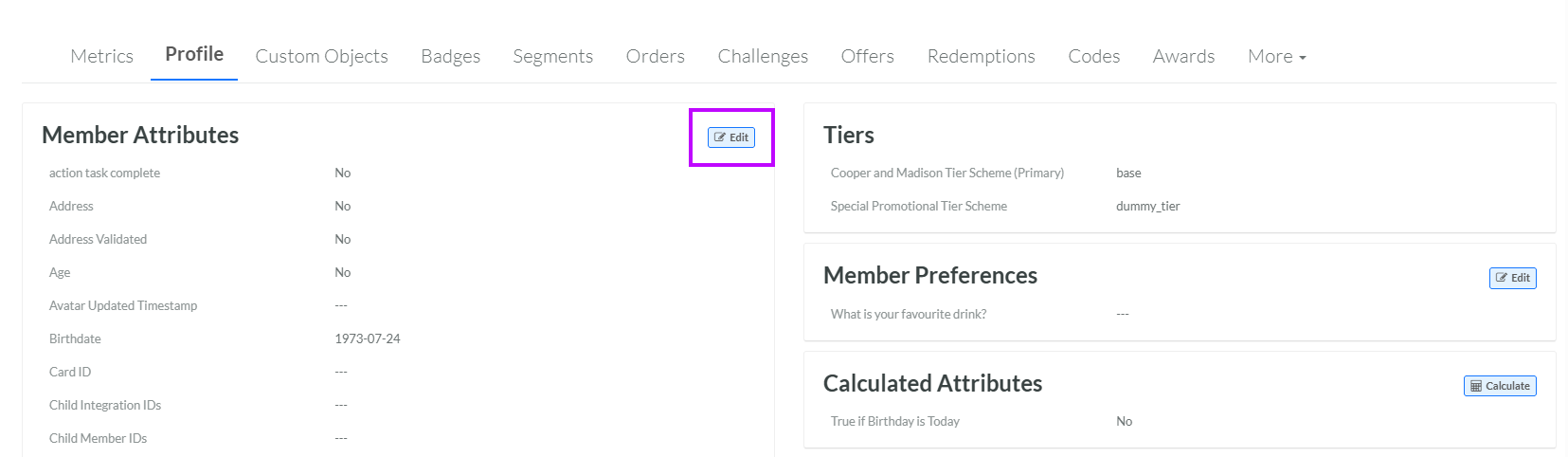
Within the Member Attributes section, click Edit. The Edit Profile pop-up window is displayed.
-
Check Deactivated.
-
Click Save. The platform changes the Member Profile status to Deactivated.
Reactivate a Member Profile
To reactivate a Member Profile:
-
Select Members from the top navigation bar, then select Members > Members from the side navigation menu. The Members screen is displayed.
-
On the Members screen, search for and select the desired Member (see Search for a Member for more information). The Member Details screen is displayed with the Metrics tab selected by default.
-
Select the Profile tab.
-
Within the Member Attributes section, click Edit. The Edit Profile pop-up window is displayed.
-
Uncheck Deactivated.
-
Click Save. The platform changes the Member Profile status to Active.
