
Create a Member Profile
Typically, new Member Profiles are added to your loyalty program by means of integrations with point of sale systems or other platforms. However, you can also manually add a new Member Profile from the Members screen.
Note: The platform also allows you to create Members by importing a file of Member details. Please see Configure a Member Import Definition for more information on this process.
To add a new Member:
-
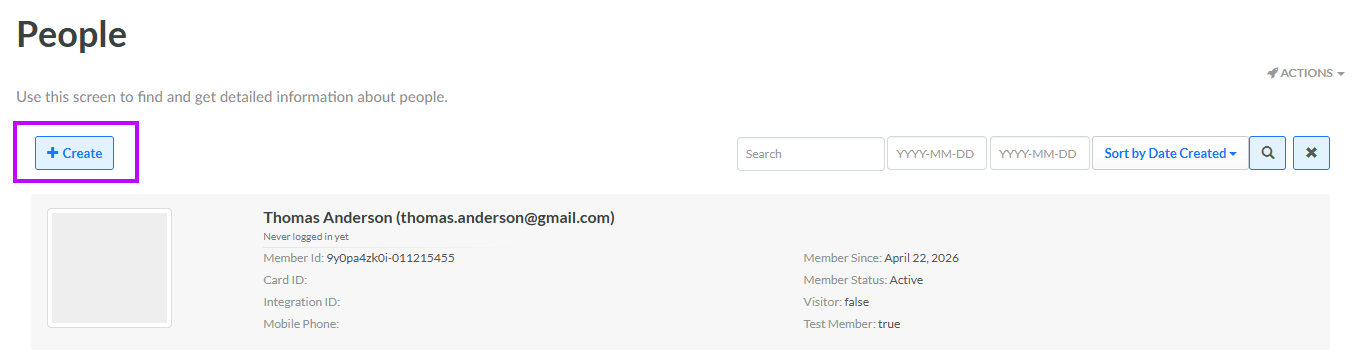
Select Members from the top navigation bar, then select Members > Members from the side navigation menu. The Members screen is displayed.
-
Click Create. The Add Member pop-up window is displayed.
-
In the First Name and Last Name fields, enter the Member’s first name and last name.
-
In the Email field, enter the Member’s email address. Email addresses must conform to the following syntax: USERNAME@SUBDOMAIN.DOMAIN. In addition, email addresses are restricted to the following character types:
-
Username: ($, (), -, _, ., A-Z, a-z, 1-10).
-
Subdomain: (., -, 1-10, a-z, A_Z).
-
Domain: (., a-z, A-Z).
-
-
In the Password field, enter the Member’s loyalty account password. Passwords must conform to the following rules:
-
Password is at least 12 characters in length.
-
Password contains at least one uppercase letter.
-
Password contains at least one number.
-
Password contains at least one special character.
-
-
Optionally, in the Birthdate field, enter the Member's birthday.
-
Optionally, check Test Member. Test Members can be used throughout the platform for testing purposes, such as validating content and personalization on the Content Editor.
-
Click Save.
