
Tab Overview - Codes
The Codes feature in the Loyalty platform lets Members register their product purchases in exchange for a reward, such as Metrics. Codes are typically used as an alternative to receiving a Point of Sale feed from vendors or other POS integrations. For more information, see Getting Started with Codes.
The Codes tab of the Member Profile screen displays a list of Code Entries that this Member has submitted. A Code Entry is the Member-facing value that the Member must submit after purchasing a product to gain the associated prize.
Note: To instead view the Code Responses for all Members for only a single Code, see the Responses tab of the Code Details screen (see View Code Responses for more information). Or, to see the Code Responses for all Members across all Codes, see the Code Responses screen (see Getting Started with Code Responses for more information).
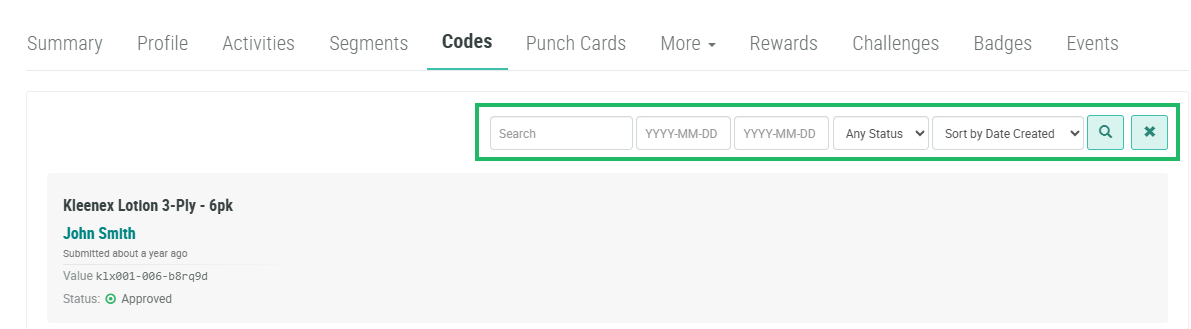
The search feature on the Codes tab allows you to search for a specified text string anywhere within the Code Name and Label fields. You can also filter the Codes tab to show only the Codes that were created within a specified date range, or that have a specified status.
To search for a Code Entry:
-
Select Members from the top navigation bar, then select CSR > People from the side navigation menu. The People screen is displayed.
-
On the People screen, search for and select the desired Member (see
-
Select the Codes tab.
-
Optionally, in the Search field, enter the desired text string.
-
Optionally, using the two date fields, define a date range by entering a start date and an end date. The platform will filter the search results to show only Product Codes that were created within this date range.
-
Optionally, from the Status drop-down menu, select a status value: Approved, Submitted, or Rejected. The default is Any Status.
-
Click the Search icon. The screen is refreshed to show only the Code Entries that meet your search criteria. If you entered multiple search criteria, the Code Entry must meet ALL criteria.
-
To sort the search results, select the desired sort order from the Sort By drop-down menu. The default sort order is by: Created Date.
-
Optionally, to remove all search criteria and revert to the default criteria, click the Clear icon.
Within the search results, click the Code's name to navigate to the Code Details screen. See View a Code for more information.
